
Laptops & Tech: Make Your Laptop Work Like a Real Workstation
Docks, second monitors, one desk for your work laptop and personal computer, and quick fixes for WiFi, webcams and calls. Plus help choosing a laptop if you need a new one.
What will I find here? Docks, second monitors, one desk for a work laptop and a personal computer, video call and WiFi setup, and quick fixes for the problems that interrupt a working day. There is also help choosing a laptop if you need a new one.
Most asked
How to connect two monitors to a laptop
The right method depends on your laptop’s ports. Check the port first, then pick the matching option.
1. Laptop has HDMI + USB-C
Plug one monitor into HDMI and one into USB-C (if the port supports display output). No dock needed.
2. One USB-C or Thunderbolt port
Use a dock that supports two displays. One cable then handles both screens, charging and accessories.
3. MacBook users
Some MacBook models support only one external display natively. Check Apple’s specs for your exact model before buying a dock.
Then set both screens to the same height, with the top at or slightly below eye level. Monitor height guide
One desk, two computers
Use your work laptop and personal PC with one keyboard, mouse and monitor
A KVM switch lets you press one button to move your monitor, keyboard and mouse between two computers. It keeps work and personal use separate without a second set of gear.
- Match the ports: HDMI, DisplayPort or USB-C
- Two monitors? Choose a dual-monitor KVM
- Check that your monitor’s resolution and refresh rate are supported
- Ask IT before connecting a work laptop to new hardware
Computer Finder
Need a new laptop? What does your workday look like?
Our starting recommendation
An everyday laptop
Office apps, email, Slack and a browser full of tabs. You do not need a powerful machine, but do not skimp on memory or the webcam.
Memory (RAM)
16 GB recommended, 8 GB minimum
Storage
256 to 512 GB solid-state drive (SSD)
Screen
13 to 15 inch, add an external monitor at your desk
Webcam
1080p if you are on camera daily
Ports
At least one USB-C with charging and display out
A mid-range laptop plus a monitor
Back-to-back Zoom or Teams calls while screen sharing, spreadsheets and many apps open. Memory and a good mic and camera matter most.
Memory (RAM)
16 GB, or 32 GB for heavy multitasking
Storage
512 GB SSD
Screen
14 to 16 inch, plus one or two external monitors
Webcam and mic
1080p camera, or add a separate webcam and headset
Ports
USB-C or Thunderbolt for a one-cable dock
A performance laptop or a desktop
Editing video, design work, software builds or large data sets. Consider a desktop if you never leave your desk.
Memory (RAM)
32 GB or more
Storage
1 TB SSD or more, plus a backup drive
Processor and graphics
A current-generation performance processor and a dedicated graphics card
Screen
Color-accurate external monitor
Cooling
Good airflow for long, heavy sessions
Laptop or desktop: which is better for working from home?
For most remote professionals, a laptop plus a monitor, keyboard and mouse gives you the best of both: a proper desk setup during the day and something you can carry to the couch, a coffee shop or a trip. A desktop makes sense for heavy creative or data work at a fixed desk.
| Feature | Laptop + desk setup | Desktop PC or Mac |
|---|---|---|
| Best for | Hybrid professionals, small apartments, travel | Fixed home office, heavy creative or data work |
| Ergonomics | Needs a stand, keyboard and mouse | Monitor at eye level from day one |
| Power for the price | Lower | Higher |
| Upgrades and repairs | Limited on most models | Easier, especially towers |
| Power outages | Battery keeps you on the call | Needs a uninterruptible power supply (UPS) battery backup |
The specs that actually matter
Memory (RAM)
The biggest factor in how smooth a work laptop feels with many apps and browser tabs open. It is often not upgradable later, so buy enough now.
Storage (SSD)
Always choose an SSD. Get more if you keep large files locally rather than in the cloud.
Webcam and microphone
If you are on calls daily, these matter more than raw speed. A separate webcam and headset fix weak built-in ones.
Ports
USB-C with power delivery and display output lets one cable connect your monitor, charger and accessories through a dock.
Battery and charging
Matters for hybrid work and power outages. Check the charger wattage your dock can supply.
Keyboard and screen
You will use a separate keyboard and monitor at your desk, but test both if you work away from it often.
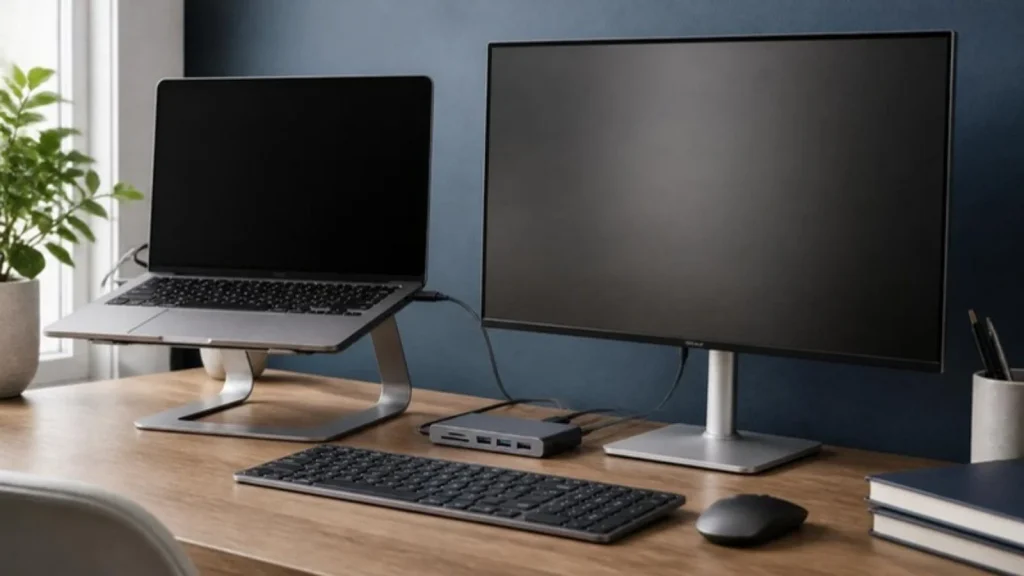
Turn your laptop into a full desk setup
Before you buy a computer in the US
- Ask your employer first. Many companies issue a work laptop, and some do not allow work on personal devices.
- Keep work and personal use separate when you can. A work laptop may be monitored by your employer’s IT team.
- Check the store’s return window and restocking fees before you open the box.
- Manufacturer certified refurbished models with a warranty can save money compared with new.
- Look for the ENERGY STAR label if you leave your computer on all day.
- Plug into a UL-listed surge protector, and consider a UPS battery backup for a desktop.
Laptops & Tech guides
FAQ
Mac or Windows for working from home?
Use whatever your employer supports and your team uses. If you choose yourself, both handle office work and video calls well. Check that the apps you rely on run on it.
Should I buy a laptop or use my employer's?
If your employer provides one, use it for work. It keeps company data separate and IT can support it. Many companies also offer a stipend for accessories.
Is a refurbished laptop safe to buy?
A manufacturer or retailer certified refurbished model with a warranty and a return window can be good value. Avoid sellers who offer no warranty.
Can I deduct a laptop on my taxes?
W-2 employees cannot deduct unreimbursed work equipment on their federal return. self-employed people may be able to deduct business equipment. Check with a tax professional.