
Topic guide · 3 guides
Laptop to Dual Monitor Setup
Connect two monitors to a laptop, choose a dock, and set both screens at the right height.

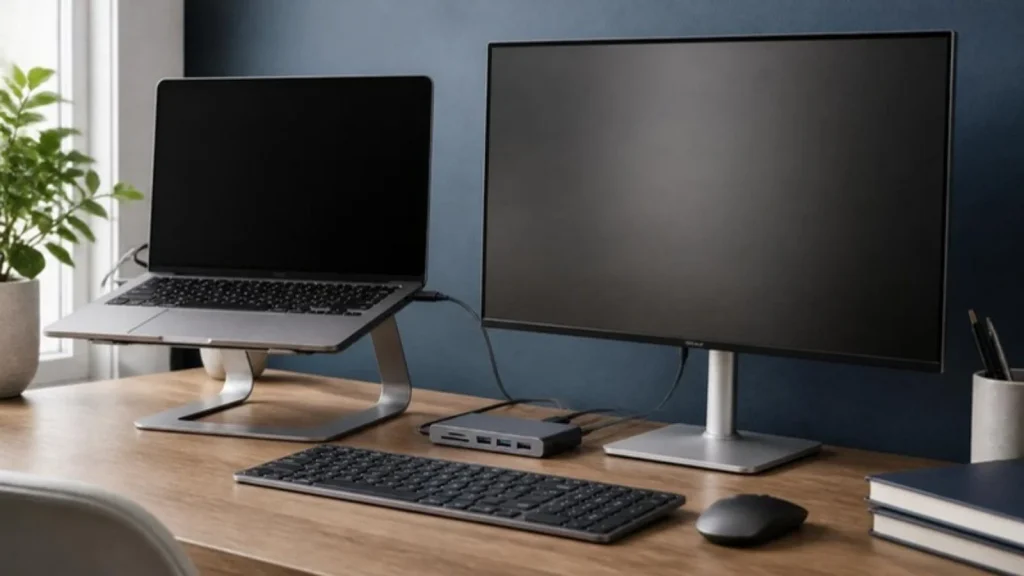
Ports decide the method
If the laptop has HDMI and a USB-C port with display output, plug one monitor into each. If it has only USB-C or Thunderbolt, use a dock that supports two displays: one cable then carries both screens, charging and accessories.
Choosing a dock
Look for the number of displays supported, the resolution and refresh rate at that number, and the charging wattage your laptop needs. Thunderbolt docks support more; USB-C docks are cheaper and fine for two 1080p or 1440p screens.
Set both screens right
Put the screen you use most straight ahead and the second beside it, angled slightly toward you. Keep the tops at the same height, at or slightly below eye level, 20 to 40 inches away. A dual arm makes this easy. Use the Monitor Size and pixels per inch (PPI) Calculator to check the desk width you need.
How do I connect two monitors to a laptop?
Check the laptop’s ports first: HDMI plus a USB-C port with display output, or one USB-C or Thunderbolt port and a dock that supports two displays. Then set both screens with the top edge at eye level, the main screen straight ahead and the second beside it.
All guides in this topic
Related tools and guides
Get the Home Office Setup Checklist
Every step and measurement on one printable page.
FAQ
Why does my second monitor show nothing?
Check both ends of the cable, try another port, press Windows + P (or Displays on Mac) and choose Extend, and confirm the dock supports two screens.
Do I need a Thunderbolt dock?
Only for high resolutions, high refresh rates or more than two screens. For two office monitors a USB-C dock usually works.
Can a MacBook run two external monitors?
Depends on the chip and model. Check Apple’s technical specifications for your exact model before buying a dock.
Sources
- the Occupational Safety and Health Administration (OSHA), Computer Workstations eTool: Monitors
- Apple, technical specifications pages (external display support by model)
This guide is general information, not medical advice.