Tech Fixes: quick help for home office tech problems
Slow WiFi, echo on calls, a dark webcam? Pick the problem and get the fixes in the order most likely to work.
What will I find here? The home office tech problems we hear about most, with the fixes in the order to try them: slow or dropping WiFi, echo and freezing on calls, a dark or blurry webcam and a monitor that is not detected. Each fix links to the free tool that tests it.
What is going wrong?
Fixes to try, in order
Slow or dropping WiFi
- Run a speed test where you sit, then next to the router. Compare upload speed with the the Federal Communications Commission (FCC) broadband benchmark of 100 Mbps down and 20 Mbps up.
- Check your plan. If your provider plan is below what your household uses at 9 am, the fix is the plan, not the router.
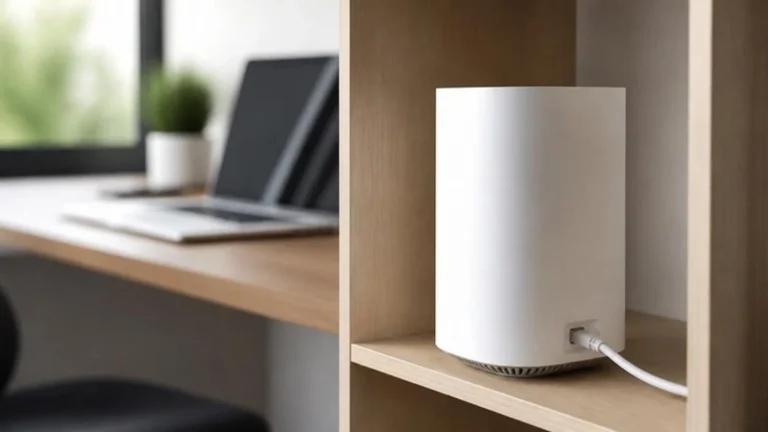
- Move the router higher and away from walls, mirrors and the microwave, and switch your laptop to the 5 GHz band.
- Use a wired Ethernet cable or a mesh point for your desk, then retest.
Video freezes on Zoom or Teams
- Check upload speed. Zoom lists about 3.0 Mbps up and 2.5 Mbps down for 1080p group calls.
- Pause big uploads like cloud backups and game updates during calls.
- Plug in with Ethernet, or sit in the same room as the router or mesh point.
- Drop to 720p video if your upload stays low.
Noisy apartment, roommates or kids
- Use a headset with a noise-cancelling microphone, so others hear you, not the room.
- Turn on background noise suppression in Zoom or Teams.
- Agree on quiet hours for calls with your household and post your call schedule.
- Add soft surfaces: a rug, curtains or a bookshelf behind you cut echo.
Echo or bad audio on calls
- Wear a headset instead of using laptop speakers.
- Select the right microphone in your call app settings.
- Turn on noise suppression in Zoom or Teams.
- Soften the room with a rug or curtains.
Webcam looks dark or grainy
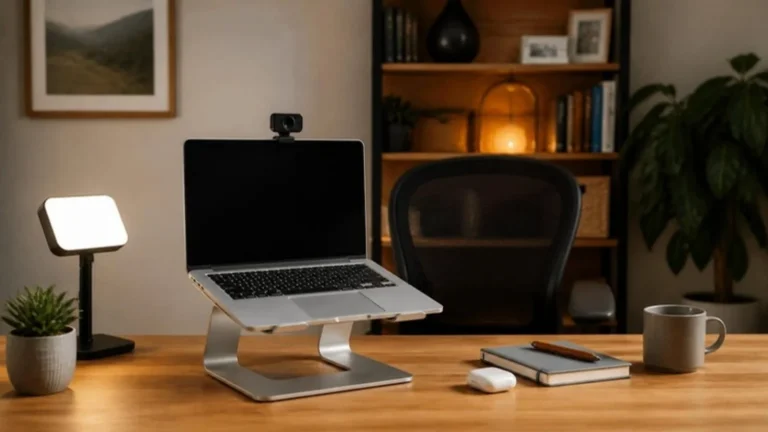
- Face a window or a lamp, never sit with the light behind you.
- Add a small key light just above the camera.
- Clean the lens and update the camera driver.
- Lower exposure in the camera app if the image looks washed out.
Second monitor not detected
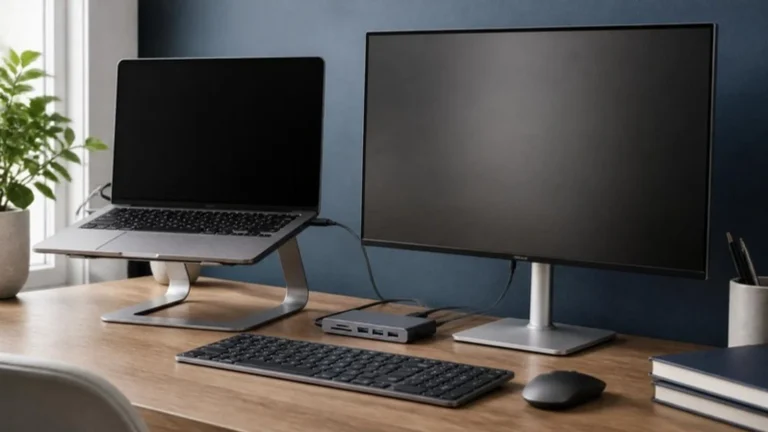
- Check both ends of the cable and try a different port.
- Press Windows + P (or check Displays on Mac) and choose Extend.
- Make sure your dock or adapter supports two screens.
- Update the graphics driver.
Laptop running hot and slow
- Lift the back of the laptop on a stand for airflow.
- Close browser tabs and apps you are not using.
- Clean dust from the vents.
- Check for heavy startup apps and turn them off.
Desk feels cluttered
- Clear everything off and put back only what you use daily.
- Run cables into an under-desk tray.
- Add one shelf or monitor riser for storage.
- Do a 2-minute reset at the end of each day.
100/20 Mbps
FCC home broadband benchmark (down/up)
Source: FCC, March 2024
3.0 Mbps up
For a 1080p Zoom group call
Source: Zoom system requirements