
Starting your first remote job? Just moved from a shared office to a fully remote role? Heading off to college where you’ll spend more time on video calls than in classrooms? You’re in the exact spot millions of Americans found themselves in throughout 2026, staring at an empty corner of a bedroom, wondering what to buy first.
Here’s the honest truth: most home office guides online are written for people who already have a home office. They assume you know the difference between an ergonomic chair and a gaming chair, that you already own a monitor, and that you understand why cable management matters.
This guide is different. This is the complete, step-by-step guide on how to set up your first home office, from an empty room to a fully functional workspace in a single weekend. No jargon. No assumptions. No sponsored product placements. Just the honest playbook we wish someone had handed us on day one.
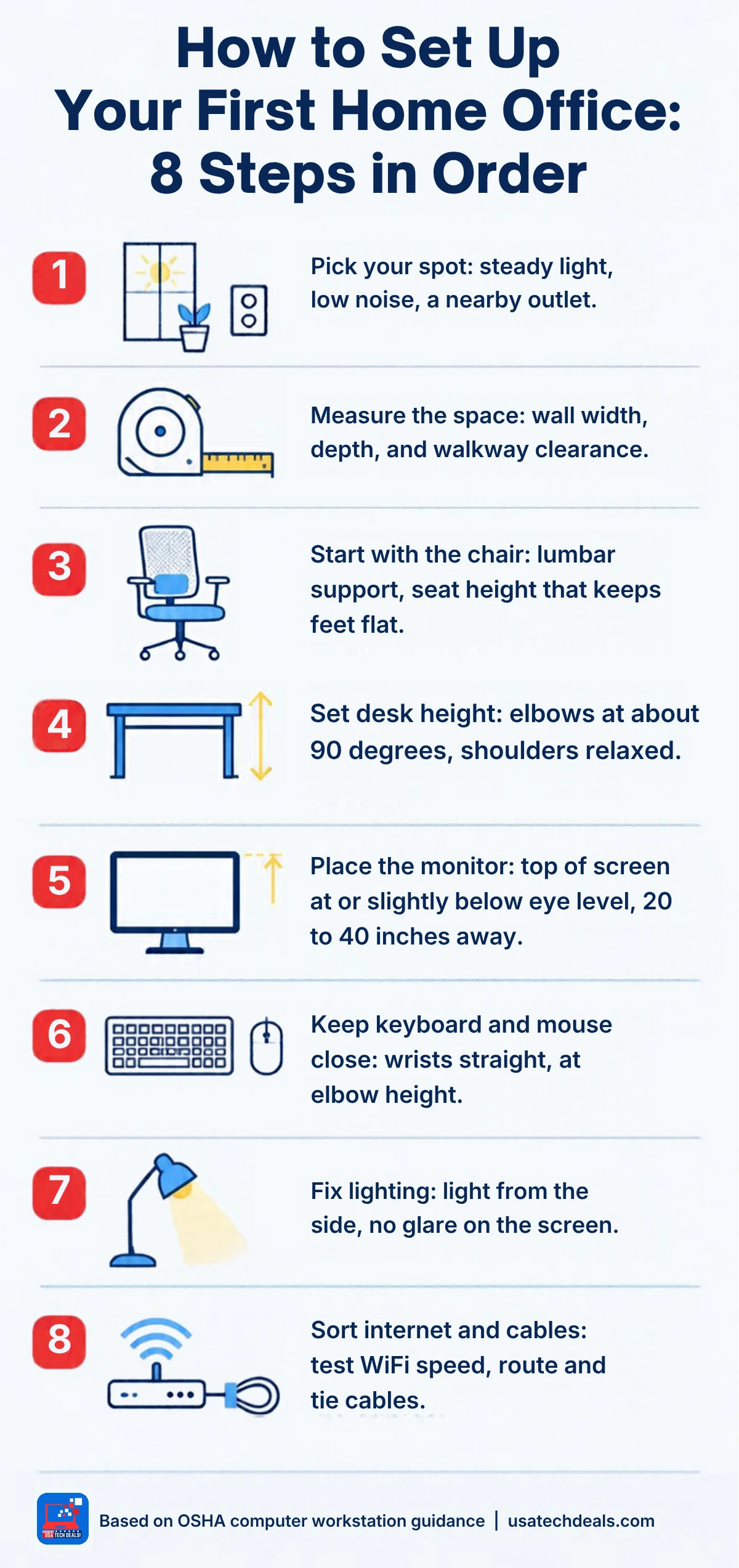
Part of Home Office Setup: The Complete GuideThe 8 steps, in order
By the end of this guide, you’ll know exactly what to buy, what to skip, how to arrange it, and how to make your first home office both comfortable and Zoom-ready, all for anywhere between $500 and $2,000 depending on your budget.
Let’s build your first home office.
What Is a “First Home Office Setup” and Why It Matters in 2026
A first home office setup is a workspace built from scratch, usually by someone starting their first remote job, transitioning from a corporate office, or moving to hybrid work. Unlike upgrade setups (where you’re just replacing one item), a first setup requires you to make every single decision at once: room, desk, chair, monitor, laptop, lighting, accessories.
The stakes matter more than you’d think. According to a 2026 Bureau of Labor Statistics report, 35% of American professionals now spend at least three days a week working from home. And a Cornell University ergonomics study found that professionals with a properly set up home office are 25–30% more productive than those working from a dining table or couch, and report significantly less back and neck pain over 12 months.
If you’re going to spend 40 hours a week in this space, the difference between “figured it out on the fly” and “set up properly the first time” is thousands of dollars in medical bills, hundreds of hours in lost productivity, and a real hit to how you show up on video calls.
The good news? Setting up your first home office properly isn’t complicated. It just requires knowing what to prioritize.
Home Office Essentials Checklist: The 12 Things Every First-Time Remote Professional Needs
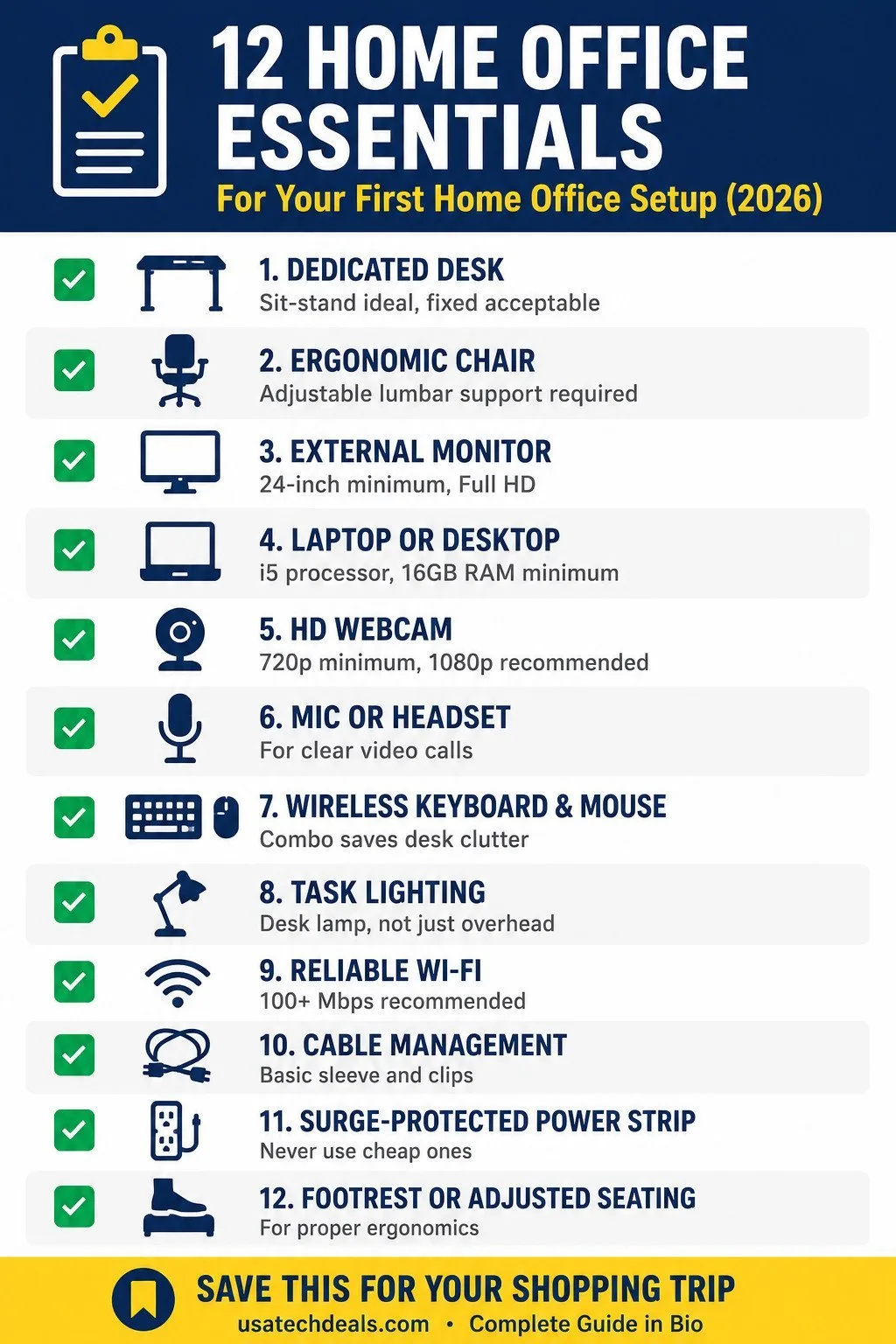
Before you spend a dollar, print or save this checklist. This is the minimum viable first home office in 2026:
- A dedicated desk (sit-stand ideal, fixed acceptable)
- An ergonomic chair with lumbar support
- An external monitor (24-inch minimum)
- A laptop or desktop with modern specs
- A webcam (720p minimum, 1080p recommended)
- A microphone or headset for calls
- A wireless keyboard and mouse
- Proper task lighting (desk lamp, not just overhead)
- Reliable Wi-Fi (100+ Mbps recommended)
- Cable management (basic sleeve + clips)
- A power strip with surge protection
- A comfortable footrest OR height-adjusted seating
That’s it. Twelve items. Everything else, plants, artwork, second monitor, standing desk mat, ring light, is optional and can be added later.
Download our printable first home office checklist, a one-page PDF you can take to Amazon or Best Buy.
How to Set Up Your First Home Office Step by Step (The Weekend Plan)
Here’s a proven weekend schedule for building your first home office from scratch. This assumes you’ve already researched and ordered your products (or plan to pick them up locally).
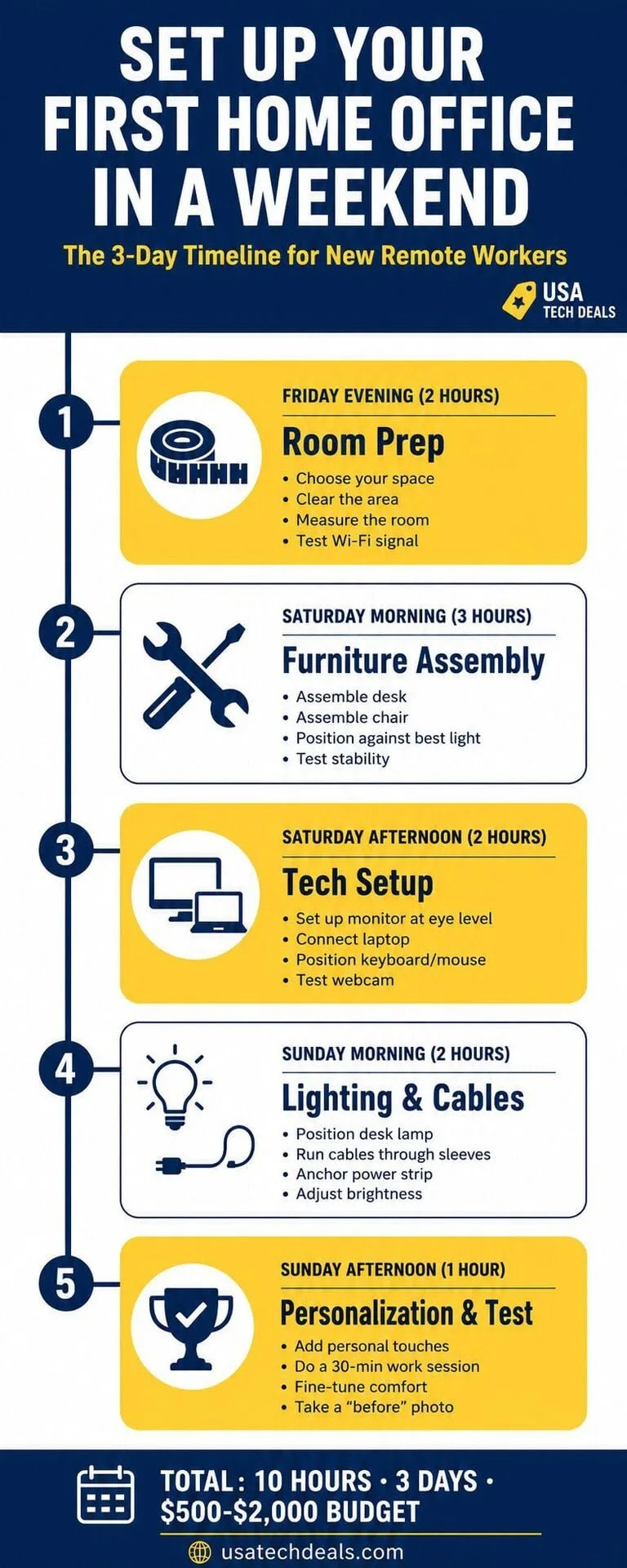
Friday Evening (2 hours), Room Prep
- Choose your space (see below for small-space options)
- Clear the area completely
- Measure the room and mark where the desk, chair, and outlets are
- Test the Wi-Fi signal strength in this exact corner (aim for 5+ bars)
- Order any last items with 1-day shipping
Saturday Morning (3 hours), Furniture Assembly
- Unpack the desk and follow assembly instructions carefully
- Assemble the chair (usually 20–30 minutes)
- Position the desk against the wall with the best natural light
- Test desk stability, no wobble should be tolerated
Saturday Afternoon (2 hours), Tech Setup
- Set up the monitor at eye level (top of screen at your natural gaze)
- Connect the laptop and test the display
- Position the keyboard and mouse
- Install and test the webcam and microphone
- Do a test Zoom call with a friend
Sunday Morning (2 hours), Lighting & Cables
- Position your desk lamp on the opposite side of your dominant hand
- Run all cables through cable management sleeves
- Anchor the power strip to the underside of the desk
- Adjust monitor brightness and blue light settings
Sunday Afternoon (1 hour), Personalization & Testing
- Add personal touches (plant, photo, notebook, mug rest)
- Do a full 30-minute work session and note anything uncomfortable
- Adjust chair height, monitor angle, and lighting based on comfort
- Take a “before starting” photo, you’ll appreciate it in six months
Total time: 10 hours across three days. Your first home office is now ready.
For a deeper walkthrough of assembly and testing, see our detailed home office tech setup guide.
Get Weekly Tech Deals for Your Home Office
Join thousands of US remote professionals getting hand-picked Amazon deals, honest product reviews, and back-to-school 2026 home office guides, delivered every Wednesday. No spam. Unsubscribe anytime.
We respect your inbox. Read our privacy policy.
Choosing Your First Home Office Desk (Standing, Sit-Stand & Fixed)
The desk is the load-bearing item of your entire home office. Buy right the first time or you’ll replace it within a year.
Three desk types for beginners:
- Fixed height desk ($100–$250): Simplest, cheapest, most stable. Choose this if you sit for less than 6 hours a day or if budget is tight. Look for a 55-inch wide surface with steel legs.
- Manual sit-stand desk ($150–$300): Cranks up and down with a hand lever. Good middle ground for beginners who want the option to stand but don’t want to spend $500+.
- Electric sit-stand desk ($200–$400): The 2026 standard for serious remote work. Dual-motor models rise smoothly, support 150+ lbs, and have preset height memory. This is what we recommend for most first-time setups.
Minimum specs to look for:
- Width: 48 inches minimum, 55 inches ideal
- Depth: 24 inches minimum (fits a monitor + keyboard + notebook)
- Weight capacity: 150+ lbs if going electric
- Stability: no wobble at full extension
For specific product picks in this price range, see our best standing desks under $400 for 2026 review.
Is a standing desk worth it for a first setup?
For most first-time remote professionals, yes, but not for the reasons you might think. Standing desks don’t directly cause weight loss or “fix” back pain. What they do is give you the ability to change positions throughout the day, which reduces pressure on your lower spine and improves circulation. A 2024 Mayo Clinic study found that professionals who alternated between sitting and standing every 30–45 minutes reported 32% less lower back pain over six months.
If your budget is tight, a fixed desk plus a good chair is fine. If you can stretch to $200, get the electric sit-stand. Full breakdown in our is a standing desk worth it analysis.
Your First Ergonomic Chair: What to Buy and What to Skip
If you get ONE thing right in your first home office setup, make it the chair. You’ll sit in it for 2,000+ hours a year.
What to look for in a first ergonomic chair:
- Lumbar support, adjustable, not fixed
- Adjustable armrests, 4-way (up/down, in/out)
- Recline, at least 110 degrees, ideally 120
- Seat depth adjustment, critical if you’re under 5’6″ or over 6’0″
- Breathable mesh back, prevents sweat buildup during long calls
- Weight capacity, at least 275 lbs for durability
What to skip:
- Gaming chairs (padded but not ergonomic for 8-hour workdays)
- Herman Miller Aeron (unless you have $1,400 to spend)
- Cheap “office chairs” under $80 (they break in months)
The sweet spot for beginners is $115–$200. At this price you get real ergonomic features without paying for brand markup. Check our full review of the best office chairs for long hours under $200 for specific picks.
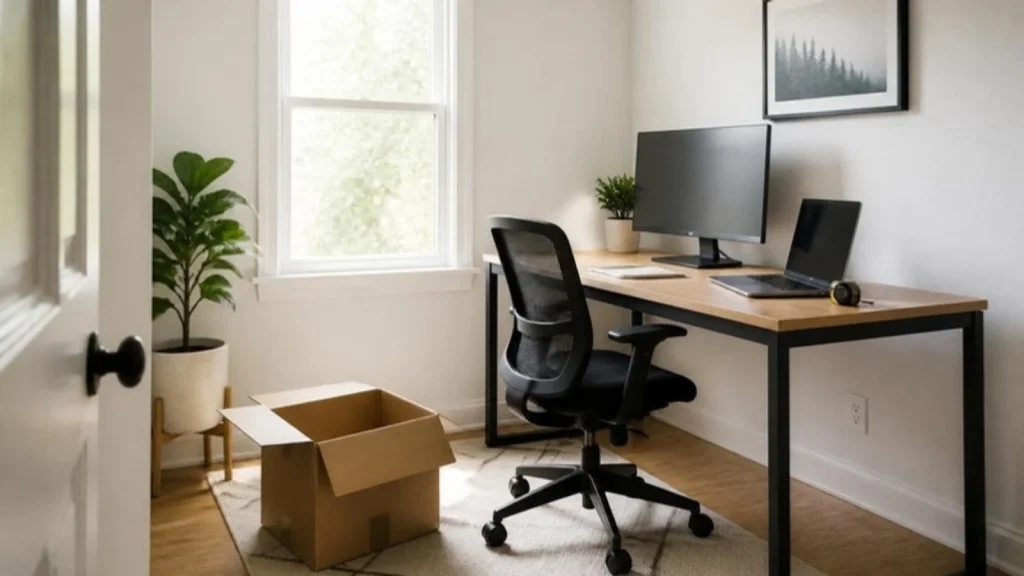
What to look for in a chair under $200
At the $115–$200 price point, prioritize these three features in order:
- Adjustable lumbar support (non-negotiable, fixed lumbar rarely fits your back)
- Real weight capacity (275+ lbs means better materials, not that you weigh that much)
- Warranty length (3+ years suggests the manufacturer trusts their product)
If you already deal with back pain from your previous work setup, see our specific guide to the best office chairs for back pain under $200. If you’re on the tightest budget, our 9 best budget office chairs under $200 breakdown covers the sub-$150 tier too.
Your First Monitor Setup (Single vs Dual for Beginners)
Your laptop screen is not enough. Period. Every serious remote professional uses at least one external monitor.
For your first home office, you have two paths:
Path 1, Single 24-inch monitor ($80–$150). This is the right choice for 90% of first-time remote professionals. A single 24-inch Full HD (1920×1080) monitor gives you all the screen real estate you need for email, docs, video calls, and browser tabs. Anything larger for a first setup is overkill and creates neck strain from turning your head.
Path 2, Single 27-inch monitor ($150–$250). Choose this if you work in design, data analysis, coding, or trading, anything where you need to see multiple windows side-by-side.
Do NOT buy dual monitors as a first-timer. They cost more, take more desk space, require additional adapters, and studies show they actually reduce focus for most knowledge professionals. Add a second monitor 6 months in if you find you need it.
For specific picks, see our best budget monitors under $150 for 2026 or best portable monitors for laptops if you also travel or work hybrid. Gamers who work from home can double-dip with our best budget gaming monitors picks that work great for home office use too.
Minimum specs for a first monitor:
- 24 inches minimum (27 ideal)
- 1920×1080 resolution (Full HD)
- 60Hz refresh rate is fine (144Hz not needed for office work)
- IPS panel (better colors than TN)
- HDMI + DisplayPort inputs
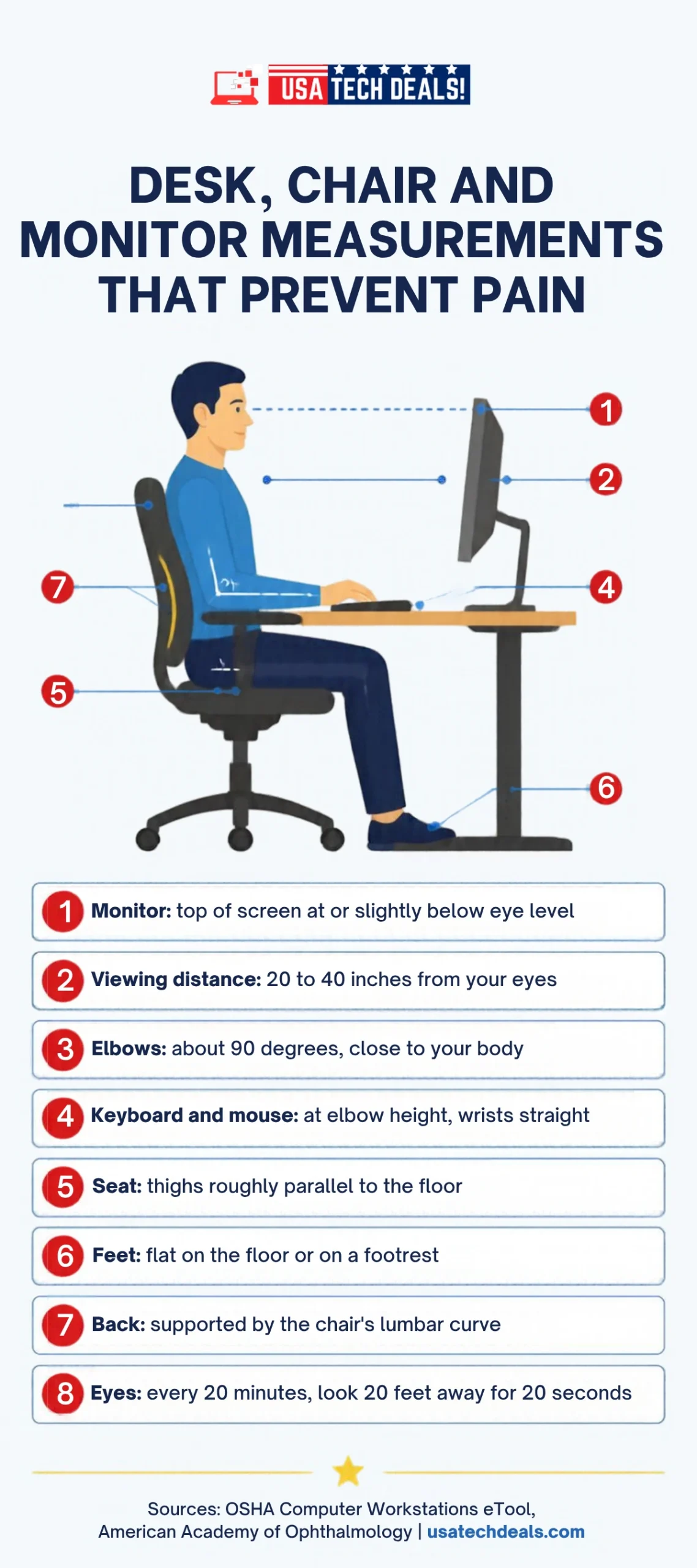
Desk, chair and monitor: the measurements to check
Choosing Your First Home Office Laptop or Desktop
If your employer supplies a laptop, skip this section. If you’re a freelancer, contractor, or student setting up your own machine, here’s what to know.
For most first-time remote professionals, choose a laptop. Desktops are more powerful and cheaper per dollar of performance, but laptops give you the flexibility to work from cafes, travel for family visits, or move to a different room without disruption.
Minimum specs for a home office laptop in 2026:
- Processor: Intel Core i5 (13th gen or newer) or AMD Ryzen 5 5000 series
- random access memory (RAM): 16GB (do NOT accept 8GB in 2026, you’ll regret it in 12 months)
- Storage: 512GB solid-state drive (SSD) minimum
- Display: 14-inch or 15-inch, Full HD minimum
- Battery: 8+ hours real-world use
- Ports: USB-C for docking, HDMI for external monitor
Budget range: $500–$800 gets you a solid work-from-home laptop. Above $1,000 you’re paying for premium features you likely don’t need for typical remote work.
See our best budget laptops under $600 for 2026 picks, and if you’re still weighing options, read our complete laptop buying guide first.
Webcam, Microphone & Headphones for Your First Video Calls
Your video call setup is how your boss and clients literally see you. Cheap out here and you look unprofessional; overspend and you’re wasting money.
Webcam ($25–$80 range for first setups):
- Look for 1080p Full HD minimum at 30 frames per second
- Auto-focus and auto-light correction are non-negotiable in 2026
- Logitech C270 ($25) is fine for occasional calls
- Logitech C922 ($70) is the standard for people on video multiple hours daily
Microphone (choose one path):
- Path A, Built-in webcam mic: Fine for 1-on-1 calls in a quiet room
- Path B, Wired headset with mic ($30–$80): Best audio quality, blocks room echo
- Path C, USB desk mic ($50–$100): Best if you also record content or podcast
Headphones ($40–$150 for first setups):
- Noise-cancelling matters more than sound quality for calls
- Over-ear is more comfortable for long call days
- See our best noise cancelling headphones for 2026 picks for specifics
If you also want good audio playback for background music or meetings on speaker, our best budget soundbars under $200 guide covers desk-friendly options.
Keyboard, Mouse & Docking Station Basics
Don’t overthink this one. For a first home office, wireless combos are cheap, reliable, and eliminate cable clutter.
Wireless keyboard + mouse combo ($25–$50):
- Look for combos with a single USB receiver (one dongle, not two)
- 2+ year battery life is standard now
- Full-size (with numpad) or tenkeyless is personal preference
- Our Logitech MK270 wireless keyboard and mouse combo review covers the go-to entry option
When you actually need a mechanical keyboard:
- You type more than 4 hours a day
- You’re a developer, writer, or data-entry professional
- You have $70–$150 to spend on the tactile experience
Docking station ($50–$120), optional but powerful:
- Only needed if you use a laptop AND external monitor AND multiple USB devices
- Turns your laptop into a “desktop” with one cable
- USB-C docks are standard in 2026
WiFi and Internet: The Foundation of Any Home Office
Everything above is useless if your internet drops during a client call. This is where first-time home office setups most often fail.
Minimum internet speed for remote work in 2026:
- 50 Mbps download, bare minimum for one person doing video calls + browsing
- 100 Mbps download, recommended for households with multiple video calls or streaming
- 200+ Mbps download, needed if you do video editing, large file transfers, or livestreaming
- 10+ Mbps upload, critical for HD video calls (many US plans still under-deliver here)
Test your current speed at fast.com before buying anything. If your speed is below 50 Mbps, upgrade your ISP plan before spending on gear.
Router recommendations:
- Replace your ISP-provided router if it’s more than 3 years old
- Look for Wi-Fi 6 (802.11ax), the current 2026 standard
- Dual-band (2.4GHz + 5GHz) is now table stakes
- Coverage: A single router covers ~1,500 sq ft, larger homes need a mesh system
See our best Wi-Fi 6 routers under $100 for 2026 picks for beginner-friendly upgrades.
Backup internet: Get a mobile hotspot on your phone plan or a cellular backup router. When your primary internet fails during a client call, this saves the day.
Lighting, Cable Management & Beginner Accessories
The three things nobody tells you about but that make a huge difference.
Lighting (budget $18–$60):
- Task lamp on your desk (LED, adjustable arm, USB charging port ideal)
- Position it on the opposite side of your dominant hand to prevent shadows
- Color temperature: 4000K neutral white is ideal for focus
- If you’re on video calls, position lighting in front of you, not behind (never sit in front of a window during calls, you’ll be a silhouette)
Cable management (budget $10–$25):
- Basic cable sleeve wraps 6–8 cables into one clean bundle
- Adhesive cable clips route cables along desk edges
- Under-desk cable tray hides everything from view
- This one-hour investment pays back every day you look at your desk
Power (budget $15–$40):
- Surge-protected power strip with 8+ outlets and USB-A/USB-C ports
- Our best multi-plug outlet extender guide covers what to look for
- Never use a $5 power strip, one lightning strike destroys $2,000 of gear
Optional beginner accessories:
- Laptop stand ($15–$40), raises screen to eye level
- Monitor arm ($30–$80), frees desk space, adjustable positioning
- Anti-fatigue mat ($20–$50), only if using a standing desk
- Desk plant, notebook, coaster, personal touches matter
For inspiration on making your space look intentional (not just functional), see our 35 home office decorating ideas.
First Home Office Ergonomics: The 5-Minute Setup Rules
Ergonomics is what separates “I love working from home” from “my back hurts constantly.” These five rules take five minutes to implement and prevent 90% of common home office injuries.
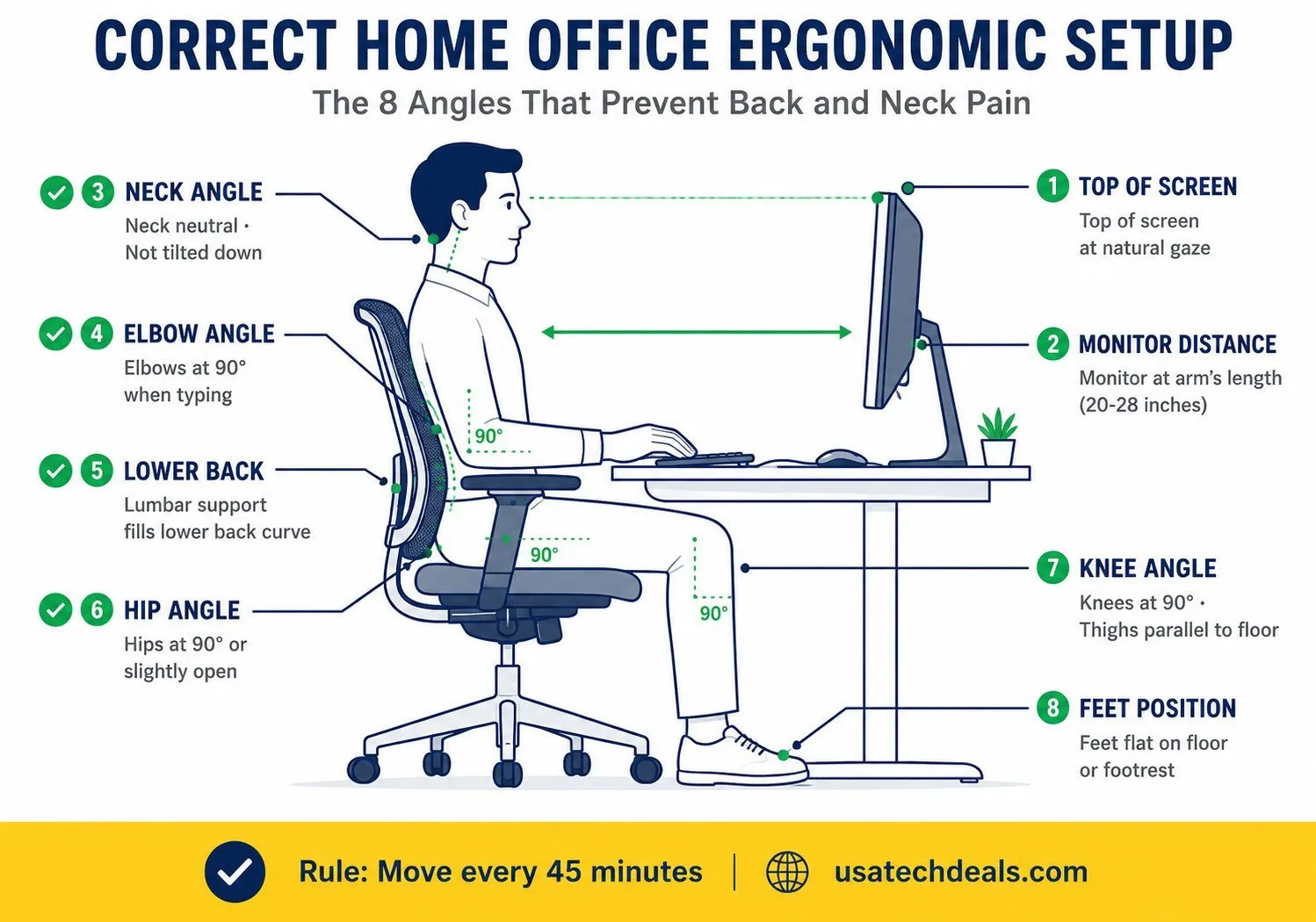
Rule 1, Monitor at eye level. The top of your screen should meet your natural forward gaze. If you’re looking down, raise the monitor with a stand or books.
Rule 2, Chair height so your feet are flat. Thighs parallel to the floor, feet flat (or on a footrest). Knees at 90 degrees.
Rule 3, Elbows at 90 degrees when typing. If your desk is too high, raise the chair. If it’s too low, raise the desk (or laptop with a stand).
Rule 4, Monitor at arm’s length. Sit back, extend your arm, your fingertips should just touch the screen. Closer than that causes eye strain.
Rule 5, Move every 45 minutes. Set a timer. Stand, stretch, walk to get water. This one habit prevents more back pain than any $1,000 chair.
Once you have your standing desk, see our specific how to set up a standing desk properly guide for adjustment specifics.
How Much Does a First Home Office Setup Cost? ($500 / $1,000 / $2,000)
Starter, Mid or Investment: what changes at each tier
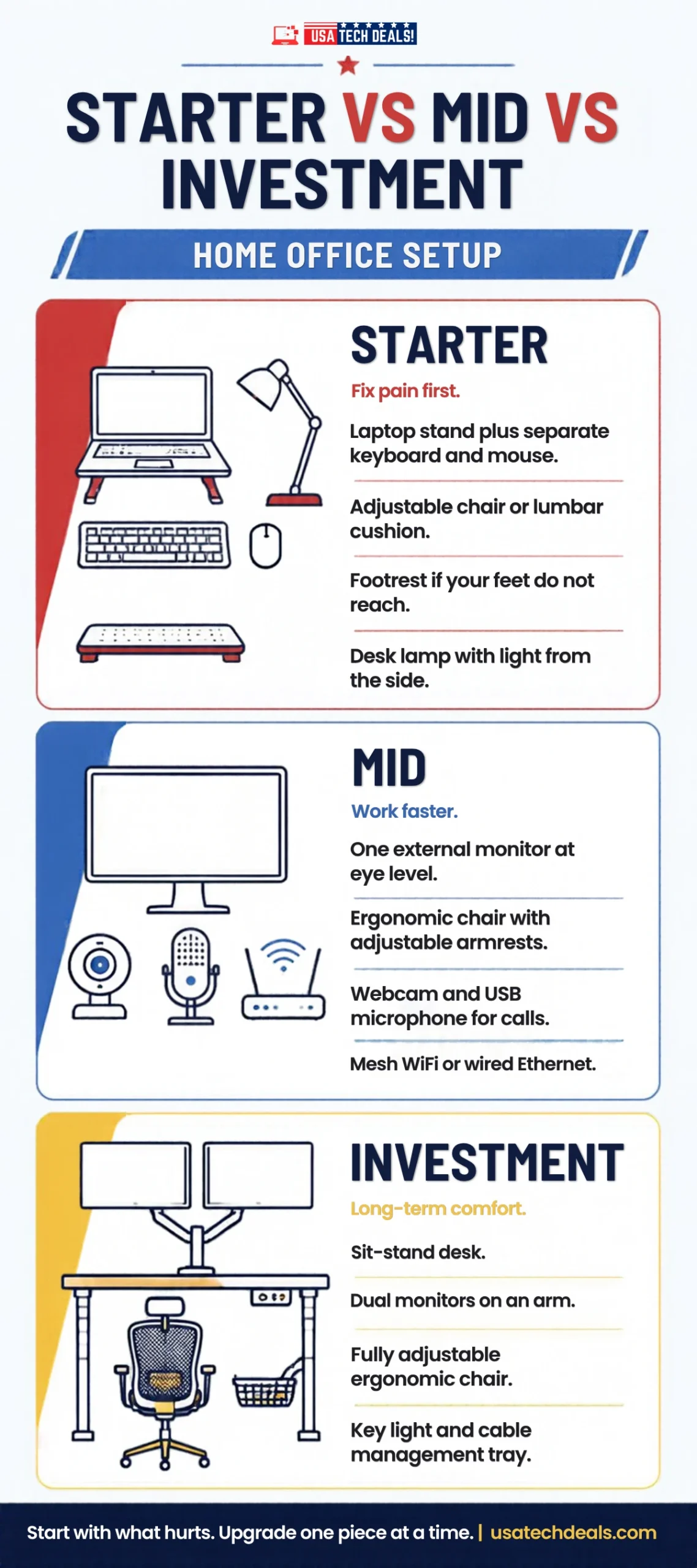
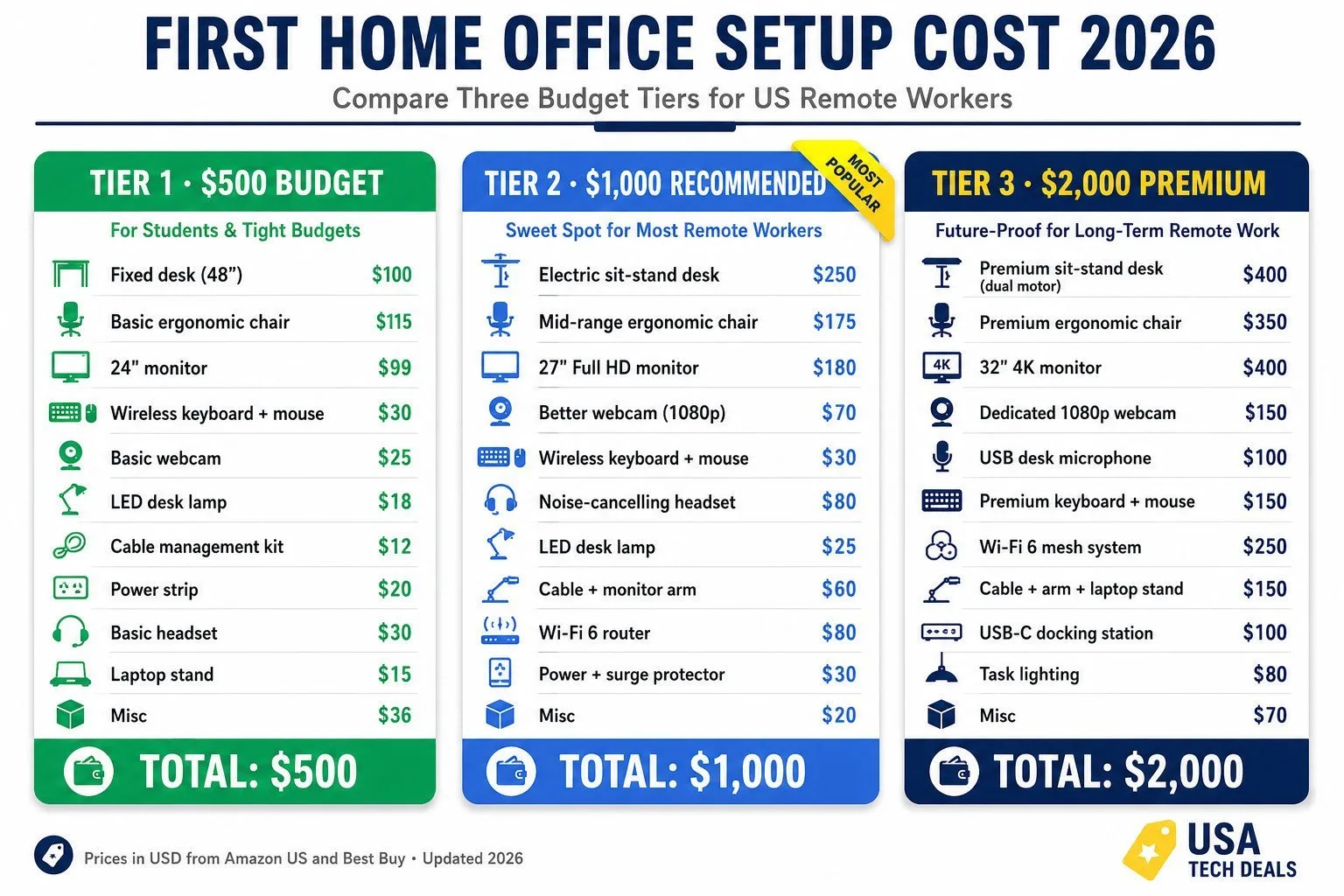
Here are three realistic budget tiers for a complete first home office setup in 2026. Every price is in USD and assumes you’re buying from Amazon US or Best Buy.
Tier 1, The $500 Budget Setup
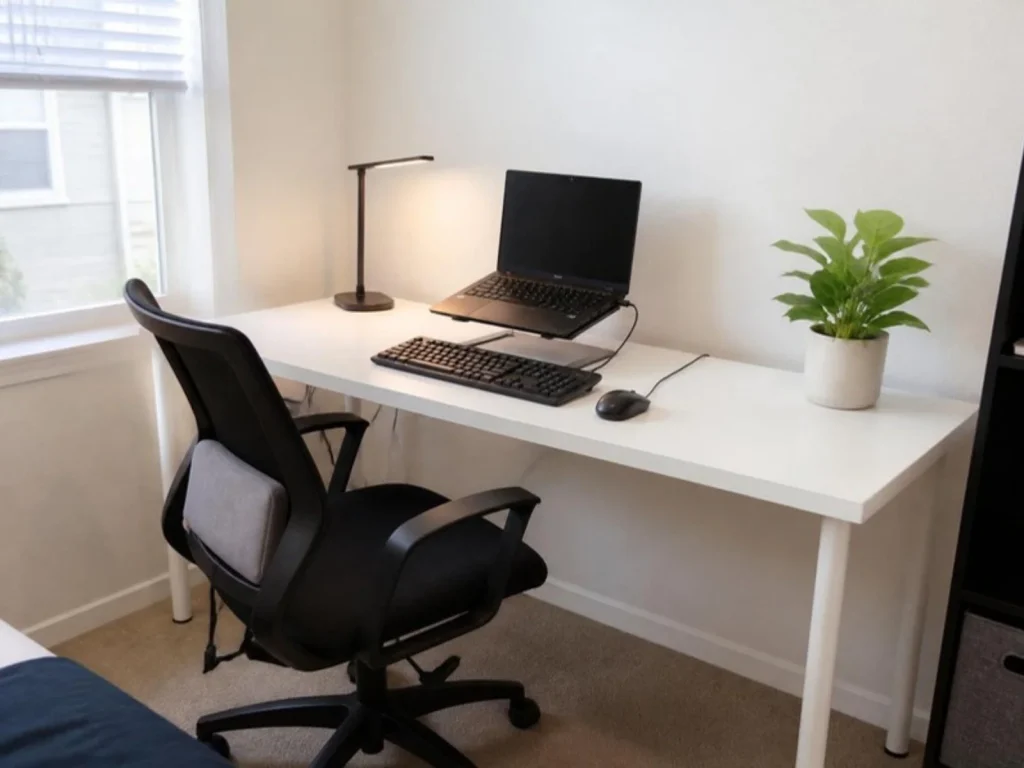
Perfect for students, first-time remote professionals on tight budgets, or minimalists.
| Item | Approximate Cost |
|---|---|
| Fixed desk (48-inch) | $100 |
| Basic ergonomic chair | $115 |
| 24-inch monitor | $99 |
| Wireless keyboard + mouse combo | $30 |
| Basic webcam | $25 |
| LED desk lamp | $18 |
| Cable management kit | $12 |
| Power strip with surge protection | $20 |
| Basic headset with mic | $30 |
| Laptop stand | $15 |
| Misc (adapters, cables) | $36 |
| TOTAL | ~$500 |
Want to see this exact $500 setup in action? Watch our full video walkthrough below, every product tested for 3 months, real specs, honest verdict.

Complete $498 home office setup, walkthrough of every product in this Tier 1 budget.
Tier 2, The $1,000 Recommended Setup
The sweet spot for most first-time remote professionals who plan to work from home 5+ years.
- Electric sit-stand desk: $250
- Mid-range ergonomic chair (adjustable lumbar): $175
- 27-inch Full HD monitor: $180
- Better webcam (1080p, autofocus): $70
- Wireless keyboard + mouse: $30
- Noise-cancelling headset: $80
- LED desk lamp with USB: $25
- Cable management + monitor arm: $60
- Wi-Fi 6 router: $80
- Power strip + surge protector: $30
- Misc accessories: $20
- Total: ~$1,000
Tier 3, The $2,000 Future-Proof Setup
For established remote professionals, professionals in client-facing roles, or those who record content.
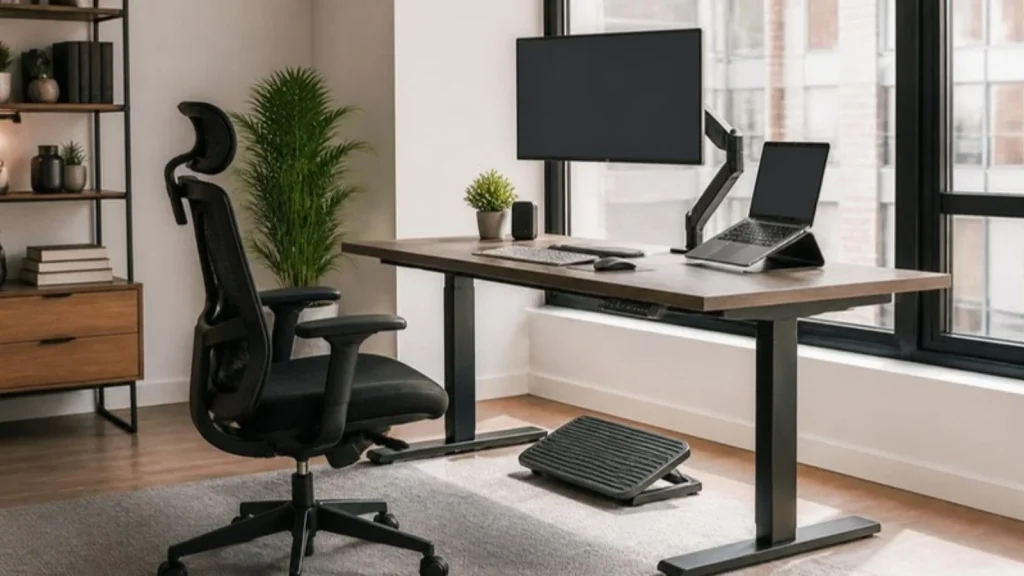
- Premium electric sit-stand desk (dual motor): $400
- Premium ergonomic chair: $350
- 32-inch 4K monitor: $400
- Dedicated 1080p webcam: $150
- USB desk microphone: $100
- Premium wireless keyboard + mouse: $150
- Wi-Fi 6 mesh system: $250
- Cable management + monitor arm + laptop stand: $150
- USB-C docking station: $100
- Task lighting + backup lighting: $80
- Misc: $70 (footrest, wrist rest, backup mouse)
- Total: ~$2,000
First Home Office in a Small Space or Bedroom
Not everyone has a spare room. Here’s how to build a real home office in the space you actually have.
In a bedroom:
- Position the desk facing away from the bed (prevents brain from associating desk with sleep)
- Use a room divider or bookshelf to visually separate work from rest
- Choose a smaller 42–48 inch desk instead of the standard 55 inch
In a studio apartment:
- Corner desks maximize wall space
- Wall-mounted or floating desks give you back the floor
- A tall bookshelf behind your webcam doubles as storage + Zoom background
In a living room:
- Fold-down or wall-mounted desks that disappear at night
- A stylish desk that blends with your decor (see our 35 home office decorating ideas)
- Noise-cancelling headphones become essential
In a shared home:
- Communicate clear work hours to housemates or family
- Post a “on a call” sign for your door
- Invest in a good headset, quality audio saves marriages
The key rule: any dedicated space is better than a shared kitchen table. Even a 3×3 foot corner counts as a real home office if you treat it that way.
IRS Home Office Deduction (US): What First-Time Remote Professionals Can Write Off
If you’re a W-2 remote employee, the 2017 Tax Cuts and Jobs Act eliminated the home office deduction for you. Sorry.
If you’re a freelancer, 1099 contractor, small business owner, or self-employed, the IRS home office deduction is still one of the best tax breaks available.
You can deduct:
- A portion of your rent or mortgage (based on office square footage)
- A portion of utilities (electric, internet, water)
- Home office equipment (desk, chair, monitor, computer), either full purchase price or depreciated
- Repairs and maintenance to the office area
- Office supplies (paper, pens, ink)
Two methods to calculate the deduction:
- Simplified method: $5 per square foot of home office space, up to 300 sq ft ($1,500 max deduction).
- Regular method: Actual expenses × (office square footage ÷ total home square footage).
Requirements to qualify:
- The space must be used regularly and exclusively for business
- It must be your principal place of business or where you meet clients
- You must be self-employed (not a W-2 employee)
Track everything with receipts. Take a dated photo of your setup for your records. Consult a CPA before your first filing, home office rules are strict and audit risk is real.
This is general information, not tax advice. Consult a licensed US tax professional for your specific situation.
First Home Office Setup Mistakes to Avoid
The 10 most common (and expensive) mistakes first-time remote professionals make:
- Buying the cheapest chair. You’ll replace it in 6 months and pay twice.
- Skipping the external monitor. Laptop-only setups cause neck strain within weeks.
- Buying two monitors as a beginner. Adds cost + complexity + reduces focus.
- Placing the desk facing a window. Your webcam will always show you as a silhouette.
- Overhead lighting only. Creates shadows on your face during Zoom calls.
- Ignoring internet speed. No amount of nice gear fixes a bad connection.
- Buying a gaming chair for work. They look cool but hurt after 4 hours.
- Skipping cable management. Turns your desk into a fire hazard visually and literally.
- Working from bed or couch “just this once.” It becomes a habit that destroys posture.
- Not testing the setup before your first meeting. Do a Zoom test call with a friend BEFORE the real thing.
Before you spend a dollar, run through our tech buying checklist to double-check.
Frequently Asked Questions
What do I need for a home office setup?
The 12 essentials are: a desk, ergonomic chair, external monitor, laptop, webcam, microphone, keyboard, mouse, task lighting, reliable Wi-Fi, cable management, and a surge-protected power strip. Everything else is optional.
How much does a home office setup cost in 2026?
A basic first setup costs around $500, a well-equipped setup runs $1,000, and a premium future-proof setup runs $2,000. Prices are for US-based purchases from major retailers like Amazon and Best Buy.
What is the best desk height for a home office?
Standard desk height is 29–30 inches. Your ideal height depends on your body, your elbows should form a 90-degree angle when typing with your shoulders relaxed. Adjustable sit-stand desks let you dial in the exact height and switch between sitting and standing.
Is a standing desk worth it for working from home?
For most first-time remote professionals, yes. The value isn’t the standing itself, it’s the ability to change positions throughout the day. This reduces lower back pressure and improves circulation. A 2024 Mayo Clinic study found 32% less lower back pain in professionals who alternated positions.
What size monitor is best for a home office?
For beginners, a single 24-inch Full HD monitor covers 90% of work needs. Choose 27-inch if you work with multiple windows side-by-side (design, coding, data analysis). Skip 32-inch and 4K for a first setup unless your work specifically requires it.
Do I need a dual monitor setup for remote work?
No, not as a beginner. Studies show dual monitors reduce focus for most knowledge professionals. Start with a single high-quality monitor. Add a second one 6 months in if you find yourself alt-tabbing constantly. See our full breakdown of best budget monitors under $150 for beginner picks.
What’s the best ergonomic chair under $200?
Look for adjustable lumbar support, 4-way armrests, at least 110° recline, breathable mesh, and 275+ lb weight capacity. Our detailed picks are in the best office chairs for long hours under $200 review.
How do I set up a home office in a small space or apartment?
Choose a corner or wall-mounted desk to preserve floor space. Position the desk facing away from your bed if in a bedroom. Use bookshelves or room dividers to separate work from living zones. Fold-down desks work well in studio apartments.
Can I write off my home office setup on taxes in the US?
If you’re self-employed or a 1099 contractor, yes, you can deduct a portion of rent, utilities, and equipment costs. W-2 remote employees can no longer claim the home office deduction as of 2018. Consult a CPA for your specific situation.
What internet speed do I need to work from home?
50 Mbps download is the bare minimum for one person doing video calls. 100 Mbps is recommended for most households. Upload speed matters more than most people realize, aim for 10+ Mbps upload for reliable HD video calls.
What’s the best webcam and mic setup for Zoom calls?
For beginners: a 1080p webcam with auto-focus ($25–$70) paired with either a wired headset ($30–$80) or a USB desk mic ($50–$100). The built-in webcam mic works for quiet rooms; anything else needs dedicated audio.
How do I fix bad posture while working from home?
Follow the five ergonomic rules: monitor at eye level, chair height so feet are flat, elbows at 90° when typing, monitor at arm’s length, and move every 45 minutes. See our how to set up a standing desk properly guide for standing-position posture too.
What are the essential home office accessories in 2026?
Beyond the 12 core items: laptop stand, monitor arm, task lamp, cable management sleeve, surge protector with USB ports, and noise-cancelling headphones. Our companion article on the 7 must-have home office tech essentials covers the shortlist.
Conclusion & Your Next Steps
Setting up your first home office in 2026 is easier, and cheaper, than most people think. The whole thing takes a weekend and $500 to $2,000 depending on your budget. The keys are: prioritize the chair and desk, don’t skip the external monitor, invest in reliable Wi-Fi, and follow basic ergonomic rules from day one.
Everything else is upgrades, not requirements.
Your Turn, We Want to Hear From You
Now it’s your turn. What’s the ONE product you’re planning to buy first for your home office setup? Drop your answer in the comments below, is it the chair, the desk, the monitor, or something we didn’t cover?
If this guide helped you plan your first home office, please share it with a friend, coworker, or family member who’s about to start a remote job or head off to college this back-to-school season. Every share helps us reach more first-time remote professionals who need honest, no-nonsense advice.
Weekly Amazon deals · Honest reviews · Back-to-school 2026 home office guides, straight to your inbox every Wednesday.
Want to see all of this in action?
We just uploaded our complete $498 home office setup video on YouTube, walking through every product in this guide with real specs, honest reviews, and Amazon links. ▶️ Watch the full setup video and subscribe to USA Tech Deals for weekly deals, product reviews, and back-to-school 2026 home office guides.
Coming Next in This Series
- Cluster 1: Best dorm room desk setup 2026 for college students
- Cluster 2: Home office setup under $500, the complete budget guide
- Cluster 3: How to set up a home office in a bedroom or small apartment
- Cluster 4: Best webcam and lighting setup for online classes and video interviews
Bookmark this page, we update it every 90 days with new product picks and price changes.