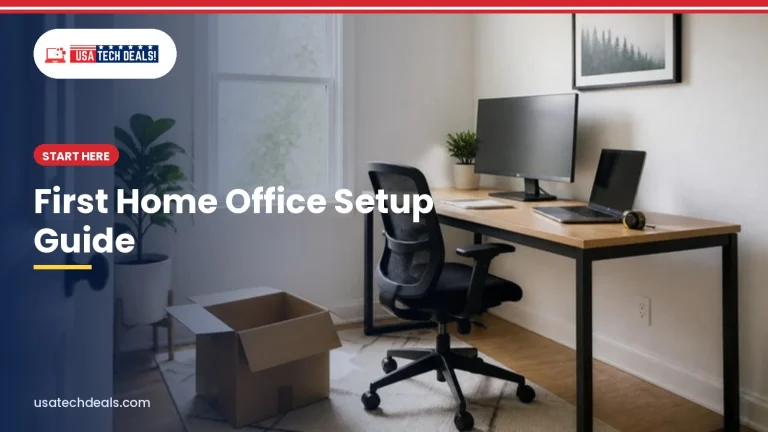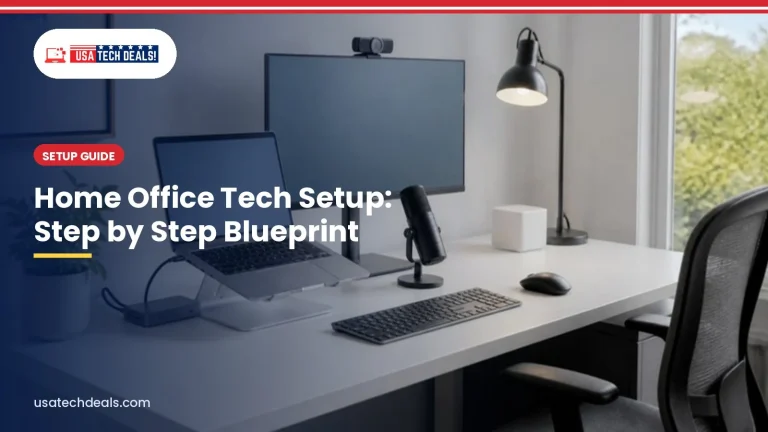

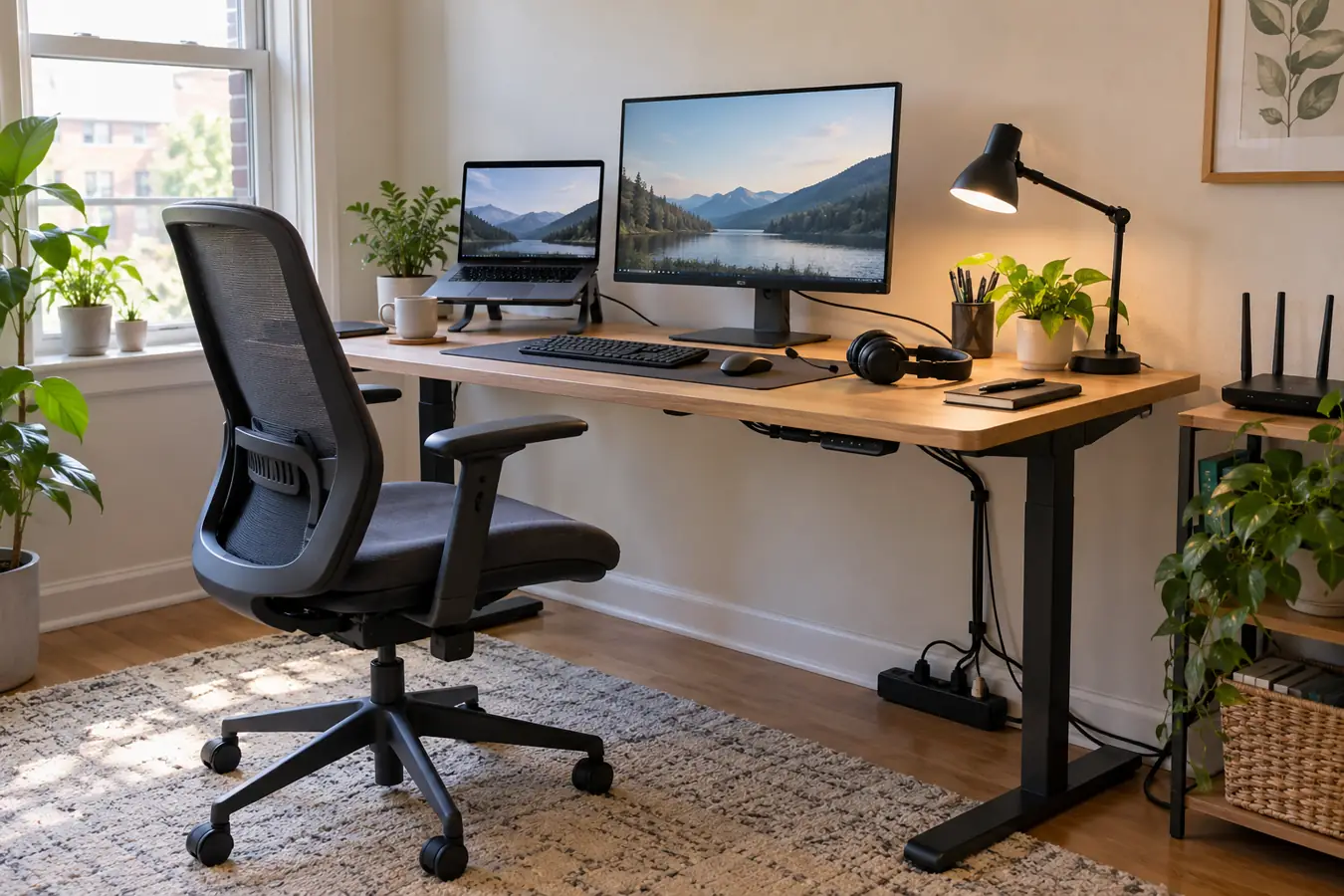
Illustrative example created for USA Tech Deals. It is not Afraz Alam’s personal desk and does not show a sponsored product arrangement.
A good work from home setup has five foundations: a desk at a suitable height, a supportive chair, a screen positioned for comfortable viewing, reliable internet, and clear audio and video for calls. Start by testing what you already own, then fix the part that causes the most discomfort or interruption.
Among remote-capable US employees, 52% worked hybrid and 26% worked exclusively remotely as of May 2026, according to Gallup’s Hybrid Work Indicator. A practical setup matters because remote and hybrid workers repeatedly use the same desk, screen, chair, network and meeting equipment.
This guide covers the essentials, a 10-minute setup test, three example budgets, ergonomics, security, small-space ideas and a printable checklist. Product names are neutral examples for comparison. USA Tech Deals has no affiliate relationship with the products named in this guide, and prices can change.
Quick answer: Build your setup in this order: choose a consistent work area, set the chair and desk around your body, raise the screen, confirm stable internet and clear calls, protect the equipment, and only then add accessories. A simple setup that fits your work is more useful than an expensive collection of gadgets.
What are the five essentials of a work from home setup?
Every reliable work from home setup needs five things: an appropriate work surface, supportive seating, a comfortable display position, stable connectivity, and usable meeting equipment. Everything else should solve a specific problem.
1. Is your desk at a comfortable working height?
Your forearms should be close to level when your hands rest on the keyboard, with your shoulders relaxed. A fixed desk can work well when the chair and keyboard position fit your body. A standing desk is optional, not a requirement.
If the desk is too high, raise the chair and add a footrest when needed. If it is too low, consider desk risers or a different surface rather than hunching forward. Use the free Desk Height Calculator for a starting estimate, then adjust for comfort.
2. Does your chair support the way you sit?
A useful chair should let you place your feet on the floor or a footrest while supporting your lower back. Adjustable seat height matters more than a fashionable shape. Armrests should not force your shoulders upward or prevent you from moving close to the desk.
Change position during the day. No chair removes the need to stand, walk and vary your posture.
3. Is your screen positioned for comfortable viewing?
Place the primary screen directly in front of you. A common starting point is roughly an arm’s length away, with the top portion of the screen near eye level. The exact position depends on screen size, eyesight and whether you use progressive lenses.
For laptop-only work, a stand plus a separate keyboard and mouse prevents the screen and keyboard from forcing the same low position. The Monitor Size Calculator helps you check the physical width and pixel density before choosing a monitor or planning a dual-screen desk.
4. Is your internet reliable during real work?
Download speed alone does not describe a remote-work connection. Video calls, cloud backups and other people using the network can make upload stability and household demand equally important.
Test from the exact place where you will work. If the connection drops, try moving the router, using Ethernet, changing the Wi-Fi band or adding suitable network coverage before buying a faster computer. The Internet Speed Calculator estimates combined household demand for calls, streaming and browsing.
5. Can people see and hear you clearly?
Put the camera close to eye level and face a window or lamp rather than placing a bright window behind you. A basic wired headset can reduce echo and keep the microphone closer to your mouth.
Use the browser-based Webcam and Mic Test before an important meeting. Check framing, light, microphone level and background noise without installing software.
What belongs on a quick work from home setup checklist?
Use this short list before buying anything:
- [ ] A consistent work area that can be used without blocking normal household activity
- [ ] Enough desk space for the computer, input devices and any required documents
- [ ] A chair height that lets the shoulders relax and the feet feel supported
- [ ] A laptop stand or monitor positioned for comfortable viewing
- [ ] A separate keyboard and mouse when the laptop is raised
- [ ] Stable internet tested from the desk during a normal work period
- [ ] A camera close to eye level
- [ ] A headset or microphone that produces clear speech
- [ ] Light from the front or side without strong screen glare
- [ ] Safe access to power with cables outside the walking path
- [ ] Surge protection or battery backup where the local power supply requires it
- [ ] A simple backup plan for important work files
If one item fails, fix that problem before adding decorative work from home setup accessories.
How can you test your work from home setup in 10 minutes?
Five short checks can reveal more than a shopping list. Use example inputs first, then enter measurements that match your own room and equipment.
How do you check desk and chair height?
Open the Desk Height Calculator and enter your height. Treat the result as a starting point, not a medical prescription. Adjust the chair, keyboard and foot support until you can work without lifting your shoulders or reaching forward.
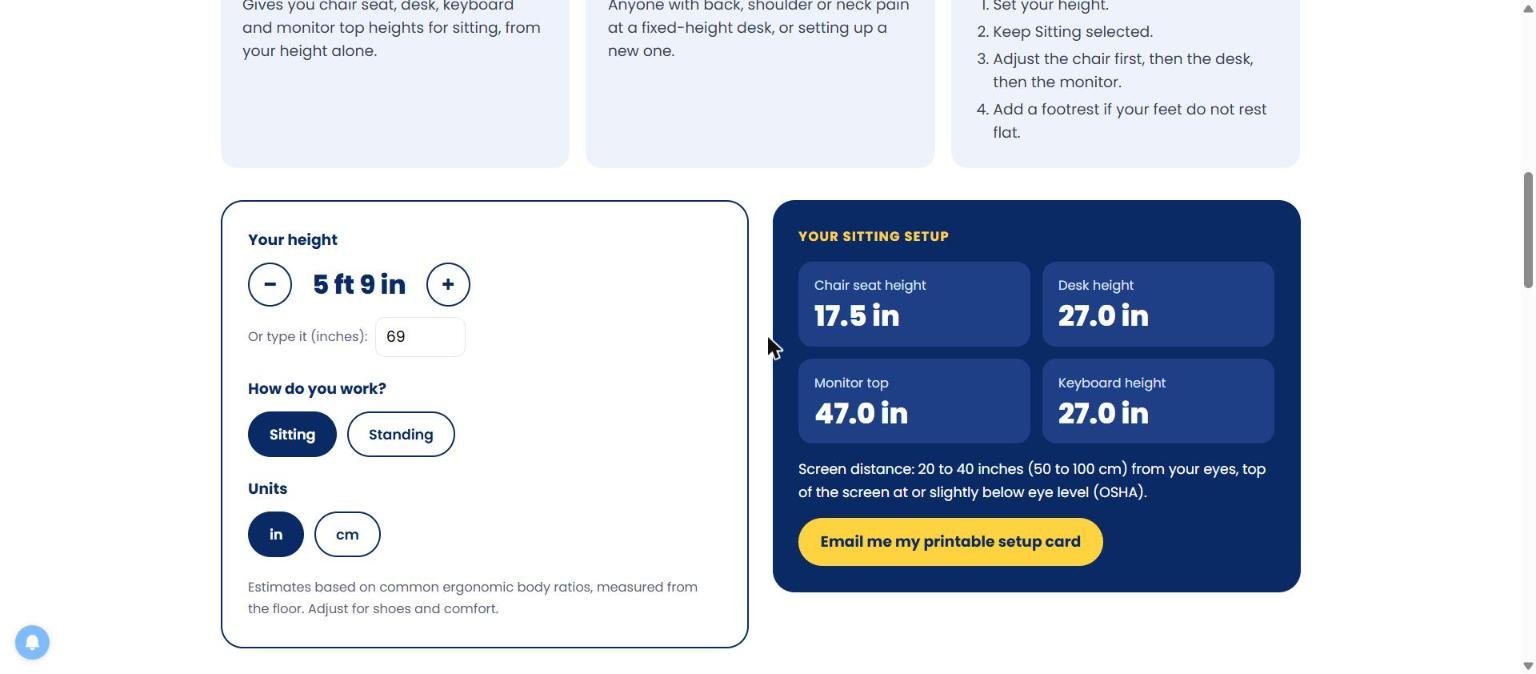
Example input: a 5 ft 9 in person in a seated setup. Use your own measurements and comfort to make the final adjustment.
How do you check internet demand?
Open the Internet Speed Calculator and add the people and activities that normally happen at the same time. Test the real connection separately during your busiest period because a plan’s advertised speed does not guarantee Wi-Fi performance at the desk.
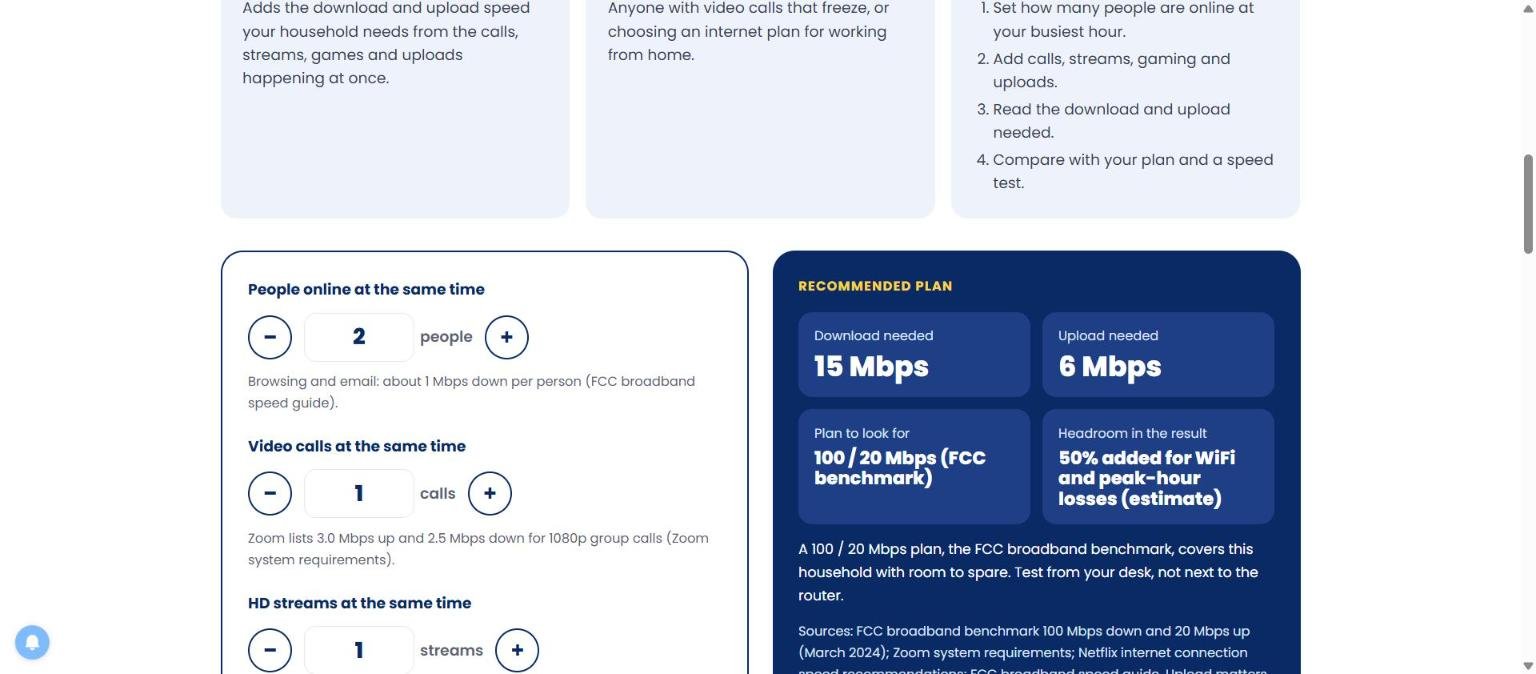
Example input: two people online with one video call and one HD stream. It is an illustrative calculation, not a universal minimum.
How do you check monitor size and desk fit?
Use the Monitor Size Calculator to translate diagonal size into actual width and height. This is useful when checking whether a 27-inch monitor, two displays or a monitor arm will physically fit.
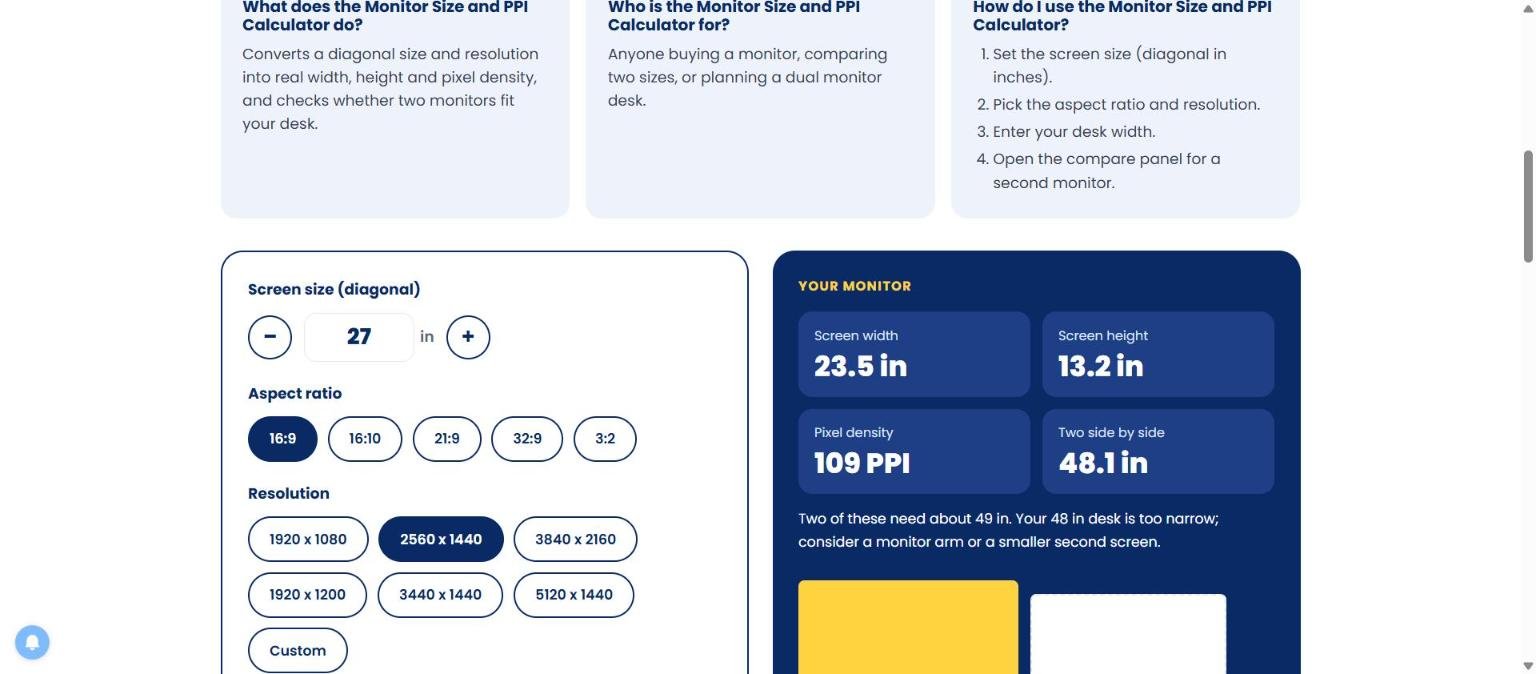
Example input: a 27-inch, 16:9 display at 2560 by 1440 pixels. Confirm the manufacturer’s dimensions before buying.
How do you check posture and call quality?
Finish with the Ergonomics Self-Check and the Webcam and Mic Test. The goal is to identify one or two useful changes, such as raising the screen, moving the light or reducing microphone echo.
How should you plan a work from home workspace before buying equipment?
The room determines which products will actually work. Measure first, then choose equipment.
Where should the desk go?
Choose a place you can use consistently. It can be a separate room, a bedroom corner or a compact desk against a wall. What matters is reliable access to the space during working hours.
Placing the desk perpendicular to a window often provides side light without putting a bright window directly behind the screen or camera. Test glare at the times you normally work because daylight changes throughout the day.
How much desk space do you need?
Measure the available width and depth. Include monitor stands, laptop docks, speakers and the space required for the keyboard and mouse. Leave room to move the chair and reach power safely.
Plan for the work you actually do. A writer using one laptop needs less depth than someone comparing drawings across two monitors.
Where should power and cables run?
Count the devices that require power and check the outlet location. Keep extension leads and loose cables away from walking paths. Use cable clips, sleeves or an under-desk tray so connectors do not pull when the desk or chair moves.
A surge protector helps protect connected electronics from voltage spikes, but it is not the same as a battery backup. A UPS can keep a router or desktop running briefly during an outage. Estimate requirements with the UPS Runtime Calculator before selecting a unit.
How should you handle noise and household interruptions?
Listen to the room during a normal workday. Traffic, television, appliances and shared conversations may affect calls more than the furniture. Soft materials, a closer microphone, a closed door and agreed quiet periods can help. Noise-cancelling headphones reduce some sounds for the wearer but do not automatically improve what other people hear through the microphone.
Which equipment should you prioritize for the best work from home setup?
Prioritize equipment according to the work, not a generic list.
Computer
Choose a computer that supports the software, files and security requirements of your job. For general office work, responsiveness, reliable storage, enough memory and usable ports matter more than gaming features. Check employer requirements before buying personal hardware for company work.
Monitor or laptop stand
An external monitor provides more space for documents and meetings. A laptop stand is the lower-cost option when the laptop screen is large enough, but it should be paired with a separate keyboard and mouse.
Keyboard and mouse
Choose input devices that let the hands rest naturally. A full-size keyboard is useful for frequent number entry, while a compact layout creates more room for the mouse. Wireless equipment reduces cables but may require batteries or charging.
Chair
Look for adjustable height, appropriate seat depth and usable lower-back support. Try the chair when possible and check the return policy. A chair advertised as ergonomic is not guaranteed to fit every person.
Audio, camera and lighting
Start with the built-in camera and microphone, then test them. Add a headset, webcam or lamp only when the test reveals a problem. A product such as the Logitech H390 is an example of a basic wired USB headset. The Logitech C920x is an example of an external 1080p webcam. These are researched examples, not personally tested recommendations.
How much can a practical work from home setup cost?
The total depends on what you already own. The examples below use US prices checked on 26 October 2026. They are a planning snapshot, not a promise of availability or the lowest price. Product names are not sponsored, and there are no retailer or affiliate links.
| Build | Example components | Checked planning total |
|---|---|---|
| Starter | Nulaxy adjustable laptop stand ($17.99), Logitech MK270 keyboard and mouse ($29.99), SUPERDANNY clamp lamp ($16.99), Logitech H390 USB headset ($20.99) | $85.96 |
| Full-time remote | Starter items plus Dell SE2426H monitor ($99.99), SIHOO M18 chair ($132.53), Logitech C920x webcam ($59.99) | $378.47 |
| Expanded setup | Full-time items plus FlexiSpot EN1 standing desk ($109.99), APC BE600M1 UPS ($83.99), and a second Dell SE2426H monitor ($99.99) | $672.44 |
The table is not a shopping prescription. A standing desk, second monitor or separate webcam may add little value if your current equipment already works. Prices should be checked again when buying.
What should a starter laptop setup include?
Raise the laptop, add a separate keyboard and mouse, improve front lighting and use a headset when the built-in microphone produces echo. This is often enough for email, documents and calls.
What should a full-time remote setup add?
Add a display and chair that fit long work sessions. A separate webcam is useful when the laptop camera cannot be positioned near eye level or performs poorly in the available light.
What should an expanded setup add?
Add only equipment linked to a real need. A standing desk supports position changes. A second display can help comparison-heavy work. A UPS can protect a desktop or keep network equipment running briefly. None of these automatically improves productivity.
How do you create an ergonomic work from home setup?
Ergonomics is the process of fitting the work to the person. OSHA’s computer workstation guidance emphasizes neutral working postures and arranging the workstation to reduce awkward positions.
How should the chair, desk and keyboard align?
Set the chair first. Support the feet, relax the shoulders and keep the elbows near the sides. Then place the keyboard and mouse where they can be used without reaching. If the desk height prevents this, change the chair height and use foot support or adjust the work surface.
Where should the monitor go?
Place the main screen in front of you. Avoid twisting repeatedly toward a screen used for most tasks. Increase text size before moving the screen uncomfortably close.
For two screens used equally, place the meeting edges near the center. When one is primary, keep it centered and angle the secondary screen toward you.
How often should you move?
There is no single posture that should be held all day. Change position, look away from the screen and take short movement breaks. A standing desk helps only when it encourages variation rather than replacing prolonged sitting with prolonged standing.
What do remote workers need that ordinary office checklists forget?
Remote work adds meeting, time-zone, network and power considerations that a furniture checklist can miss.
How do you look and sound better on video calls?
Raise the camera, face a soft light and keep the brightest window out of the background. Move the microphone closer before increasing its software gain, which may also increase room noise. Test the actual meeting app because it may process sound differently from the operating system.
How do you plan meetings across time zones?
Use the Time Zone Meeting Planner to compare working hours before proposing a meeting. Rotate inconvenient times when a distributed team cannot find a consistently fair overlap.
What should happen during a power or internet outage?
Keep a phone hotspot or alternate connection available when the job allows it. Save essential contact details offline. A charged laptop can continue working during a short outage, but the router and modem may still need backup power.
How do you protect work files and accounts?
Use software updates, multi-factor authentication, a password manager and automatic backups. Follow employer security requirements for company devices and confidential information. CISA’s Secure Our World guidance explains core practices for passwords, multifactor authentication, phishing and updates.
Avoid treating a consumer VPN as a substitute for employer security controls. Use the tools and access method approved by the organization.
Which work from home setup ideas fit different spaces?
What works in a small room?
Use a compact desk, a laptop stand or monitor arm, vertical storage and a chair that can move fully under the desk. Keep the visual setup simple and avoid filling the limited surface with decorative accessories.
Small-space intent has its own deeper guide planned for USA Tech Deals. This checklist covers only the immediate setup decisions to avoid competing with that future page.
What works for a laptop-only setup?
Use a stand, separate keyboard and mouse, and a headset. If the laptop frequently leaves the desk, choose accessories that can stay connected through a dock or be packed quickly.
When does a dual-monitor setup make sense?
Two monitors can help when you regularly compare documents, edit media, monitor dashboards or keep reference material open. They also require enough desk width, suitable ports and comfortable positioning. Do not add a second screen merely because it appears in other people’s setups.
What works in a shared home?
Choose a consistent area, use headphones for listening, agree on call times and store work equipment safely after use. A folding screen or movable background can improve visual separation without pretending the workspace is soundproof.
Who pays for home office equipment and can it be deducted?
Some employers provide equipment, a stipend or reimbursement. Ask the employer what is covered, whether pre-approval is required, who owns the equipment and what happens when employment ends.
For US federal taxes, employees generally cannot claim a home-office deduction. The IRS notes that employees cannot use the simplified home-office method, although a few special categories of employees have separate rules for certain unreimbursed business expenses. Self-employed taxpayers may qualify for a home-office deduction when the applicable business-use requirements are met.
Read the current IRS Publication 587 and the IRS simplified-option guidance, or consult a qualified tax professional. The USA Tech Deals Home Office Deduction Calculator is an educational estimate, not tax advice.
How do you keep a work from home setup productive over time?
Reset the desk at the end of the day
Close or store materials, reconnect devices, clear cups and prepare the first task for tomorrow. A two-minute reset prevents small problems from becoming daily friction.
Review the setup after real use
Check the desk again after a full week. Note discomfort, dropped calls, glare, repeated cable problems and items you never use. Improve the recurring problem rather than buying a complete replacement setup.
Protect and back up the work
Use automatic cloud or employer-approved backups and keep important files organized. Test that a file can actually be restored. A backup system that has never been checked is only an assumption.
Remove accessories that do not solve a problem
Every item consumes space, power or attention. Keep tools used daily within reach and store occasional equipment elsewhere. The best work from home setup is the one that remains easy to use.
What should you check before calling the setup complete?
| Category | Final check | Status |
|---|---|---|
| Workspace | A consistent work area is available when needed | ☐ |
| Desk | Keyboard, mouse and documents fit without crowding | ☐ |
| Chair | Feet, lower back and shoulders feel supported | ☐ |
| Screen | Primary display is centered and readable | ☐ |
| Laptop | A separate keyboard and mouse are used when the laptop is raised | ☐ |
| Internet | Calls and uploads work from the actual desk | ☐ |
| Meetings | Camera, light and microphone have been tested | ☐ |
| Power | Cables are safe and equipment has appropriate protection | ☐ |
| Security | Updates, multifactor authentication and backups are active | ☐ |
| Workflow | The desk can be reset quickly at the end of the day | ☐ |
Revisit the complete home office setup hub when you need deeper guidance for layout, ergonomics, tools and related equipment.
What else do people ask about work from home setups?
What is the best setup for working from home?
The best setup fits your body, available space and actual work. It provides a stable surface, supportive seating, a readable screen position, reliable internet and clear calls. Test those basics before paying for upgrades.
What do you need for a work from home setup?
At minimum, you need a suitable computer, work surface, chair, stable connection and a way to communicate. Laptop users should raise the screen and use a separate keyboard and mouse for longer sessions.
Can you work from home with only a laptop?
Yes. For longer sessions, add a laptop stand, external keyboard and mouse so the screen can be raised without raising the typing surface. Test the built-in camera and microphone before buying replacements.
How much does a professional work from home setup cost?
There is no fixed price. In the dated US example above, a starter accessory set totaled $85.96, a fuller setup totaled $378.47 and an expanded setup totaled $672.44. Reuse existing equipment and verify current prices before buying.
Do you need two monitors for working from home?
No. A second monitor helps some comparison-heavy workflows but also consumes desk space and ports. Start with one correctly positioned display and add another only when a repeated task justifies it.
Will an employer pay for home office equipment?
Some employers provide equipment, reimbursement or a stipend, while others do not. Ask about eligibility, spending limits, approved products, ownership and return requirements before purchasing.
Can W-2 employees deduct a home office?
Employees generally cannot claim the federal home-office deduction under current IRS guidance. Limited special employee categories can have separate unreimbursed-expense rules. Self-employed taxpayers should check the current IRS requirements and seek professional advice where needed.
Build the setup around your work, not a shopping list
A useful work from home setup is a connected system. The desk and chair support the body, the screen supports the task, the network supports communication, and the power and security plan protect the work.
Run the five free checks before buying anything. Fix the largest source of discomfort or interruption first, use the checklist after a week of real work, and upgrade only when you can explain what the new item will improve.
If this guide helped you identify a change, share what you adjusted in the comments. Other professionals may be dealing with the same problem.
For one practical home-office improvement each week, join the free USA Tech Deals newsletter.
Sources and research notes
- Gallup Hybrid Work Indicator, checked 26 October 2026
- OSHA Computer Workstations eTool, checked 26 October 2026
- CISA Secure Our World, checked 26 October 2026
- IRS Publication 587, checked 26 October 2026
- IRS simplified option for the home-office deduction, checked 26 October 2026
- Product examples and US prices were checked from public manufacturer or retailer information on 26 October 2026. The named products were researched, not personally tested. No product link in this article is an affiliate link.
Prices, availability, specifications and tax rules can change. Confirm them at the original source before making a purchase or tax decision.