A home office tech setup is the foundation of modern remote work. The right combination of hardware, connectivity, and workspace organization can dramatically improve productivity, focus, and comfort while working from home.
But many professionals don’t realize how much their setup is holding them back — until a slow laptop freezes during a client call, the Wi-Fi drops in the middle of a presentation, or neck pain appears after just a few hours of work.
That’s when something becomes clear: a proper home office tech setup isn’t a luxury anymore — it’s essential for performance.
Since remote and hybrid work became the new normal, millions of professionals now work from home either full-time or part-time. Yet most people never build a real system. They place a laptop on a desk, grab any chair, connect to Wi-Fi, and call it a home office.
Over time, that “basic desk setup” turns into daily frustration — slow performance, messy cables, poor video call lighting, weak internet, back pain, and constant distractions.
There’s a major difference between simply working from home and building a performance-driven home office setup.
A basic desk holds your computer.
A professional workspace supports productivity, protects your health, improves focus, and helps you grow professionally.
That’s exactly what this guide is designed to help you build.
This is not another random list of gadgets. Instead, this Home Office Tech Setup Guide provides a structured blueprint for building a reliable workspace — covering essential hardware, monitors, connectivity, ergonomics, video conferencing tools, and productivity upgrades.
By the end of this guide, you’ll understand:
• What equipment you actually need for a home office
• How to design a high-performance work-from-home setup
• Which upgrades improve productivity the most
• How to avoid common setup mistakes that slow professionals down
If you’re building or upgrading your workspace, this step-by-step guide will help you create a home office technology setup designed for productivity, comfort, and long-term remote work success.
Quick Summary: Building the Ideal Home Office Tech Setup
If you want to build a productive work-from-home workspace, focus on three core elements:
• Reliable computing hardware (laptop or desktop + monitor)
• Strong internet connectivity and communication tools
• Ergonomic workspace design for long work sessions
The rest of this guide walks through every step required to build a complete home office tech setup that supports modern remote work.
How to Build the Perfect Home Office Tech Setup (Step-by-Step Blueprint)
Building a productive workspace requires more than just placing a laptop on a desk. A high-performance home office tech setup follows a structured system that combines hardware, connectivity, ergonomics, and productivity tools.
The blueprint below shows the step-by-step process professionals use to design a modern work-from-home setup that supports long hours of focused work.
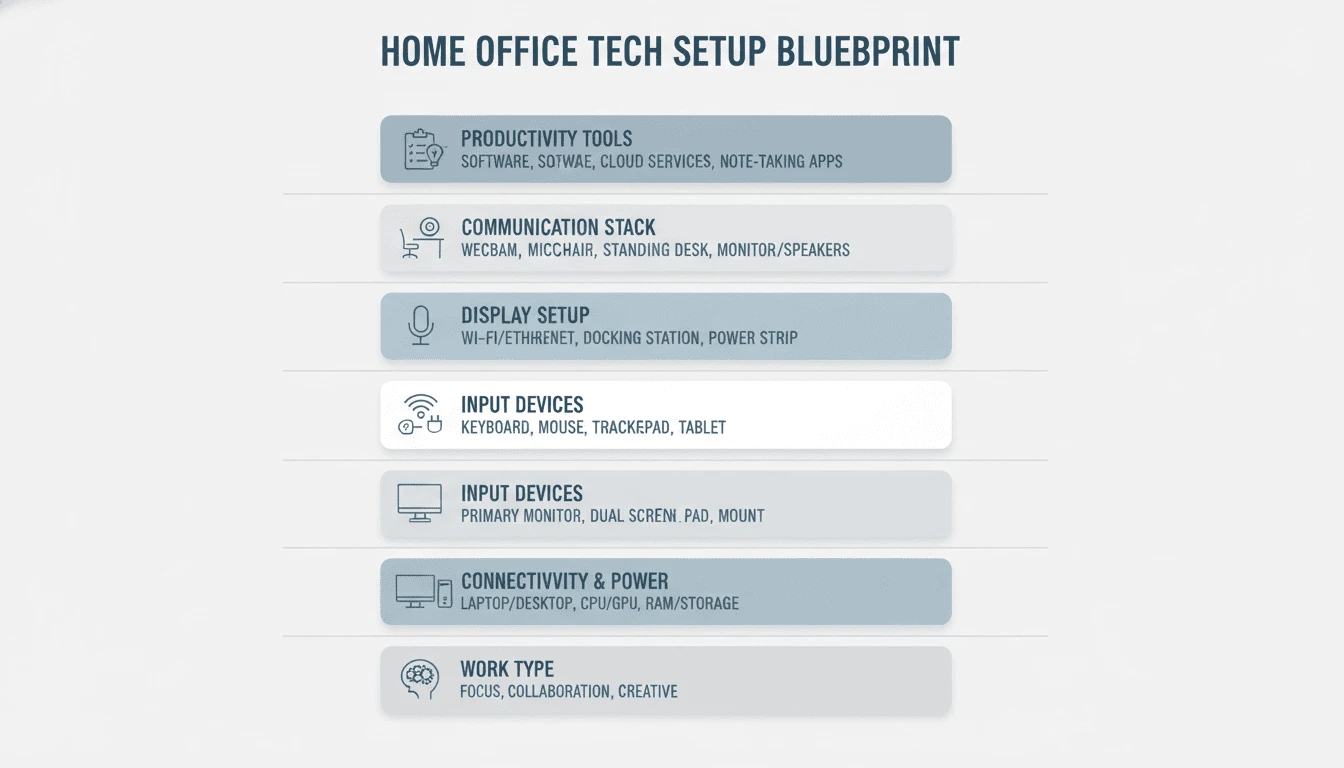
When you approach it step by step, your workspace becomes a structured, performance-driven environment instead of a random collection of gadgets.
You start by understanding your work requirements, then build your hardware foundation, optimize your display and input devices, strengthen connectivity, improve communication tools, and finally integrate ergonomics and productivity systems.
So, follow these nine steps gently to build a complete home office technology setup that improves productivity, comfort, and long-term work efficiency.
Let’s begin with the most important decision.
Step 1: Define Your Work Type Before Building Your Home Office Setup
Before you purchase a laptop, monitor, webcam, or even upgrade your internet plan, pause and ask yourself one simple question:
What kind of work do I actually do every day?
This single decision shapes your entire home office tech setup.
It’s the first step in building the best home office setup for productivity — not just a desk with a laptop.
A remote employee who mainly works on documents, emails, spreadsheets, and virtual meetings has very different technical needs compared to:
- A freelancer managing multiple clients and tools
- A developer running heavy code environments
- A graphic designer or video editor handling large creative files
- A content creator streaming, recording, or editing regularly
Your work type directly affects:
Processing Power:
Basic administrative tasks don’t require high-end CPUs or dedicated graphics cards. But coding, video editing, 3D rendering, or heavy multitasking demand stronger processors and more RAM.
Monitor Needs:
Writers and analysts may benefit from dual monitors or a vertical screen for long documents. Designers and editors often need higher resolution displays with better color accuracy. Developers may prefer ultra-wide monitors for multiple windows side by side.
Storage Requirements:
Cloud-based workers may only need moderate local storage. Creators dealing with large video or design files need faster SSD storage and possibly external backup solutions.
Internet Speed & Stability:
If your work depends on constant video calls, cloud collaboration, or uploading large files, a stable high-speed connection becomes non-negotiable. On the other hand, lighter workflows may not require premium bandwidth.
Audio & Video Requirements:
Occasional meetings may only require a decent webcam and headset. But client-facing professionals, consultants, trainers, or streamers need higher-quality microphones, lighting, and camera setups to maintain a professional presence.
When you skip this evaluation, you either overspend on features you’ll never use — or underspend and struggle daily with slow performance and limitations.
Defining your work type first ensures your home office tech setup is aligned with your real needs — not marketing hype, not trends, and not someone else’s workflow.
Once you’re clear about what you do and how you work, every decision that follows becomes simpler, smarter, and more cost-effective.
Step 2: Choose the Right Location for Your Home Office Tech Setup
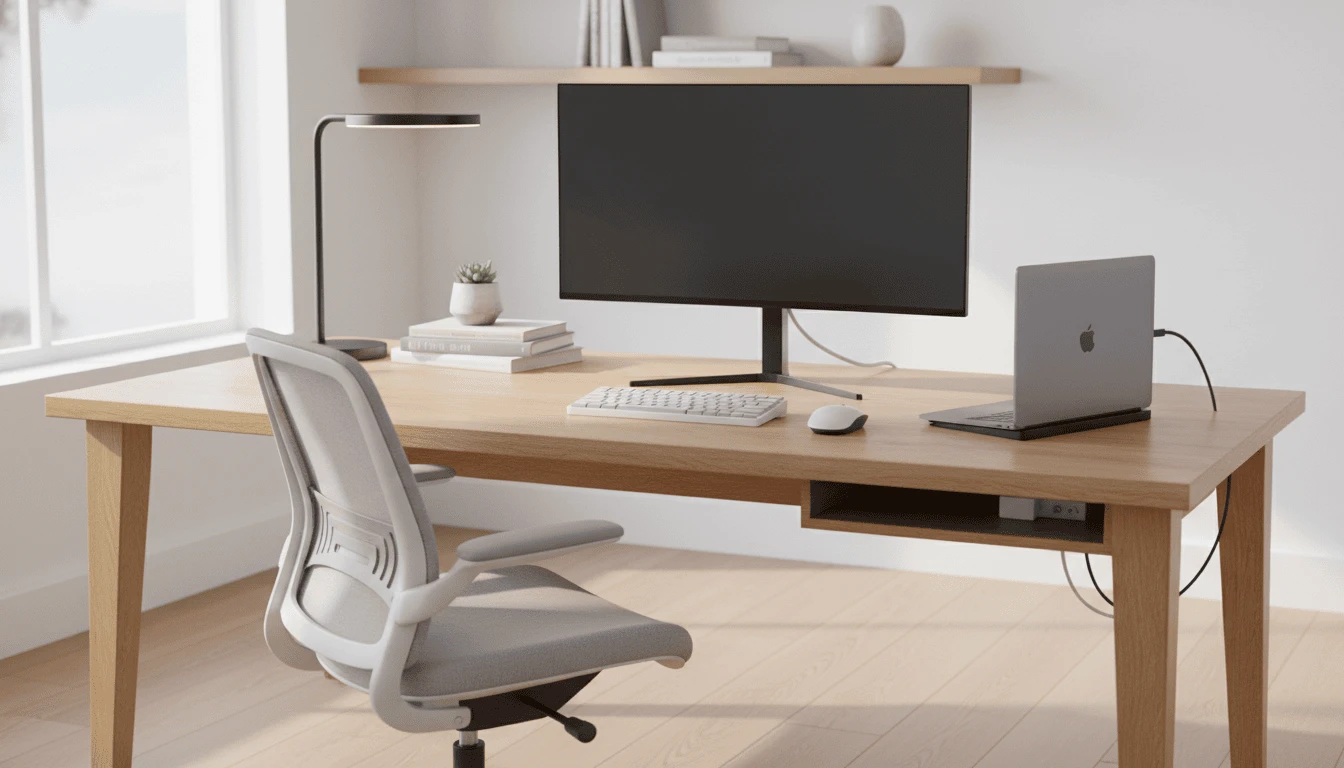
When setting up a home office, most people think about aesthetics first — wall color, decor, background, furniture placement. But for a home office tech setup, location is about performance, not appearance.
Where you place your workstation directly affects your internet stability, video call quality, power management, and even your daily productivity.
Let’s break it down logically.
Noise Levels for Meetings
If you’re regularly on Zoom, Google Meet, or Microsoft Teams, background noise matters more than you think. A workspace near a busy street, kitchen, TV area, or high-traffic hallway can create constant distractions. Even with noise-canceling headphones, excessive background noise can reduce call clarity and professional presence. Choosing a quieter corner or room instantly upgrades your communication quality.
Natural Light vs Screen Glare
Natural light improves mood and reduces eye strain — but positioning your desk directly in front of or behind a bright window can cause serious screen glare. That glare forces your eyes to work harder and reduces visibility. Ideally, your desk should sit perpendicular to a window, allowing daylight without reflections washing out your monitor.
Power Outlet Access
A performance-driven setup includes multiple devices: laptop or desktop, monitor(s), speakers, desk lamp, charging hubs, and possibly a router or dock. If your workstation is far from power outlets, you’ll rely heavily on extension cords and power strips, increasing clutter and reducing safety. Choose a location with easy access to grounded outlets to support clean cable management and stable power distribution.
Router Proximity
Internet stability is the backbone of any modern home office tech setup. The farther you are from your router, the weaker and less consistent your signal may become — especially in larger homes or apartments with thick walls. If possible, position your desk closer to your router, or consider a mesh Wi-Fi system to eliminate dead zones.
Ethernet vs Wi-Fi
While Wi-Fi is convenient, a wired Ethernet connection provides more stable speeds and lower latency — especially important for video calls, large uploads, cloud collaboration, or live streaming. If your work heavily depends on consistent connectivity, choosing a location where Ethernet access is possible can significantly improve reliability.
Cable Routing Space
Clean cable routing isn’t just about aesthetics — it affects safety and workflow. Tight corners, blocked pathways, or limited desk clearance can make cable organization difficult. Leave enough space behind or under your desk for cable trays, power strips, and proper routing. A clean cable layout reduces distractions and makes troubleshooting easier later.
The right location doesn’t have to be a separate room. It just needs to support your technical requirements. When you choose your workspace based on performance logic instead of decoration trends, you eliminate many of the small daily frustrations that quietly reduce productivity.
Once your location supports power, internet, lighting, and noise control, you’re ready to build your core hardware foundation.
Step 3 – Build the Foundation Layer (Core Hardware Setup)
Your entire home office stands on one core element: your computer. If the foundation is weak, no monitor, keyboard, or productivity tool can compensate for slow performance, freezing applications, or constant system lag.
This is where you build the base layer of your workspace.
Laptop vs Desktop
The first decision is mobility versus raw performance.
A laptop is ideal if you:
- Move between rooms
- Work hybrid (home + office)
- Travel frequently
- Prefer minimal desk clutter
A desktop, on the other hand, offers:
- Better long-term performance for the price
- Easier upgrades
- Stronger cooling for heavy workloads
- More ports and expandability
For general remote work, a modern laptop is usually sufficient. If you’re trying to set up a home office on a budget, prioritizing SSD storage and sufficient RAM matters more than brand names.
But for developers, designers, video editors, engineers, or multitask-heavy professionals, a desktop or high-performance workstation may provide better long-term value.
Minimum Hardware Specs (CPU, RAM, SSD)
Your daily workflow determines your minimum specifications.
- CPU (Processor):
This is the brain of your system. Office tasks and browser-based work don’t require extreme processors, but multitasking, coding, editing, or running multiple applications simultaneously demand stronger multi-core CPUs. - RAM:
For basic productivity, moderate RAM handles email, documents, and meetings smoothly. But if you work with design software, development tools, large spreadsheets, or multiple browser tabs, higher RAM prevents slowdowns and improves responsiveness. - SSD vs HDD:
A solid-state drive (SSD) is no longer optional. It dramatically improves boot times, file access speed, and overall system responsiveness. Traditional hard drives (HDDs) are slower and better suited for backup storage rather than primary system use.
GPU Considerations
If your work involves:
- Video editing
- 3D modeling
- Graphic design
- Animation
- Machine learning
- High-end gaming after work
Then a dedicated graphics processing unit (GPU) may be necessary.
For most standard office tasks, integrated graphics are sufficient. But creative and technical professionals should evaluate GPU needs carefully to avoid bottlenecks.
Operating System Compatibility
Your operating system affects:
- Software availability
- App compatibility
- Workflow integration
- Security tools
- Device ecosystem syncing
Some professionals rely on Windows-based business software. Others prefer macOS for creative workflows or ecosystem integration. ChromeOS works well for cloud-based tasks but may be limiting for advanced workloads.
Choose the system that supports your daily tools — not just personal preference.
Upgrade Potential
Think beyond today.
Can you upgrade RAM later?
Can you expand storage?
Are ports sufficient for future monitors and accessories?
A good home office tech setup isn’t just built for now — it’s built to scale with your workload. Choosing hardware with upgrade potential saves money and extends the lifespan of your investment.
Once your core hardware is strong and future-ready, you’ve secured the foundation. Everything that follows — monitors, input devices, connectivity, and productivity tools — will perform as intended because the system powering them is stable and capable.
Step 4 – Optimize Your Display & Visual Productivity
Your monitor is where you spend most of your workday staring. If your home office has a powerful computer but a poor display configuration, you’ll still feel limited, distracted, or physically strained.
The goal here isn’t just a bigger screen — it’s smarter visual productivity.
Single vs Dual Monitors
A single monitor works fine for light tasks, but once you start switching constantly between documents, emails, dashboards, meetings, and research tabs, screen space becomes productivity space.
Dual monitors allow you to:
- Keep communication tools open on one screen
- Work on documents or projects on the other
- Reduce window switching
- Improve workflow efficiency
For many professionals, a second monitor is one of the most impactful upgrades in a home office tech setup. A home office setup with multiple monitors often increases efficiency more than upgrading to a faster processor.
Vertical Monitor Setup
If you work with:
- Long documents
- Coding environments
- Research articles
- Spreadsheets
- Content writing
A vertical monitor can significantly reduce scrolling and improve readability. Developers and writers often find this setup especially efficient because it mirrors the natural layout of documents and code blocks.
It’s not mandatory — but for the right workflow, it’s powerful.
Screen Size Decisions
Bigger isn’t always better. The right size depends on your desk depth and viewing distance.
- Smaller desks may be ideal for 24-inch displays.
- Mid-sized desks work well with 27-inch monitors.
- Wider setups can accommodate 32-inch or ultrawide displays.
If your monitor is too large for your viewing distance, you’ll constantly move your neck. If it’s too small, you’ll strain your eyes. Balance matters.
1080p vs 1440p vs 4K
Resolution affects clarity and text sharpness.
- 1080p (Full HD) is sufficient for general productivity.
- 1440p (QHD) offers sharper text and more workspace.
- 4K provides exceptional clarity and is ideal for designers, editors, and professionals who require precise detail.
For most remote professionals, 1440p on a 27-inch monitor hits the sweet spot between clarity and performance demand. But creative workflows may justify 4K.
Monitor Arms & Positioning
A monitor arm is more than a cosmetic upgrade. It:
- Frees up desk space
- Allows precise height adjustment
- Supports dual or vertical configurations
- Improves cable management
Fixed stands often limit flexibility. Adjustable arms let you fine-tune your setup for comfort and alignment.
Eye-Level Ergonomics
Proper positioning is critical.
The top of your screen should sit at or slightly below eye level. Your monitor should be roughly an arm’s length away. This reduces neck strain, shoulder tension, and eye fatigue.
If you constantly look down at a laptop screen, you’re creating long-term posture issues. Raising your display — either with a monitor arm or stand — instantly improves comfort.
A well-optimized display setup transforms how you work. It reduces physical strain, improves focus, and enhances multitasking. Once your visual layer is dialed in, your home office tech setup begins to feel like a true productivity environment instead of just a desk with a screen.
Step 5 – Set Up Your Input & Control Layer
Your computer processes the work.
Your monitor displays it.
But your keyboard and mouse are where execution actually happens.
Every email you write, every shortcut you press, every spreadsheet you edit, every note you take — it all flows through your input devices.
If this layer is uncomfortable, misaligned, or poorly chosen, productivity slowly declines and physical strain increases.
Let’s structure this properly.
Keyboard Types
Not all keyboards are built the same.
Your typing experience directly affects speed, accuracy, and fatigue levels.
There are two common categories:
Mechanical keyboards use individual switches under each key, offering stronger tactile feedback and longer durability. They are often preferred by heavy typists, developers, and professionals who work long hours.
Membrane keyboards use a softer pressure system. They are quieter, usually more affordable, and suitable for lighter workloads or shared environments.
The right choice depends on how intensively you type each day.
Ergonomic Keyboards
Standard flat keyboards angle your wrists slightly inward. Over time, this creates strain.
Ergonomic keyboards are designed to:
- Promote a more natural wrist position
- Reduce inward bending
- Support better forearm alignment
- Lower repetitive strain risk
For full-time remote professionals, ergonomics becomes a long-term investment rather than an optional upgrade.
Mechanical vs Membrane – Practical Perspective
If your work involves constant typing, multitasking, or coding, mechanical keyboards typically offer better long-session stability.
If your workflow is lighter — emails, occasional documents, virtual meetings — a quality membrane keyboard can perform adequately.
The goal isn’t trend-based buying.
It’s matching the tool to your workload.
Mouse Types – Standard vs Vertical
Your mouse position impacts your wrist and forearm alignment more than most people realize.
A standard mouse keeps your palm facing downward, which slightly twists the forearm inward.
A vertical mouse shifts your grip into a more neutral handshake position, reducing rotation and potentially lowering wrist strain during long sessions.
For professionals working extended hours, this small adjustment can significantly improve comfort.
Wrist Alignment
Even premium devices won’t help if posture is incorrect.
Proper positioning includes:
- Wrists straight — not bent upward or downward
- Forearms parallel to the floor
- Elbows at approximately 90–100 degrees
- Keyboard positioned at or slightly below elbow height
- Mouse placed close enough to avoid reaching
Alignment errors repeated daily often lead to long-term discomfort.
Long-Term Comfort Over Short-Term Savings
The best way to setup home office tools is to think long-term — not just price-first.
Keyboard and mouse choices may seem minor compared to computers and monitors.
But they are the most physically used tools in your entire home office tech setup.
Choose devices that:
- Support natural hand positioning
- Reduce strain during extended sessions
- Match your workload intensity
- Remain comfortable after several hours of use
A performance-driven workspace is built for sustainability — not just short-term functionality.
Once your input layer is properly configured, your workflow becomes smoother, posture improves, and daily friction decreases.
With hardware, display, and control systems optimized, your home office tech setup is now structurally aligned for productivity.
Step 6: Build Strong Internet and Connectivity Infrastructure
You can have a powerful computer, dual monitors, and an ergonomic setup…
But if your internet drops during meetings
If your ports are constantly full
If cables are messy and power is unstable
Your entire home office tech setup becomes unreliable.
Connectivity and power aren’t accessories. They’re the invisible layer behind every reliable home office technology setup.
They’re the backbone of a performance-driven workspace.
Let’s structure this layer properly.
USB Hubs vs Docking Stations
As your setup grows, so does the number of connected devices.
External drives
Webcams
Microphones
Monitors
Keyboards
Charging cables
A USB hub expands basic port access. It’s suitable for lighter setups that only need a few extra connections.
A docking station, however, acts as a central control unit. It can power your laptop, connect multiple monitors, handle Ethernet, and manage peripherals through a single cable.
For hybrid professionals who plug and unplug frequently, a docking station simplifies workflow and reduces cable clutter.
Thunderbolt vs USB-C
USB-C refers to the connector type.
Thunderbolt refers to the speed and capability behind that connector.
While both may look identical, Thunderbolt supports:
- Higher data transfer speeds
- Multiple high-resolution displays
- Faster charging
- Advanced device chaining
If your work involves external drives, dual 4K monitors, or high-speed data transfer, Thunderbolt compatibility offers stronger long-term flexibility.
For lighter workflows, standard USB-C may be sufficient.
Proper Cable Types
Not all cables are built equally.
Using low-quality or incorrect cables can cause:
Slow charging
Display flickering
Data transfer failures
Unstable device connections
Ensure your cables support the correct:
- Data speed rating
- Power delivery capacity
- Display resolution requirements
Choosing the right cables prevents silent performance bottlenecks.
Surge Protectors
Power fluctuations can damage expensive equipment.
A quality surge protector safeguards your:
- Computer
- Monitors
- Router
- Docking station
- External drives
This isn’t about convenience — it’s about protection.
Even minor voltage spikes can shorten device lifespan.
Power Distribution
A clean power layout improves both safety and workflow.
Your setup should avoid:
- Overloaded extension boards
- Daisy-chained power strips
- Loose floor cables
Use a grounded power strip mounted under your desk if possible. Keep cables routed cleanly to reduce tripping hazards and simplify maintenance.
Stable power distribution supports long-term reliability.
Multi-Device Charging
Modern workspaces include:
- Laptop
- Phone
- Tablet
- Wireless earbuds
- Smartwatch
- Portable accessories
Instead of scattered chargers, consider a centralized multi-device charging solution.
This reduces clutter, keeps devices organized, and ensures everything stays powered without overwhelming your outlets.
Mesh Wi-Fi Systems
In larger homes or apartments with thick walls, standard routers often create dead zones.
If your connection drops in certain rooms or fluctuates during video calls, a mesh Wi-Fi system can stabilize coverage by distributing signal evenly across multiple nodes.
For remote professionals, consistent signal strength directly impacts meeting quality and upload reliability.
Ethernet Advantages
Wi-Fi is convenient.
Ethernet is stable.
A wired connection provides:
- Lower latency
- More consistent speeds
- Reduced interference
- Greater reliability during video calls and large uploads
If your work depends heavily on uninterrupted connectivity, running an Ethernet cable to your desk can significantly improve performance.
VPN and Network Security
Remote work often involves:
- Client data
- Financial information
- Confidential files
- Cloud-based systems
Using a VPN adds an extra layer of encryption, especially when accessing public or shared networks.
Beyond VPN usage, ensure your router firmware is updated and your Wi-Fi is secured with strong encryption protocols.
A professional home office tech setup doesn’t just prioritize speed — it prioritizes security.
When your connectivity and power infrastructure are stable, protected, and organized, your workspace stops feeling fragile.
No more sudden disconnects.
No more port limitations.
No more power anxiety.
Now your system is reliable.
And reliability is what turns a basic desk setup into a true performance-driven home office.
💡 Pro Tip:
Whenever possible, connect your main workstation using Ethernet instead of Wi-Fi. Wired connections provide faster speeds, lower latency, and more stable video calls — which is essential for professional remote work.
Step 7 – Create a Professional Communication Stack
A strong home office tech setup isn’t complete without a reliable communication system.
For many remote professionals, video calls are no longer occasional — they’re daily. Client meetings, team collaboration, presentations, interviews — your digital presence matters.
If you’re learning how to set up a home office for remote work, this layer directly affects how professional you appear on screen.
Let’s structure it properly.
Webcam Resolution
Your built-in laptop camera may work — but it rarely delivers sharp, professional quality.
At minimum, a 1080p webcam ensures:
- Clearer facial detail
- Better low-light handling
- Improved professional appearance
For professionals who frequently present or record content, higher resolution options can further enhance clarity.
If you’re building a high tech home office setup, upgrading your webcam is one of the simplest visual improvements you can make.
Framing & Lighting for Calls
Camera quality alone isn’t enough.
Position your webcam at eye level — not below your chin and not above your forehead. The frame should capture your head and upper shoulders comfortably.
Lighting matters even more than resolution.
Natural light from in front of you works well. Avoid bright windows behind you, as they create silhouettes. If natural light isn’t consistent, a soft desk lamp or ring light can stabilize your appearance.
When planning to set up a home office for video conferencing, lighting and framing are just as important as hardware.
USB Microphones
Audio quality impacts professionalism more than video quality.
If people struggle to hear you clearly, background noise becomes distracting — even if your camera looks sharp.
A dedicated USB microphone offers:
- Clearer voice pickup
- Reduced echo
- Better noise isolation
- More consistent volume
For consultants, trainers, creators, or client-facing professionals, this upgrade significantly improves communication clarity.
Even in a simple home office, clean audio makes a noticeable difference.
Headphones vs Speakers
Speakers are convenient.
Headphones are controlled.
Using headphones during meetings:
- Prevents audio echo
- Reduces background noise
- Improves call clarity
- Maintains privacy
Noise-canceling headphones can be especially useful in shared environments or apartments.
If you’re figuring out how to setup a home office in a small space, headphones often outperform speakers due to limited acoustic control.
Background Setup
Your background communicates just as much as your voice.
A clean, neutral backdrop keeps focus on you.
Options include:
- A tidy bookshelf
- Minimal wall décor
- Soft lighting accents
- A blurred virtual background (if necessary)
Avoid clutter, distractions, or overly busy visuals.
If you’ve ever thought, “I need some suggestions on my home office setup,” improving your on-camera background is often one of the fastest upgrades.
A structured communication stack ensures your presence feels confident, clear, and professional — not accidental.
When your video, audio, lighting, and framing work together, your home office tech setup stops looking temporary and starts feeling intentional.
Now your workspace isn’t just built for productivity — it’s built for visibility.
Also Read These Articles:
Step 8 – Integrate Ergonomics with Technology
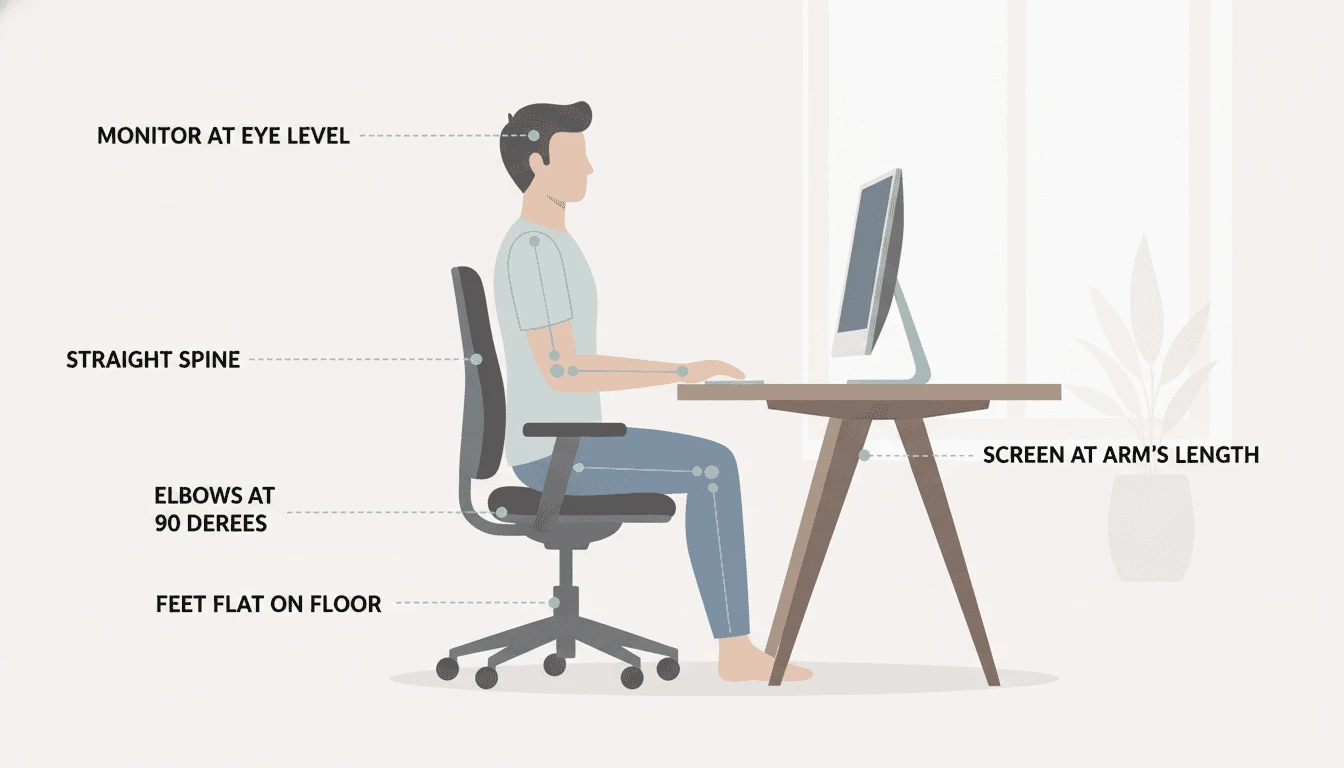
A powerful system means nothing if your body can’t sustain it.
Many professionals focus heavily on hardware and forget that physical strain silently reduces productivity. Back pain, neck tension, eye fatigue, and stiffness don’t appear overnight — they build gradually.
If you’re serious about building the best home office setup for productivity, ergonomics must work alongside your technology — not separately from it. Comfort and alignment are what separate a temporary desk from a true home office tech setup.
This is where performance meets physical sustainability.
Standing Desks
A standing desk allows you to alternate between sitting and standing throughout the day.
Benefits include:
- Improved posture awareness
- Reduced lower back pressure
- Better circulation
- Higher energy levels
For professionals researching how to set up a home office for maximum productivity, movement integration is often overlooked.
You don’t need to stand all day — but the ability to switch positions adds flexibility to your workflow.
Ergonomic Chairs
If you sit for long hours, your chair becomes one of the most important investments in your home office tech setup.
A proper ergonomic chair should support:
- Lower back alignment
- Adjustable seat height
- Armrest positioning
- Lumbar support
- Breathable material
A dining chair or basic office chair may feel fine initially — but over time, inadequate support leads to fatigue and discomfort.
Comfort directly impacts focus.
Monitor Height Alignment
Even with premium monitors, poor positioning creates strain.
Your screen should sit at or slightly below eye level.
Your neck should remain neutral — not tilted upward or downward.
This is especially important in a home office setup with multiple monitors, where inconsistent height levels can force repeated head movement.
Alignment prevents long-term neck and shoulder tension.
Footrests
If your feet don’t rest flat on the floor, pressure builds behind the knees and in the lower back.
A footrest:
- Supports proper leg positioning
- Reduces circulation restriction
- Improves seated posture
For shorter desks or taller chairs, this small addition can significantly improve comfort during extended sessions.
Anti-Fatigue Mats
If you use a standing desk, an anti-fatigue mat reduces pressure on your feet and joints.
Standing directly on hard flooring for long periods can create discomfort in:
- Heels
- Knees
- Lower back
A supportive mat absorbs impact and makes standing rotation more sustainable.
Blue Light Management
Extended screen exposure can cause:
- Eye strain
- Headaches
- Sleep disruption
To reduce fatigue:
- Enable built-in blue light filters
- Adjust screen brightness based on room lighting
- Use warm lighting in evening hours
Managing visual strain is an essential part of a sustainable home office technology setup.
Sitting vs Standing Rotation
The goal isn’t to sit all day.
It’s not to stand all day either.
Alternating positions every 30–60 minutes improves circulation and reduces stiffness.
Movement keeps energy levels stable.
When integrating ergonomics properly, your home office tech setup supports both your productivity and your health.
Because long-term performance isn’t just about faster systems —
It’s about building a workspace your body can sustain for years.
Step 9: Add Productivity Tools to Optimize Your Home Office Tech Setup
By this stage, your hardware, display, connectivity, communication stack, and ergonomics are aligned.
Now comes refinement.
A professional home office tech setup isn’t just about devices — it’s about systems that prevent friction, protect your work, and streamline daily operations.
These tools don’t look impressive on Instagram.
But they quietly improve workflow consistency and long-term efficiency.
Let’s structure this final layer.
External Storage
Even with fast internal SSDs, storage fills up quickly.
Large files, recorded meetings, design assets, backups, and archived projects consume space over time.
External storage provides:
- Backup redundancy
- Extra capacity
- File portability
- Data organization flexibility
For professionals handling large media files or client projects, this layer prevents system slowdowns and storage anxiety.
It’s not about having more space.
It’s about protecting your work.
Cloud Backups
Hardware can fail. Drives can corrupt. Systems can crash.
Cloud backup solutions ensure your important files remain accessible even if your primary device stops working.
Benefits include:
- Automatic syncing
- Remote access
- Disaster recovery protection
- Multi-device integration
If you’re researching how to set up a home office for remote work, secure data backup should be part of the blueprint — not an afterthought.
A resilient workspace protects both productivity and reputation.
Digital Notebooks
Sticky notes get lost. Paper notebooks don’t sync.
Digital notebooks allow you to:
- Capture meeting notes instantly
- Organize ideas by project
- Access notes across devices
- Search past discussions quickly
In a structured home office tech setup software environment, digital organization reduces mental clutter and saves time.
Small efficiency gains compound daily.
Task Management Systems
Productivity isn’t about working longer — it’s about working with clarity.
A task management system helps you:
- Track deadlines
- Prioritize projects
- Break large goals into smaller actions
- Reduce overwhelm
Whether you prefer simple to-do lists or advanced project boards, having a centralized system improves focus and accountability.
For professionals building the best home office setup for productivity, workflow visibility matters as much as hardware specs.
Cable Management Tools
Messy cables create visual stress.
They also make troubleshooting harder and increase accidental disconnections.
Cable trays, clips, sleeves, and under-desk mounts:
- Improve safety
- Reduce distractions
- Enhance airflow
- Keep your workspace clean
If you’ve ever thought, “I need some suggestions on my home office setup,” cleaning up cable chaos is often one of the fastest visible upgrades.
Organization supports concentration.
Lighting Optimization
Lighting affects mood, focus, and video quality.
Your workspace should include:
- Balanced ambient lighting
- Task lighting for focused work
- Soft lighting for video calls
- Reduced glare on screens
If you’re working in a work from home desk setup small space, lighting becomes even more important because poor positioning can cause shadows or screen reflection.
Proper lighting reduces eye strain and improves on-camera presence.
At this point, your workspace is no longer just functional.
It’s optimized.
Your home office tech setup now supports:
- Performance
- Comfort
- Reliability
- Security
- Productivity
And most importantly — sustainability.
You’re not just working from home.
You’ve built a structured, performance-driven system designed to grow with you.
Quick Home Office Setup Checklist
Before moving forward, it can be helpful to quickly review the essential components of a complete home office setup.
If you want a simple step-by-step reference, check out our Home Office Setup Checklist, which covers every important item needed to build a productive workspace.
A typical home office tech setup checklist includes:
• Computer or laptop capable of handling your workflow
• External monitor for improved multitasking
• Ergonomic keyboard and mouse
• Reliable webcam and microphone for meetings
• Noise-canceling headphones for focus
• Stable internet connection and router setup
• Cable management and power infrastructure
• Productivity software and workflow tools
Using a checklist helps ensure that no critical part of your home office tech setup is overlooked while building or upgrading your workspace.
Essential Home Office Tech Gadgets for Productivity
Once your workspace blueprint is defined, the next step is selecting the essential home office tech gadgets that power your daily workflow.
While the overall setup structure improves productivity, the specific devices you use every day — your computer, monitor, keyboard, and communication tools — determine how efficiently you work.
Below are the most important home office tech devices and gadgets that professionals rely on to build a reliable and productive work-from-home environment.
1. Computer or Laptop (Your Primary Workstation)
Your computer is the core of your home office tech setup. Whether you choose a laptop or desktop depends on your workflow, but performance and reliability should always be the priority.
For most remote workers and freelancers, a modern system should include:
• At least 16GB of RAM for smooth multitasking
• SSD storage for fast system performance
• A processor capable of handling video calls, multitasking, and productivity tools
A slow computer can quickly turn into a productivity bottleneck, especially during meetings, presentations, or creative work.
2. External Monitor for Better Productivity
An external monitor is one of the simplest upgrades that can dramatically improve your work-from-home setup.
Working on a larger screen allows you to open multiple windows at the same time, reducing constant switching between applications.
Benefits of adding a monitor include:
• Improved multitasking
• Reduced eye strain during long work sessions
• Better focus when managing documents, emails, and meetings simultaneously
Many professionals use dual monitor setups to maximize productivity.
3. Ergonomic Keyboard and Mouse
Laptop keyboards and trackpads are not designed for long work sessions. Using a dedicated keyboard and mouse can significantly improve comfort and typing efficiency.
An ergonomic setup helps:
• reduce wrist strain
• improve typing posture
• maintain long-term comfort during work hours
Wireless models also help keep your desk clean and organized by reducing cable clutter.
4. Webcam and Video Call Lighting
Video meetings are now a standard part of remote work, making a reliable webcam essential for professional communication.
A high-quality webcam combined with proper lighting can:
• improve video clarity during meetings
• create a more professional on-camera appearance
• reduce shadows and poor lighting conditions
Many professionals pair their webcam with a desk lamp or monitor light bar to improve video call visibility.
5. Noise-Canceling Headphones
Background noise is one of the biggest challenges when working from home. Noise-canceling headphones help block distractions and improve focus.
They are particularly useful for:
• online meetings
• deep focus sessions
• working in shared homes or apartments
A good pair of headphones also improves microphone clarity during calls.
6. Docking Station or USB Hub
A docking station or USB hub simplifies device connectivity by allowing you to connect multiple peripherals through a single port.
This is especially useful when connecting:
• external monitors
• keyboards and mice
• webcams
• storage devices
Docking stations help create a cleaner, more organized home office technology setup.
Once you understand the essential gadgets required for a productive workspace, the next step is designing a home office tech setup that fits your budget and work requirements.
Home Office Tech Setup Ideas Based on Budget and Work Style
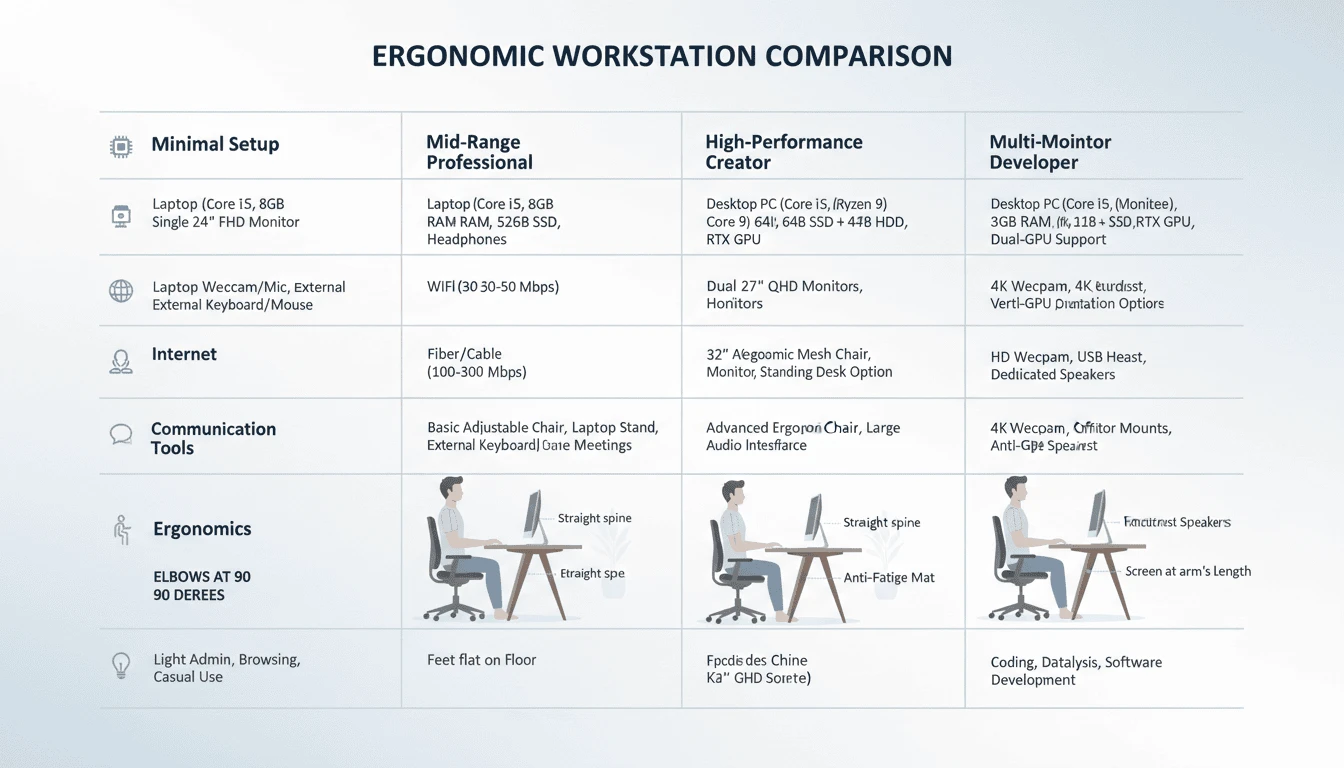
Not every professional needs the same home office setup. A developer, designer, freelancer, or content creator may require very different equipment depending on their workflow.
Below are several home office tech setup ideas based on budget and work style. These examples help you understand how different professionals build their workspace using the right combination of devices, monitors, connectivity tools, and productivity equipment.
If you’re researching how to setup a home office on a budget, this section will help you make smart trade-offs without sacrificing performance.
Let’s break it down by budget tier and work type.
1️⃣ Minimal Tech Setup for Remote Work
This is for:
- Entry-level remote workers
- Freelancers starting out
- Students working part-time
- Anyone building a simple home office
The goal here is functionality — not perfection.
What You Need
- A reliable laptop with SSD storage
- One external monitor (if possible)
- Basic ergonomic chair
- Stable Wi-Fi connection
- External keyboard and mouse (optional but recommended)
- Headphones for meetings
This setup works well for:
- Emails
- Virtual meetings
- Document editing
- Cloud-based work
If you’re wondering how to setup a home office in a small space, this minimal configuration fits easily on a compact desk.
Where to Save
- Skip ultra-wide monitors
- Avoid premium mechanical keyboards
- Use built-in webcam initially
- Start with standard Wi-Fi before upgrading to mesh
Where Not to Cut Corners
- SSD storage
- Reliable internet
- Basic ergonomic support
Even on a tight budget, stability and comfort should not be sacrificed. A basic work from home desk setup small space can also be highly effective if structured correctly.
2️⃣ Mid-Range Professional Home Office Tech Setup
This is ideal for:
- Full-time remote employees
- Consultants
- Digital marketers
- Business professionals
If you’re serious about learning how to set up a home office for maximum productivity, this is often the sweet spot.
What You Add
- Dual monitors (or 27-inch high-resolution display)
- Docking station
- 1080p external webcam
- USB microphone
- Ergonomic chair with lumbar support
- Surge protector and organized cable system
This level creates a structured home office setup with laptop and monitor that supports long working hours without friction.
Where to Spend
- Monitor quality
- Chair ergonomics
- Internet reliability
Where to Save
- Fancy RGB accessories
- Overpowered GPUs (if not required)
- Premium-branded peripherals with no functional difference
This tier balances performance, comfort, and cost efficiency.
3️⃣ High-Performance Creator Tech Setup
This is built for:
- Video editors
- Designers
- Content creators
- Streamers
- Engineers
Here, performance becomes non-negotiable.
If you’re building a high tech home office setup, this tier focuses on speed and output.
Core Components
- High-performance desktop or workstation laptop
- Dedicated GPU
- 32GB+ RAM (depending on workload)
- Color-accurate 4K monitor
- Thunderbolt docking support
- Dedicated USB microphone
- Professional lighting
- External SSD storage
This type of home office technology setup prioritizes:
Processing power
Display clarity
Data speed
Backup security
Where to Spend
- CPU & GPU
- RAM
- Monitor resolution and color accuracy
- External storage redundancy
Where to Save
- Decorative desk accessories
- Premium branding without spec advantages
Performance tools generate revenue — aesthetics don’t.
4️⃣Multi-Monitor Developer Tech Setup
Designed for:
- Programmers
- Data analysts
- Traders
- Technical professionals
A home office setup with multiple monitors can significantly improve workflow for code-heavy or data-driven tasks.
Recommended Structure
- Dual or triple monitor setup
- At least 16–32GB RAM
- Fast SSD storage
- Vertical monitor for long code blocks
- Mechanical keyboard (optional but often preferred)
- Stable Ethernet connection
If you’re researching how to setup a home office for remote work as a developer, screen real estate often improves efficiency more than extreme hardware upgrades.
Where to Spend
- Monitor quality and alignment
- RAM for multitasking
- Stable wired internet
Where to Save
- 4K resolution (unless required)
- Excess GPU power (if not coding graphically intensive apps)
For developers, productivity is often about layout — not luxury.
Where to Invest vs Save in a Home Office Tech Setup
When building a home office tech setup, budget decisions should follow one principle:
Spend where it affects performance.
Save where it doesn’t.
Always Prioritize
✔ Reliable computer performance
✔ Stable internet
✔ Ergonomic chair
✔ Monitor clarity
✔ Data backup
These directly impact your work output and health.
Optional or Gradual Upgrades
• Standing desks
• Premium microphones
• Advanced lighting systems
• Thunderbolt ecosystems
• Decorative enhancements
These can be added over time.
Final Budget Perspective
You don’t need to build everything at once.
You can start with a minimal setup, then upgrade:
Add a second monitor.
Improve your chair.
Upgrade your internet.
Introduce better audio and lighting.
Whether you’re planning to setup a home office in a studio apartment, building in a work from home desk setup in a small space, or scaling toward a performance-driven environment — progression is completely valid.
A professional workspace isn’t defined by how expensive it looks.
It’s defined by how efficiently it supports your work.
Build smart.
Upgrade intentionally.
Prioritize impact over impulse.
That’s the best way to set up a home office — at any budget level.
While choosing the right devices and setup structure is important, many professionals also face another challenge — creating a productive home office in limited space. The next section explores how to design an efficient home office tech setup in small apartments or compact rooms.
Small Space Home Office Tech Setup Guide (Apartments & Compact Rooms)
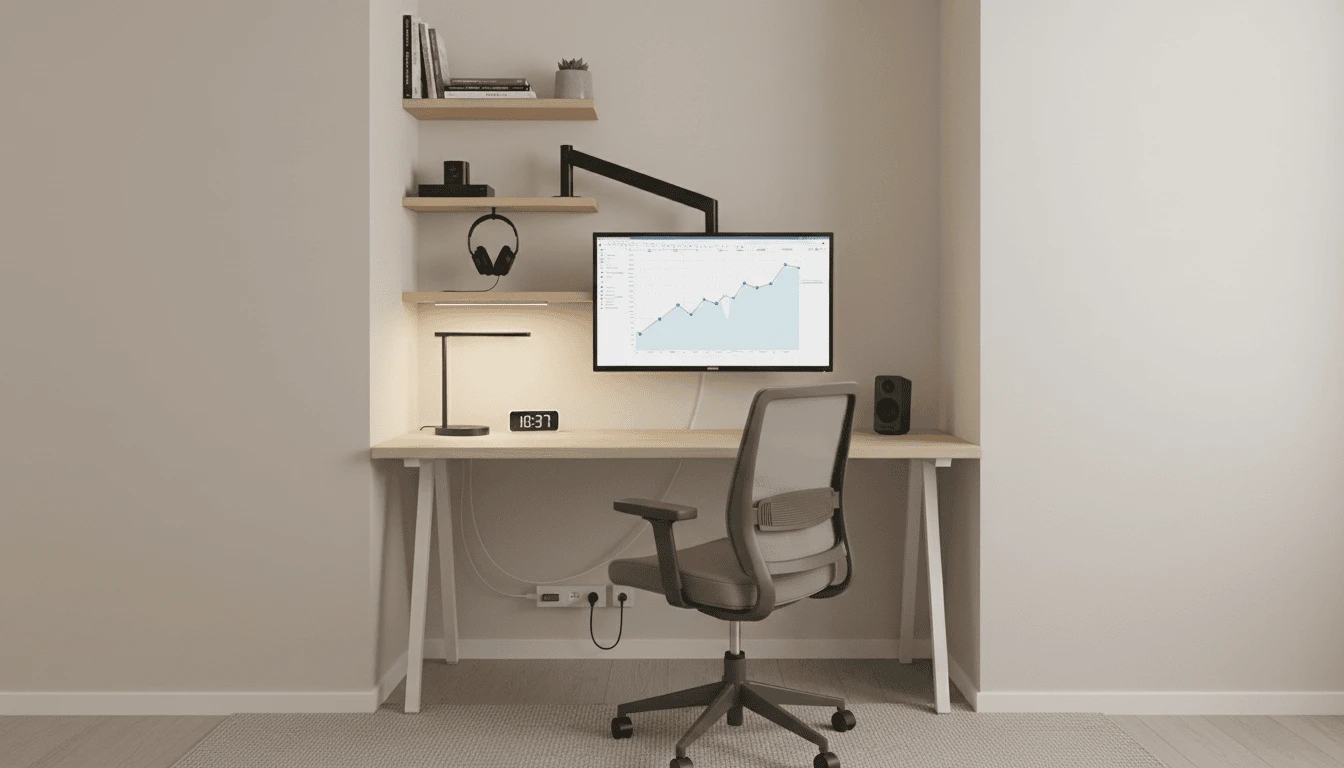
Not everyone has the luxury of a dedicated office room. Many professionals work from small apartments or compact living spaces, where creating a dedicated workspace can feel challenging.
The good news is that a small space home office tech setup can still be highly productive if it is designed strategically. By choosing the right equipment, optimizing your layout, and minimizing clutter, you can create a powerful workspace even in limited space.
If you’re researching to setup a home office in a small space or how to setup a home office in a studio apartment, this section will help you think vertically, modularly, and efficiently.
Let’s structure it properly.
Choose a Compact Workspace Location
In smaller apartments, your desk footprint matters.
Look for workspace solutions such as:
• slim-depth desks
• wall-mounted fold-down desks
• corner desks
• minimalist workstation tables
The goal is not to create a large desk surface — it is to create functional workspace efficiency.
A compact desk paired with a laptop and external monitor can support a highly efficient work-from-home desk setup for small spaces without overwhelming the room.
Avoid oversized executive desks. In compact layouts, maintaining airflow and walking space is part of maintaining a productive workspace.
Use Wall-Mounted Monitor Arms
When desk depth is limited, traditional monitor stands can consume valuable workspace.
A wall-mounted or clamp-based monitor arm can:
• free up desk surface space
• allow precise height adjustments
• support vertical screen positioning
• improve cable routing and organization
For a home office setup with multiple monitors in small spaces, adjustable arms help maintain clean alignment and prevent clutter.
In compact workspaces, vertical flexibility is more valuable than horizontal expansion.
Optimize Vertical Storage
If you cannot expand outward, expand upward.
Using vertical storage helps maximize space while keeping the desk organized.
Effective options include:
• floating wall shelves
• pegboards and wall organizers
• vertical file holders
• mounted storage racks
When planning a home office setup in an apartment, storage efficiency often determines whether the workspace feels organized or cramped.
A cluttered desk reduces focus. Structured storage improves it.
Use Foldable or Modular Workspace Solutions
Small apartments often require multi-purpose areas.
Your workspace may share space with:
• a bedroom
• a dining area
• a living room
Foldable desks, collapsible monitor stands, and rolling storage units allow you to switch easily between work mode and living mode.
For professionals learning how to set up a home office for remote work in compact environments, modular setups provide flexibility without sacrificing functionality.
The workspace should adapt to your lifestyle — not the other way around.
Noise Control in Apartments
Improve Noise Control in Apartments
Apartments often introduce acoustic challenges such as:
• street noise
• neighbor conversations
• shared walls
• appliance sounds
To improve call quality and focus:
• use noise-canceling headphones
• position your desk away from shared walls
• add soft furnishings such as curtains, rugs, or cushions to absorb sound
If your job involves frequent video meetings, controlling noise becomes essential for maintaining a professional communication environment.
Even a minimal home office tech setup benefits significantly from improved acoustics.
Manage Cables and Reduce Visual Clutter
In small workspaces, visible cables quickly create visual clutter.
Simple cable management solutions include:
• cable sleeves
• under-desk cable trays
• adhesive cable clips
• shorter, measured cables
Clean cable routing improves both aesthetics and functionality.
A tidy desk makes even a compact home office tech setup feel intentional, organized, and professional.
Final Perspective for Small Spaces
A smaller home doesn’t require a smaller vision.
It requires smarter design decisions.
With compact furniture, vertical storage, structured cable routing, and controlled acoustics, you can build a fully functional home office tech setup even in limited square footage.
Productivity isn’t defined by room size.
It’s defined by how intelligently the space is used.
Common Home Office Tech Setup Mistakes to Avoid
Setting up a home office may seem simple, but many professionals unknowingly create workspaces that reduce productivity, cause discomfort, or introduce technical problems.
Avoiding a few common mistakes can significantly improve your home office tech setup, helping you maintain focus, comfort, and long-term efficiency while working remotely.
Choosing the Wrong Computer for Your Work
One of the most common mistakes is selecting a computer that cannot handle your daily workflow.
Many professionals underestimate how demanding remote work tools can be — especially when running video meetings, multiple browser tabs, collaboration software, and productivity apps simultaneously.
When choosing a system for your home office technology setup, prioritize:
• sufficient RAM for multitasking
• fast SSD storage
• a processor capable of handling demanding workloads
A slow computer quickly becomes a major productivity bottleneck.
Ignoring Ergonomics
Another frequent mistake is focusing only on devices while ignoring ergonomic comfort.
Poor ergonomics can lead to:
• neck pain
• wrist strain
• back discomfort
• reduced concentration
Your monitor should be positioned at eye level, and your keyboard and mouse should allow a natural typing posture.
A well-designed home office tech setup should support both productivity and physical comfort.
According to guidelines from the Occupational Safety and Health Administration, maintaining proper monitor height and ergonomic seating can significantly reduce neck and back strain during long work sessions.
Relying Only on Laptop Screens
Many remote workers attempt to work full-time using only a laptop screen.
While this may work temporarily, it significantly limits productivity during long work sessions.
Using an external monitor can:
• improve multitasking
• reduce eye strain
• allow better workspace organization
Even a simple monitor upgrade can dramatically improve a work-from-home setup.
Weak Internet or Poor Connectivity Planning
Reliable internet is the backbone of any home office.
Many professionals place their desk far from the router or rely on unstable Wi-Fi connections, which can lead to:
• dropped video calls
• slow file uploads
• interrupted meetings
For a stable home office tech setup, consider using:
• a high-quality router
• Ethernet connections when possible
• mesh Wi-Fi systems for larger homes
Connectivity problems can quickly disrupt productivity.
Poor Cable Management
Cable clutter is another common issue in home office environments.
Loose cables not only make the workspace look messy but can also make troubleshooting devices more difficult.
Simple cable management solutions such as:
• cable clips
• under-desk trays
• cable sleeves
can dramatically improve the organization and efficiency of your workspace.
A clean desk layout helps maintain focus and professionalism.
Overcomplicating the Setup
Many professionals assume that a productive home office requires expensive equipment or complex setups.
In reality, the best home office tech setups focus on simplicity and functionality.
Start with essential devices and gradually upgrade your workspace as your needs evolve.
A clean, well-structured workspace often performs better than an overly complicated setup.
💡 Pro Tip:
Before purchasing new devices, evaluate your actual workflow needs. The best home office setup is not the most expensive one — it’s the one designed specifically for how you work.
How to Future-Proof Your Home Office Tech Setup
Technology evolves quickly, and a workspace that works well today may feel outdated in just a few years. Designing a future-proof home office tech setup helps ensure that your workspace remains efficient, scalable, and adaptable as your professional needs grow.
Instead of constantly replacing equipment, focus on building a system that can evolve with your workflow.
Choose Upgrade-Friendly Hardware
When selecting devices for your home office, prioritize hardware that supports upgrades and expansion.
For example:
• laptops or desktops with sufficient RAM and storage
• docking stations with multiple connectivity options
• monitors that support higher resolutions and adjustable mounts
Choosing upgrade-friendly devices ensures your home office technology setup can adapt to future software demands and new productivity tools.
Invest in Reliable Connectivity
Internet infrastructure plays a major role in long-term workspace performance.
As remote collaboration continues to grow, stable connectivity will remain essential for video meetings, cloud workflows, and file sharing.
Consider future-ready connectivity options such as:
• Wi-Fi 6 or Wi-Fi 7 routers
• mesh Wi-Fi systems for larger homes
• Ethernet connections for primary workstations
Strong network infrastructure ensures your work-from-home setup remains stable even as bandwidth requirements increase.
Build a Modular Workspace
A modular workspace allows you to add or replace components without redesigning the entire setup.
Examples of modular design include:
• monitor arms that support multiple displays
• docking stations that allow easy device swapping
• adjustable desks that support both sitting and standing positions
A modular design makes it easier to scale your home office tech setup as your work evolves.
Prioritize Ergonomics for Long-Term Work
Future-proofing your workspace also means protecting your health.
Many professionals underestimate how much ergonomic design affects long-term productivity.
Consider investing in:
• an ergonomic chair
• adjustable monitor positioning
• a proper keyboard and mouse setup
Comfort and posture play a major role in maintaining a sustainable remote work environment.
Keep Your Workspace Flexible
Work environments continue to evolve. Some professionals move between remote work, hybrid schedules, freelancing, or entrepreneurship over time.
Designing a flexible workspace ensures that your home office tech setup can adapt to new tools, devices, or work styles.
Flexibility allows your workspace to grow alongside your career.
Final Perspective on Future-Proofing
A successful home office is not defined by the number of gadgets it contains. It is defined by how well the system supports your work over time.
By choosing scalable technology, reliable connectivity, ergonomic design, and modular equipment, you can build a home office tech setup that continues to perform for years to come.
Also Read These Related Articles:
Final Thoughts – Build a System, Not Just a Desk
A strong home office tech setup isn’t built by copying someone else’s desk or buying trending gadgets.
It’s built step by step.
First, define your work needs.
Then choose the right location.
Build a solid hardware foundation.
Optimize your display.
Set up proper input devices.
Strengthen connectivity and power.
Create a professional communication stack.
Integrate ergonomics.
Add productivity and optimization tools.
Plan your budget wisely.
Adapt for small spaces if needed.
Avoid common mistakes.
And finally — future-proof everything.
That’s the blueprint.
If there’s one principle to remember, it’s this:
Buy with clarity, not emotion.
Don’t overspend on features you’ll never use.
Don’t ignore internet stability.
Don’t compromise ergonomics.
Don’t clutter your space with unnecessary complexity.
When learning how to set up a home office, most people focus on what to buy. But the real advantage comes from understanding why you’re buying it — and how each layer supports your workflow.
This guide wasn’t meant to push products.
It was meant to give you structure.
Because a professional home office tech setup isn’t about short-term convenience. It’s about long-term sustainability.
A thoughtful setup protects:
Your productivity
Your posture
Your time
Your focus
Your career growth
Even if your budget is limited, you now understand what to prioritize, where to save, and where not to compromise.
Whether you’re working from a dedicated office room or a compact apartment corner, the goal remains the same:
Build a system that supports you — not one that slows you down.
This may have been a long read, but the intention was simple:
To give you complete clarity.
So you can confidently decide:
What to buy.
What to skip.
What to upgrade later.
And what truly matters.
Set it up once — and set it up right.
Because your workspace isn’t just where you work.
It’s where your professional future is built.
Frequently Asked Questions about Home Office Tech Setup
What should one consider when setting up their own home office space for maximum efficiency and comfort?
When setting up your own home office space, focus on three core pillars: performance, ergonomics, and reliability.
Start by defining your work type. Your hardware, monitor setup, and internet requirements should match your daily tasks. Next, prioritize ergonomics — proper chair support, monitor height alignment, and wrist positioning are essential for long-term comfort. Finally, ensure stable connectivity and organized power distribution.
An efficient home office tech setup supports both productivity and physical sustainability. Comfort isn’t optional — it directly impacts focus and output.
How do I create the perfect home office space for remote work?
To create the perfect home office space for remote work:
Define your workflow needs.
Choose a quiet, well-lit location.
Invest in reliable hardware (SSD-based system, sufficient RAM).
Optimize your display setup.
Ensure stable internet connectivity.
Improve audio and video quality for calls.
Integrate ergonomic support.
If you’re learning how to set up a home office for remote work, think in layers — hardware, connectivity, communication, ergonomics, and workflow tools. Build gradually, upgrade strategically.
What is the best way to set up a home office?
The best way to set up a home office is to follow a structured blueprint:
Define work needs before buying anything.
Build a strong hardware foundation.
Optimize monitor positioning.
Strengthen connectivity.
Integrate ergonomics.
Add productivity tools last.
A smart home office tech setup is built intentionally — not impulsively. Start with essentials, then expand based on real needs.
How much money do you need to start a home office?
The cost depends on your workload and expectations.
A minimal setup can start with a reliable laptop, stable internet, and basic desk and chair.
A mid-range professional setup includes dual monitors, ergonomic seating, and better communication tools.
High-performance setups require stronger CPUs, GPUs, and storage.
You don’t need a large budget to begin. Even a simple, well-planned home office tech setup can be built gradually by prioritizing essentials first.
What is needed for a home office setup?
At minimum, you need:
A reliable computer (with SSD storage)
Stable internet connection
Desk and ergonomic chair
Proper lighting
Basic input devices (keyboard and mouse)
For a more complete home office technology setup, consider:
External monitor
Surge protection
Communication tools (webcam, microphone)
Data backup solutions
The goal is functionality first — optimization later.
What are the three types of offices?
In general, offices can be categorized as:
Traditional Office – Employees work from a centralized physical location.
Home Office – Professionals work remotely from their residence.
Hybrid Office – A combination of remote and in-office work.
A modern home office requires a structured home office tech setup to match the performance standards of traditional office environments.
What are tax deductions for home offices?
ax deductions for home offices vary by country and local regulations. In many regions, eligible professionals may deduct:
A portion of rent or mortgage (based on workspace percentage)
Utilities (electricity, internet)
Office equipment
Furniture used exclusively for work
Software subscriptions
Always consult a certified tax professional to understand eligibility requirements and compliance rules.
What are the 3 P’s for having a clean desk?
The 3 P’s are:
Purge – Remove unnecessary items.
Place – Assign a dedicated location for essential tools.
Protect – Maintain organization consistently.
A clean desk reduces cognitive overload. In a structured home office tech setup, organization directly supports productivity.
How do you make your home office more comfortable and productive as a small business owner?
As a small business owner, your home office should support both focus and flexibility.
To improve comfort and productivity:
Upgrade to an ergonomic chair.
Improve lighting and monitor alignment.
Use task management systems.
Maintain cable organization.
Invest in stable internet.
Create a distraction-controlled environment.
If you’re exploring how to set up a home office for maximum productivity, remember that comfort, clarity, and reliability drive performance — not just expensive equipment.
A well-designed home office tech setup becomes a strategic asset for your business, not just a workspace.
Stay Connected & Keep Building Smarter
If you’ve made it this far, it means you’re serious about building a smarter, more efficient home office tech setup — not just buying random gadgets.
My goal with this guide was simple: to give you real clarity. So you can confidently decide what to buy, what to avoid, and how to build a workspace that supports your long-term productivity.
If you found this article helpful, practical, or eye-opening, I invite you to subscribe to the USA Tech Deals email newsletter. I regularly share in-depth guides, tech insights, setup strategies, and carefully researched recommendations to help you continue improving your workspace the right way.
Also, I’d genuinely love to hear from you.
What are you planning to upgrade next?
Are you building a minimal setup or a high-performance system?
Do you have any specific questions about your current home office?Drop your thoughts in the comments below — I personally read and respond. Your questions might even inspire the next guide.
And if you believe this article could help someone else — a friend, colleague, family member, or fellow remote professional — please share it with them. A thoughtful workspace benefits more than just one person.
Let’s build better workspaces — together.

Md Afraz Alam is a digital marketing consultant, content strategist, and the founder behind Techfee and USA Tech Deals. Through USA Tech Deals, he shares research-driven home office technology guides, product comparisons, remote work setup tips, and practical tech buying insights designed to help U.S. professionals, freelancers, and remote workers make smarter technology decisions without overspending on the wrong products.