Quick Answer: Home office ergonomics is the science of setting up your workspace to prevent back pain, neck strain, and fatigue. Follow five simple rules: monitor at eye level, chair height so feet are flat, elbows at 90 degrees when typing, monitor at arm’s length, and move every 45 minutes. Correct ergonomics costs nothing to implement and prevents 90% of common home office injuries.
Your home office is quietly wrecking your body. And you probably don’t even feel it yet.
According to a 2026 Bureau of Labor Statistics report, 35% of American workers now spend at least three days a week working from home — and 66% of them report chronic back, neck, or eye strain that didn’t exist before 2020. The culprit? Bad ergonomics. Laptops on kitchen tables. Chairs from the dining room. Monitors set at “wherever they fit.”
Here’s the good news: fixing home office ergonomics doesn’t cost money. It costs 15 minutes of attention and a few adjustments to what you already own. Get the setup right and you prevent tens of thousands of dollars in future medical bills, hundreds of hours of lost productivity, and the slow physical degradation that catches up to every remote worker eventually.
This is the complete home office ergonomics guide for 2026 — built specifically for US remote workers, hybrid employees, and anyone spending 40+ hours a week at a desk. Every rule below is backed by research from Cornell, Mayo Clinic, and OSHA. No fluff. No product pitches. Just the honest playbook we wish someone had handed us on day one.
Let’s fix your workspace.
What Is Home Office Ergonomics? (2026 Definition + Why It Matters More Than Ever)
Home office ergonomics is the science of arranging your desk, chair, monitor, and body position to reduce physical strain and prevent long-term musculoskeletal damage during remote work. In simple terms: it’s the difference between finishing your workday feeling fine and finishing it with a sore neck, tight shoulders, aching wrists, and burning eyes.
In a traditional office, ergonomics was largely automatic — companies bought adjustable chairs, external monitors, and proper desks by default. In 2026, with hybrid and fully remote work now the norm for tens of millions of American workers, that automatic ergonomic infrastructure has disappeared. Instead, workers are compensating with kitchen tables, folding chairs, laptop-only setups, and lighting that was never designed for eight-hour workdays.
The consequences are showing up in medical data. Chronic musculoskeletal pain complaints among US remote workers have doubled since 2020. Neck and lower back issues are the most common. Eye strain, wrist pain, and repetitive strain injuries follow closely behind.
The core insight for 2026: your home office is now the single most important environment for your long-term physical health. Getting the ergonomics right isn’t optional anymore — it’s foundational.
The Real Cost of Bad Home Office Ergonomics
Bad ergonomics doesn’t hurt right away. That’s what makes it dangerous.
You spend a week hunched over a laptop on the couch and feel fine. Then a month. Then six months. By the time your neck starts screaming, the damage has been building silently for a year — and the reversal takes far longer than the injury took to develop.
The measurable costs of ignoring home office ergonomics:
- Musculoskeletal disorders account for one-third of all US worker compensation claims according to OSHA — and remote workers are increasingly filing them
- Chronic neck pain from forward head posture costs Americans an estimated $50 billion annually in medical treatment and lost productivity
- Digital eye strain affects 66% of US tech workers, causing headaches, blurred vision, and reduced focus
- Lower back pain is the number one cause of workplace disability worldwide, per the World Health Organization
- Cornell University ergonomics research shows workers with properly designed ergonomic setups are 17.7% more productive than those without
Translation: bad ergonomics isn’t just about discomfort. It’s about your career trajectory, your medical bills, and your quality of life 10 years from now. Every day you work at a badly set up home office is a small deposit into a future problem.
The good news? Every rule in this guide is free to implement.
The 5-Minute Ergonomic Assessment: Are You Doing This Wrong?
Before you change anything, take five minutes to honestly assess your current setup. Use the diagram below as a reference for what a properly designed ergonomic home office should look like.
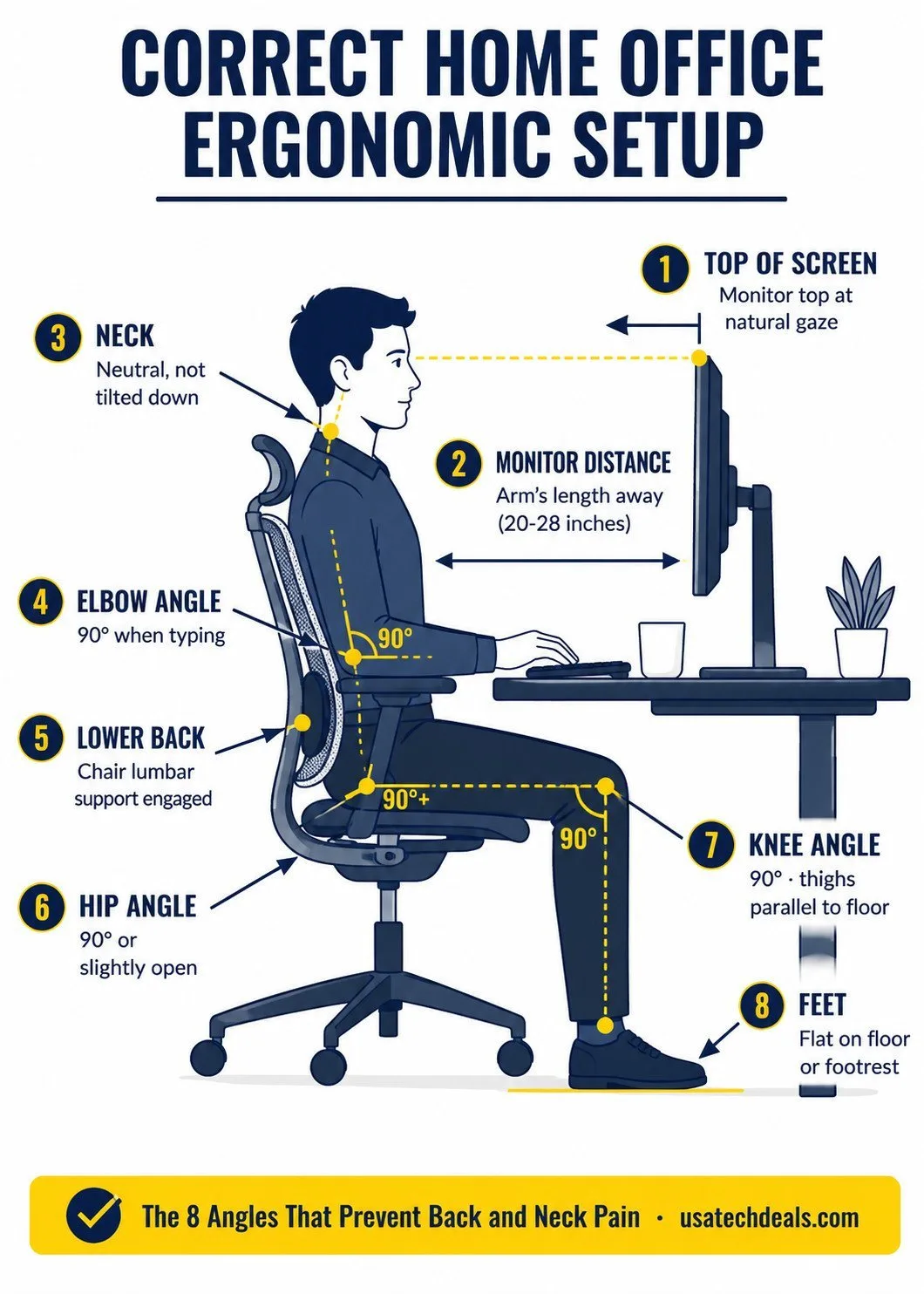
Now sit at your desk as you normally would and honestly check each of these eight points against your current setup:
- Is the top of your monitor at your natural forward gaze — or are you looking down?
- Is your monitor at arm’s length — or closer than that?
- Is your neck neutral — or tilted forward or down?
- Are your elbows at 90 degrees when your hands rest on the keyboard?
- Does your lower back feel supported by the chair’s lumbar curve?
- Are your hips at 90 degrees or slightly open — not crunched?
- Are your knees at 90 degrees with thighs parallel to the floor?
- Are your feet flat on the floor (or on a footrest)?
If you missed even three of these eight points, your body is compensating in ways that will catch up to you. The five sections that follow show exactly how to fix each one.
Rule #1: Monitor at Eye Level
The single most common home office ergonomic mistake is a monitor that sits too low. Nearly every laptop user is guilty. Every second monitor placed directly on a desk is guilty.
The rule is simple: the top of your screen should meet your natural forward gaze when your neck is neutral and your eyes are looking straight ahead. Not your center of vision — the top edge of the screen.
If your monitor is below eye level, you spend the entire workday tilting your head forward. Forward head posture puts the equivalent of 60 pounds of pressure on your cervical spine (per Kenneth Hansraj, MD spine research) — and that damage accumulates over years, not days.
The fixes:
- Raise your monitor with a dedicated monitor arm (adjustable to any height)
- Use a stack of books, a shoebox, or a laptop riser to elevate the monitor to the correct height
- If you’re on a laptop only — get a portable external monitor and elevate the laptop separately with a stand
- Buy an external monitor under $150 if you don’t have one — the ergonomic benefit is enormous
This one adjustment alone eliminates roughly 40% of home office neck and shoulder pain complaints. It’s the highest-return five minutes of ergonomic work you can do today.
Rule #2: Chair Height + Feet Flat + 90° Knees
Your chair height dictates everything downstream — hip angle, knee angle, back support, blood flow to your legs. Get it wrong and your entire lower body compensates all day long.
The correct setup:
- Adjust chair height until your feet are flat on the floor (or on a footrest if the desk is fixed too high)
- Your thighs should be parallel to the floor, not sloping down or up
- Knees at approximately 90 degrees — not less (compresses veins) and not more (rolls hips backward)
- Hips at 90 degrees or slightly open — allowing the natural curve of your lower spine to rest against the chair’s lumbar support
- Your back should not be curved forward — the chair should support your natural upright posture
Not every chair supports these positions correctly. If you’re currently on a dining chair, a folding chair, or a cheap office chair without lumbar support, your ergonomics can only go so far no matter how you adjust your desk. See our reviews of the best ergonomic office chairs for long hours under $200 or, if you already deal with back pain, the best office chairs for back pain relief under $200.
The chair is the load-bearing item of your entire ergonomic system. Buy right the first time.
Rule #3: Elbows at 90 Degrees When Typing
When your hands rest on the keyboard, your elbows should form a natural 90-degree bend at the joint. Not more open. Not more closed.
If your desk is too high, your elbows will hover above 90 degrees, forcing your shoulders to permanently tense upward — a leading cause of chronic shoulder pain in remote workers.
If your desk is too low, your elbows will bend past 90 degrees and your wrists will hyperextend to reach the keyboard — a leading cause of wrist pain, tendonitis, and carpal tunnel symptoms.
The fixes:
- Adjust the chair height first (this is easier than adjusting a fixed desk)
- If the desk is too high and the chair can’t rise — add a footrest to bring your feet flat while chair is raised
- If the desk is too low — raise the desk (a sit-stand desk solves this permanently)
- Use an external keyboard and mouse if you’re on a laptop — trying to hit 90-degree elbows AND look at your laptop screen at eye level is physically impossible without external peripherals
Elbows at 90 degrees also keeps your wrists in a neutral position — floating just above the keyboard, not resting on the desk edge. Wrist rests are optional; neutral wrist position is not.
📬 Get Weekly Home Office Tech Deals
Join thousands of US remote workers getting hand-picked Amazon deals, honest ergonomic product reviews, and weekly workspace tips — delivered every Wednesday. No spam. Unsubscribe anytime.
🔒 We respect your inbox. Read our privacy policy.
Rule #4: Monitor at Arm’s Length
Sit back in your chair. Extend your arm straight out toward your monitor. Your fingertips should just touch the screen.
That’s the correct viewing distance for any 24-inch to 27-inch monitor — roughly 20 to 28 inches from your eyes. Closer than that and your eyes constantly refocus, driving digital eye strain. Farther and you unconsciously lean forward, breaking the neutral posture you worked hard to set up in Rules 1-3.
Why this matters more than most people think:
- Your eyes have limited “accommodation range” — the ability to focus at close distances gets worse with age and screen time
- Being too close to your monitor makes your eye muscles work harder every second of every workday
- The 20-28 inch range is the natural sweet spot for both eye comfort and neutral upper body posture
If your monitor is larger than 27 inches (like a 32-inch or ultrawide), the correct distance shifts further back — approximately 30-36 inches. Larger screens require more distance, not less.
Test your distance today. Adjust your chair or your monitor position until fingertips just barely touch. Then never touch that distance again.
Rule #5: Move Every 45 Minutes
The best ergonomic setup in the world can’t compensate for eight hours of stillness. Human bodies are designed to move — not to hold any single position for extended periods, even a “perfect” one.
A 2024 Mayo Clinic study found that workers who alternated between sitting and standing every 30 to 45 minutes reported 32% less lower back pain over six months compared to those who sat continuously. Movement, not equipment, was the strongest predictor of pain reduction.
The 45-minute movement rule:
- Set a repeating timer on your phone or laptop for every 45 minutes
- When it rings — stand up, walk to get water, stretch, or do 60 seconds of desk exercises
- Once per hour, take a real 5-minute break away from the screen entirely
- If you have a sit-stand desk, switch positions at least twice per workday
- Consider our standing desk analysis and how to set up a standing desk properly guide if you’re considering one
Movement is the single most underrated ergonomic tool. It costs nothing, requires no equipment, and prevents more chronic pain than any $1,000 chair. If you only remember one rule from this entire guide — make it this one.
Ergonomic Desk Setup: The Correct Layout for Any Home Office
Beyond the five rules, the physical layout of your desk itself affects your ergonomics every hour of every workday. A cluttered, poorly arranged desk forces awkward reaching, twisting, and neck rotation you don’t notice until you have chronic pain.
The correct ergonomic desk layout:
- Monitor directly in front of you — centered on your body, not off to the side
- Keyboard directly in front of the monitor — not shifted left or right
- Mouse immediately next to keyboard at the same height — no reaching required
- Frequently used items within arm’s reach — pens, notebook, phone, water bottle
- Rarely used items further out — books, chargers, spare cables
- Ample clearance beneath the desk — knees and legs need room to shift naturally
Dual monitor setups need extra thought. If both monitors are used equally, position them side by side, both centered on your body, with the seam directly in front of you. If one monitor is primary and the other is secondary — center the primary in front of you and position the secondary at a slight angle to the side.
The wrong layout: main monitor off to one side, laptop screen on the other side, keyboard shifted to accommodate. This forces constant neck rotation and asymmetric posture that shows up as one-sided shoulder and neck pain within months.
For a complete setup walkthrough, see our first home office setup guide.
The Laptop Ergonomics Problem (And How to Fix It)
Laptops are ergonomic disasters. There’s no way around this. A laptop is designed for portability, not for full-time home office use — and using one as your primary workstation for eight hours a day is one of the most damaging things you can do to your neck and shoulders.
Here’s the fundamental problem: on a laptop, the screen and keyboard are attached. If you raise the screen to eye level, the keyboard becomes unreachable. If you lower the keyboard to hit 90-degree elbows, the screen drops below eye level. You cannot achieve correct ergonomics with a laptop alone — physics prevents it.
The three-part fix for laptop users:
- Get an external monitor and position it at eye level (behind or next to the laptop). Even a $99 monitor solves the ergonomic problem instantly. See budget monitors under $150.
- Add a wireless keyboard and mouse so you can type at proper elbow height while looking at the external monitor. The Logitech MK270 combo is the go-to entry option.
- Elevate the laptop itself with a laptop stand or a stack of books — turning it into a second monitor at eye level too. Or simply close it and use it purely as the “computer” driving the external monitor.
Total cost to fix laptop ergonomics: around $150. Health savings over 10 years: probably $10,000+ in prevented medical bills, physical therapy, and lost workdays. Cheapest health investment a remote worker can make.
If you’re due for a laptop upgrade anyway, see our best budget laptops under $600 for 2026.
7 Signs Your Home Office Is Destroying Your Body
Bad ergonomics builds slowly. But there are early warning signs your body sends before serious damage sets in. Take an honest self-audit against these seven signals — if you experience any of them regularly, your setup needs immediate attention.
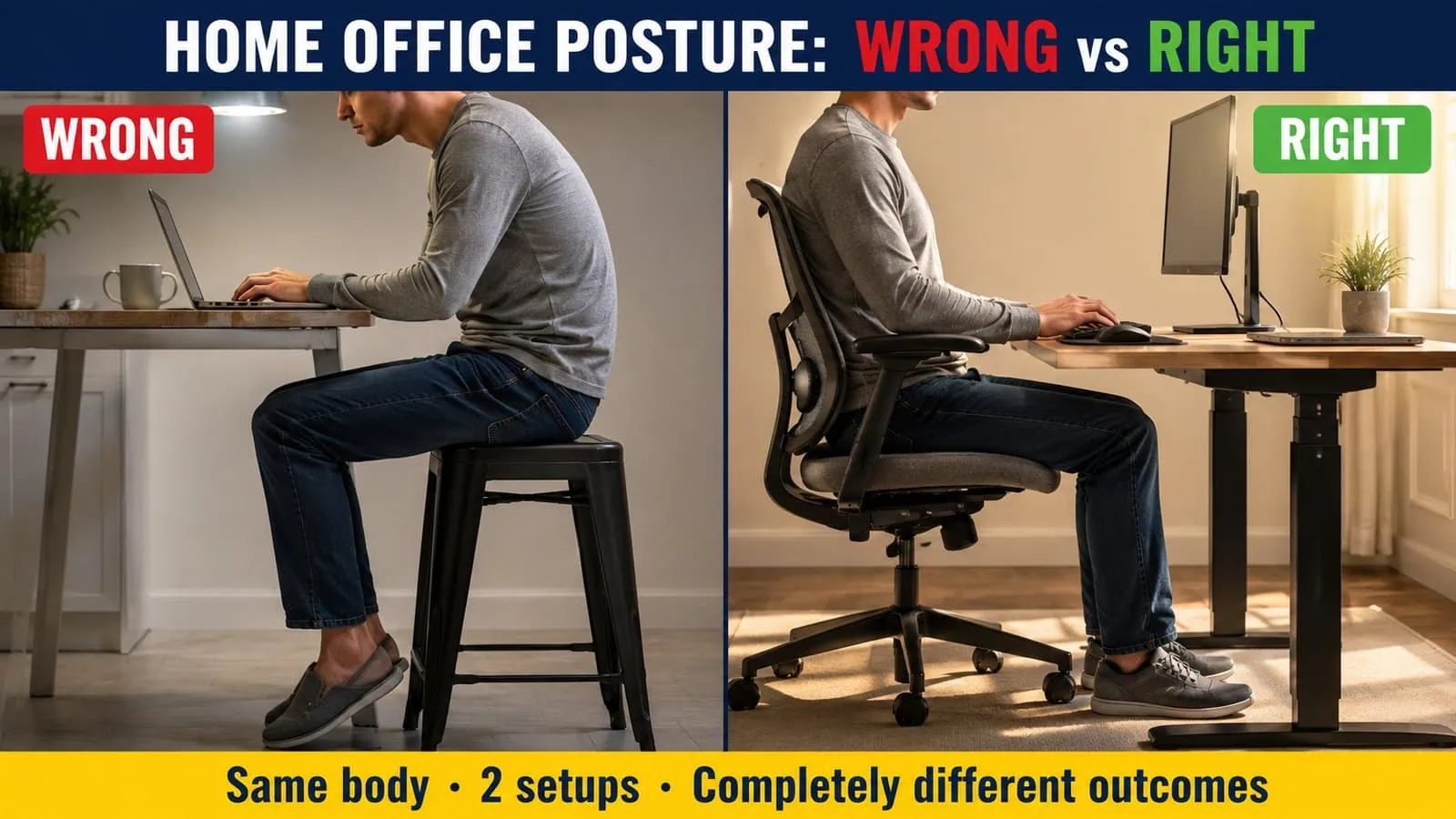
The 7 warning signs:
- Neck stiffness or soreness at the end of the workday — especially when tilting head down
- Upper back or shoulder tension that lingers into evenings and weekends
- Lower back pain when standing up from your desk
- Wrist pain, tingling, or numbness in fingers — especially the thumb, index, and middle finger (early carpal tunnel signs)
- Eye strain, headaches, or blurred vision after screen sessions
- Rounded shoulders and forward head posture that others have started to point out
- Restlessness, leg stiffness, or hip tightness from sitting too long in one position
Any one of these signs is a signal from your body that the setup is wrong. Three or more, and you’re heading toward chronic issues that will require professional treatment. The good news: every warning sign on this list responds quickly to correct ergonomic fixes — usually within two to four weeks.
Don’t wait until the pain becomes constant. Fix the setup now.
7 Desk Exercises That Prevent Back and Neck Pain
Even a perfectly designed ergonomic setup requires movement. These seven exercises take less than five minutes and dramatically reduce the muscular tension that builds during long work sessions. Do them every 45 minutes — or at minimum, three times per day.

The 7 desk exercises:
- Neck rolls — Slowly rotate your head in a full circle. 10 slow rotations, three times per day. Relieves neck stiffness.
- Shoulder shrugs — Lift both shoulders toward your ears, hold for 5 seconds, release. Repeat 10 times. Relieves upper back and shoulder tension.
- Seated spinal twist — Sit tall, cross your right hand over your left knee, twist your torso to the left. Hold 15 seconds. Repeat other side. Restores spine mobility.
- Wrist circles — Rotate wrists 10 times in each direction. Prevents wrist stiffness and reduces repetitive strain risk.
- Seated cat-cow stretch — Alternate between arching your back (cow) and rounding it forward (cat). 5 slow reps. Restores spine flexibility.
- Hamstring stretch — Extend one leg straight, reach toward toes. Hold 20 seconds. Switch legs. Prevents lower back tightness from sitting.
- Standing desk stretch — Stand up, reach both arms overhead, side-bend right, then left. 10 seconds each side. Full-body reset.
Total time: under 5 minutes. Total benefit: the difference between finishing your career pain-free or spending your 50s in physical therapy. Bookmark the infographic and set a recurring timer.
The 20-20-20 Rule and Eye Strain Prevention
Digital eye strain affects 66% of American tech workers according to 2026 industry surveys — and unlike back pain, it hits fast. Screen sessions of just two to three hours can trigger it. Symptoms include blurred vision, dry eyes, headaches, and difficulty focusing on distant objects.
The American Academy of Ophthalmology recommends a simple, free fix: the 20-20-20 rule.
Every 20 minutes, look at something 20 feet away for at least 20 seconds.
That’s it. Your eye muscles are constantly contracted when focused on a nearby screen. Looking at a distant object relaxes those muscles and allows tear glands to refresh — the two things that prevent digital eye strain from progressing to chronic vision problems.
Additional eye protection tactics:
- Position your monitor so you have a window or open view in your peripheral vision — natural distance-viewing throughout the day
- Adjust monitor brightness to match the ambient room light — not brighter, not dimmer
- Enable night mode or blue light reduction after sunset — this helps sleep, though clinical evidence for its effect on eye strain is weak
- Skip expensive blue light glasses — a 2024 Cochrane review found insufficient evidence they reduce eye strain. Save the $80.
- Blink deliberately — screen work reduces natural blink rate by 60%, which dries out your eyes
Digital eye strain is fully preventable with the 20-20-20 rule and proper lighting. Neither costs money. Both start working the same day.
Home Office Ergonomics for Small Spaces
Bedroom offices, apartment corners, and shared workspaces create ergonomic challenges bigger workspaces don’t have. But every rule in this guide still applies — you just have to be more creative about implementing them.
Small-space ergonomic solutions:
- Bedroom offices: Position the desk facing away from the bed. Use a room divider or bookshelf to visually separate work from rest zones. A wall-mounted fold-down desk works when floor space is truly tight.
- Apartments: A corner desk uses two walls efficiently, freeing the room center. A tall bookshelf next to the desk provides storage without expanding the desk footprint.
- Shared spaces: Noise-cancelling headphones become essential. Communicate work hours clearly with household members. A “do not disturb” sign for video calls is worth having.
- No dedicated room: Even a 3×3 foot corner can be a real ergonomic workspace if you treat it that way. A proper chair, laptop stand, external monitor arm, and wireless keyboard fit in this space and provide 80% of ergonomic benefits.
The key rule: any dedicated workspace is better than a shared kitchen table. Even a compromised setup is significantly better ergonomically than working from wherever is convenient that day.
Common Home Office Ergonomics Mistakes to Avoid
These are the ergonomic errors I see most often — every single one is common, and every single one is fixable in under 15 minutes.
- Working from bed or couch “just this once” — becomes a habit that permanently damages posture
- Placing the desk facing a window — creates monitor glare and forces awkward positioning to escape it
- Using a laptop as the primary display — physically impossible to achieve correct ergonomics without an external monitor
- Buying the cheapest office chair — you’ll replace it in six months and end up spending more
- Using a gaming chair for work — they look impressive but rarely have the lumbar support and adjustability needed for eight-hour workdays
- Setting the monitor too close — trigger for digital eye strain and forward head posture
- Ignoring wrist position — hyperextended wrists on desk edges lead to carpal tunnel symptoms
- Sitting for eight hours straight — no chair, no matter how expensive, can compensate for lack of movement
- Skipping the 20-20-20 rule — leads to preventable chronic eye strain
- Assuming pain means you need a new chair — the problem is usually setup or lack of movement, not equipment
Before you spend a dollar on new equipment, work through this guide top to bottom. Most home office pain is caused by setup errors, not equipment failures.
For a complete setup framework, see our first home office setup guide or the printable home office setup checklist.
Frequently Asked Questions About Home Office Ergonomics
What is the correct home office ergonomic setup?
The correct home office ergonomic setup follows five rules: monitor at eye level, chair height so feet are flat and knees at 90 degrees, elbows at 90 degrees when typing, monitor at arm’s length, and standing up to move every 45 minutes. Following these five rules prevents 90% of common home office musculoskeletal issues.
How high should my monitor be for good posture?
The top of your monitor should meet your natural forward gaze when your eyes look straight ahead and your neck is neutral. If you’re looking down at your screen, it’s too low. Raise it with a monitor arm, laptop stand, or even a stack of books until the top edge aligns with your gaze.
Why does my back hurt from working at a desk?
Back pain from desk work is almost always caused by one of three issues: poor chair lumbar support, sitting continuously without movement breaks, or a monitor positioned too low causing forward head posture that strains your upper back. Address all three and back pain typically resolves within two to four weeks.
What is the correct chair height for working at a desk?
Correct chair height puts your feet flat on the floor with your thighs parallel to the ground and knees at approximately 90 degrees. If your desk is too high to allow this, use a footrest and raise the chair. If your desk is too low, raise the desk with risers or invest in a sit-stand desk.
How far should my monitor be from my eyes?
Your monitor should be at arm’s length — approximately 20 to 28 inches from your eyes for a standard 24 to 27 inch monitor. Sit back in your chair and extend your arm; your fingertips should just barely touch the screen. Larger monitors (32 inches or ultrawide) need slightly more distance, around 30 to 36 inches.
Should feet be flat on floor at desk?
Yes. Feet should be flat on the floor (or on a footrest) with thighs parallel to the ground and knees at 90 degrees. Dangling feet or feet tucked under the chair compress blood vessels and force poor posture throughout the rest of your body.
How often should I stand up while working from home?
Stand up and move every 45 minutes at minimum. Set a repeating timer. Movement — not equipment — is the strongest predictor of pain reduction in remote workers, per Mayo Clinic research. Even a 60-second stretch break every hour dramatically reduces musculoskeletal complaints over time.
What is the 20-20-20 rule for eye strain?
The 20-20-20 rule, recommended by the American Academy of Ophthalmology, states: every 20 minutes, look at something 20 feet away for at least 20 seconds. This relaxes constantly contracted eye muscles and helps prevent digital eye strain, headaches, and blurred vision.
Do ergonomic chairs actually prevent back pain?
A quality ergonomic chair with adjustable lumbar support, correct height, and 4-way armrests significantly reduces back pain risk when combined with proper setup and movement breaks. However, no chair — even a $1,500 Herman Miller — can compensate for eight hours of continuous sitting or poor monitor height. Chair alone isn’t enough.
What are the signs of bad workstation ergonomics?
The seven main warning signs are: neck stiffness at day’s end, upper back or shoulder tension, lower back pain when standing up, wrist tingling or numbness, eye strain and headaches, visibly rounded shoulders and forward head posture, and general leg or hip stiffness from prolonged sitting. Any three or more of these signals your setup needs immediate correction.
How can I fix neck strain from working on a laptop?
Laptop neck strain requires three fixes: get an external monitor and position it at eye level, add a wireless keyboard and mouse to type at proper elbow height, and use a laptop stand to elevate the laptop screen too. It is physically impossible to achieve correct ergonomics with a laptop alone. Total cost: around $150. Health savings: enormous.
Is a standing desk better for ergonomics than a regular desk?
A sit-stand desk is better than either sitting or standing continuously because it enables position changes throughout the day. Movement — not standing itself — is what reduces musculoskeletal pain. A regular desk paired with disciplined movement breaks can be just as effective as a standing desk with poor habits. See our is a standing desk worth it analysis for the full breakdown.
Conclusion: Your Next Steps
Home office ergonomics is not complicated. It’s a handful of simple rules — monitor at eye level, feet flat, elbows at 90 degrees, monitor at arm’s length, move every 45 minutes — that dramatically reduce your risk of chronic pain, digital eye strain, and long-term musculoskeletal damage.
The equipment matters less than the setup. The setup matters less than the movement. And every rule in this guide costs nothing to implement if you already have basic workspace furniture.
Start today. Fix one thing this week. Fix another next week. In a month, your body will feel different — and in a year, you’ll wonder why you ever worked any other way.
💬 Your Turn — We Want to Hear From You
Now it’s your turn. Which of the five ergonomic rules are you going to fix first? Is it your monitor height, your chair position, or the 45-minute movement rule? Drop your answer in the comments below.
If this ergonomics guide helped you understand your home office better, share it with a coworker or family member who spends their day at a desk. Better ergonomics equals better lives — pass it on.
Weekly Amazon deals · Honest ergonomic product reviews · Home office tech guides — straight to your inbox every Wednesday.
📺 Want a visual walkthrough of these ergonomic principles?
Check out our latest video showing 10 home office design ideas under $500 on YouTube — every setup follows the ergonomic rules from this guide. ▶️ Watch on our YouTube channel and subscribe for new home office tech videos every Thursday.
📚 More Home Office Guides on USA Tech Deals
- Complete first home office setup guide 2026
- Best ergonomic office chairs for long hours under $200
- Best office chairs for back pain relief under $200
- Best standing desks under $400 for 2026
- How to set up a standing desk properly
- Best budget monitors under $150
- Printable home office setup checklist
Bookmark this page — we update it every 90 days with the latest ergonomic research and product picks.

Md Afraz Alam is a digital marketing consultant, content strategist, and the founder behind Techfee and USA Tech Deals. Through USA Tech Deals, he shares research-driven home office technology guides, product comparisons, remote work setup tips, and practical tech buying insights designed to help U.S. professionals, freelancers, and remote workers make smarter technology decisions without overspending on the wrong products.