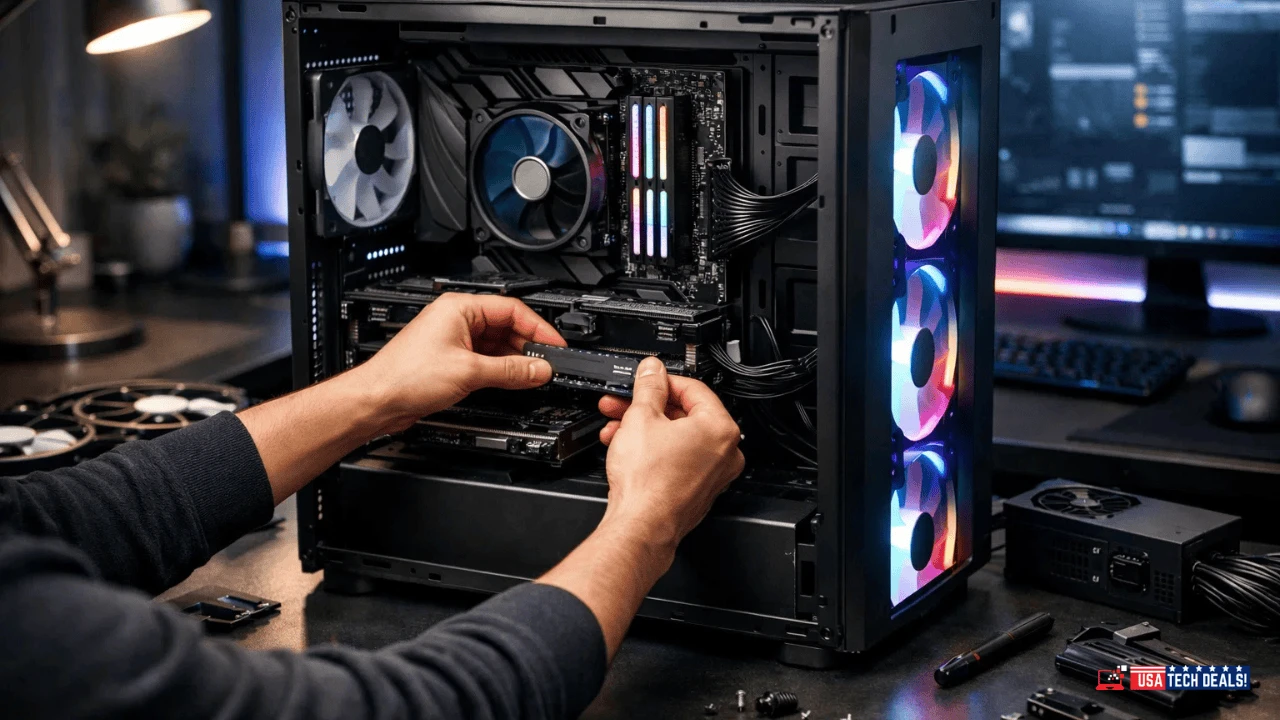
A slow PC can be frustrating—long boot times, laggy apps, system freezes, and poor multitasking can quickly kill productivity and enjoyment. The good news? You don’t always need new hardware to fix it.
In this guide, we’ll learn the essential steps on how to optimize your PC for better performance, covering everything from basic tweaks to advanced techniques.
These days, in the fast-paced digital world, your PC is more than just a tool; it’s how you work, play, and be creative.
In the long run, though, even the most powerful systems can become slow and stop working as planned.
It is important to know the key parts of your PC’s performance and take steps to improve them. This will not only make sure you have a smooth and efficient experience, but it will also help your device last longer.
According to Valuates Report, The global PC Optimization Software market was valued at US$ million in 2023 and is anticipated to reach US$ million by 2030, witnessing a CAGR of % during the forecast period 2024-2030.
In this complete guide, we will teach you everything you need to know about optimizing your PC. It will include both practical techniques and expert advice that will help you improve speed, avoid problems, and keep your system running like new for years to come.
Whether you’re a gamer, a professional, or a casual user, optimizing your computer can significantly improve its performance and extend its lifespan. In this detailed article, we’ll walk you through how to clean up your computer to run faster, how to improve computer performance, and how to optimize your PC for gaming. Best of all, these tips are completely free!
No matter if you’re a regular user or a tech nerd, learning these tips will help you get the most out of your PC and make sure it stays a reliable and powerful partner in all your projects.
If you’re facing slow performance, crashes, or system lag, this guide is part of our Troubleshooting Guides, where we break down practical, step-by-step solutions to help you fix common PC problems and keep your system running smoothly over time.
Table of Contents
ToggleWhy Optimize Your PC?
Over time, your computer accumulates unnecessary files, outdated software, and background processes that slow it down. Optimizing your PC not only speeds it up but also:
Enhances your gaming experience.
Improves multitasking capabilities.
Prevents crashes and freezes.
Extends the life of your hardware.
Let’s dive into the steps to transform your sluggish PC into a high-performing machine.
Understanding PC Performance
PC performance hinges on several key components, each playing a crucial role in how efficiently your system operates.
The CPU (Central Processing Unit) is often considered the brain of your computer.
It handles the execution of instructions from all programs and applications, making its clock speed and core count critical for processing power.
A faster, multi-core CPU can manage more tasks simultaneously, leading to smoother overall performance.
The GPU (Graphics Processing Unit) is vital for rendering images, videos, and animations.
It’s especially important for tasks like gaming, video editing, and 3D rendering.
A powerful GPU ensures that graphics-intensive tasks run smoothly, preventing stuttering or lag during high-demand operations.
RAM (Random Access Memory) serves as the temporary workspace for your PC, holding data that the CPU needs to access quickly.
The amount of RAM directly impacts your computer’s ability to multitask and run memory-intensive applications without slowing down.
Insufficient RAM can lead to sluggish performance and frequent freezing when too many applications are open.
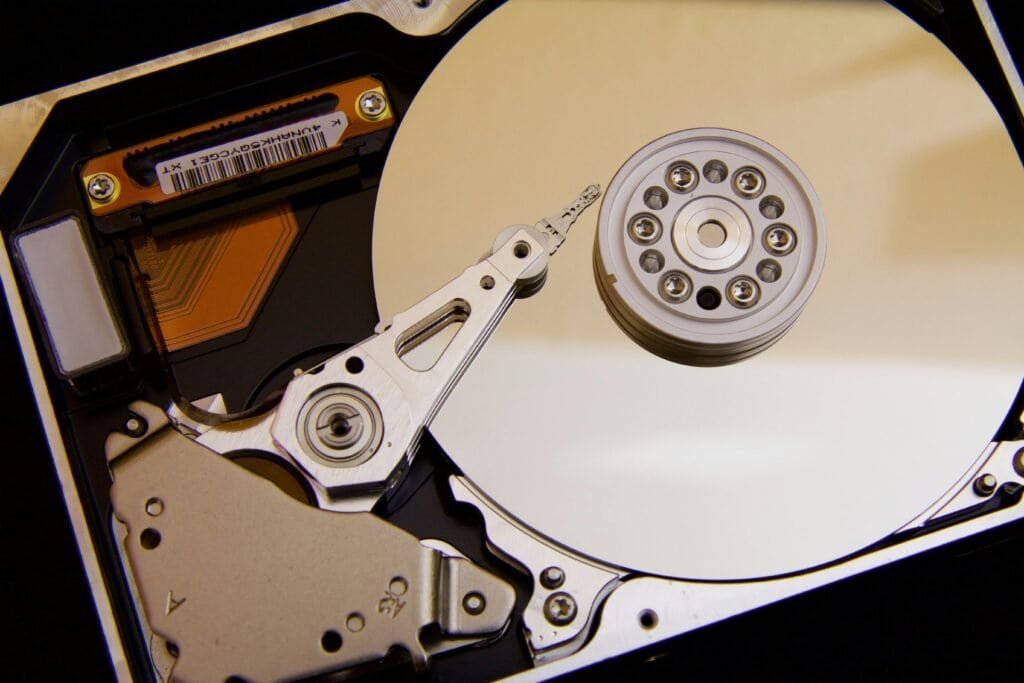
Storage Drives are where your operating system, applications, and files are stored.
Traditional HDDs (Hard Disk Drives) are slower but offer more storage space at a lower cost, while SSDs (Solid State Drives) provide faster data access speeds, leading to quicker boot times and reduced loading times for applications.
The type and speed of your storage drive significantly affect how fast your PC can retrieve and store data, impacting overall system performance.
Signs of Performance Degradation can manifest in various ways, signaling that your PC might be struggling to keep up.
Common indicators include slower boot times, frequent application crashes, longer loading times, and noticeable lag during multitasking.
Overheating components, increased fan noise, and unresponsive programs are also signs that your system may need optimization or hardware upgrades.
Identifying these issues early can help you take proactive measures to restore and maintain optimal PC performance.
How to Clean Up Your Computer to Run Faster
1. Delete Unnecessary Files
Your PC stores temporary files, cache, and other junk that take up valuable space. Here’s how to clean them up:
Use Disk Cleanup (Windows):
Press
Windows + Sand type Disk Cleanup.Select your main drive (usually C:).
Check the boxes for temporary files, recycle bin, and system files.
Click OK and then Delete Files.
Use Third-Party Tools: Tools like CCleaner can automate this process and clean deeper system junk.
2. Uninstall Unused Programs
Over time, you may have installed programs you no longer use. These can take up space and run background processes:
Press
Windows + Ito open Settings.Go to Apps > Installed Apps.
Uninstall programs you don’t need.
3. Clear Browser Cache
Your web browser stores cache files that can slow it down:
In Chrome, go to Settings > Privacy and Security > Clear Browsing Data.
Select Cached Images and Files and click Clear Data.
How to Optimize Your PC for Better Performance and Longevity
Basic Optimization Techniques
Implementing basic optimization techniques is essential to keeping your PC running at its best.
Regular System Updates are the first line of defense against performance issues.
By keeping your operating system and software up to date, you ensure that your system has the latest security patches, bug fixes, and performance improvements.
These updates can enhance stability and efficiency, preventing vulnerabilities that could slow down your PC.
Another crucial step is Disk Cleanup and Defragmentation. Over time, your hard drive accumulates unnecessary files, temporary data, and fragmented files that can slow down your system.
Performing regular disk cleanups helps remove these unwanted files, freeing up space and improving overall performance.
For traditional HDDs, disk defragmentation reorganizes fragmented data, allowing your system to access files more quickly.
Tools like Windows’ built-in Disk Cleanup utility and third-party software like CCleaner are effective methods for cleaning up and defragmenting your drives.
Managing Startup Programs is another key optimization technique. Many applications automatically start when you boot up your PC, consuming valuable system resources and slowing down the startup process.
Disabling unnecessary startup items can improve boot times and free up resources.
To do this, access the Task Manager in Windows (Ctrl + Shift + Esc), navigate to the ‘Startup’ tab, and disable programs that you don’t need to launch automatically.
This simple step can significantly speed up your PC’s startup and improve its overall responsiveness.
By consistently applying these basic optimization techniques, you can keep your PC running smoothly and extend its longevity, ensuring it remains a reliable tool for all your needs.
Advanced Performance Tweaks
For users looking to push their PC’s capabilities beyond standard performance, advanced performance tweaks offer significant enhancements, though they come with certain risks.
Overclocking is a popular technique that involves increasing the clock speed of your CPU or GPU to achieve higher performance than the manufacturer’s default settings.
While overclocking can lead to faster processing and improved graphics rendering, it also increases the risk of overheating, system instability, and reduced component lifespan if not done carefully.
Specialized software tools like MSI Afterburner for GPUs or Intel XTU for CPUs are commonly used to safely overclock.
These tools allow you to fine-tune voltage and clock speeds, monitor temperature, and test system stability to ensure a balanced performance boost without damaging your hardware.
Upgrading Hardware is another effective way to enhance your PC’s performance.
RAM upgrades can significantly improve multitasking and speed up applications that require a lot of memory. By increasing your system’s RAM, you reduce the likelihood of slowdowns when running multiple programs simultaneously.
Moving from an HDD (Hard Disk Drive) to an SSD (Solid State Drive) is one of the most impactful upgrades you can make. SSDs are much faster than traditional HDDs, offering quicker boot times, faster file access, and overall snappier system performance.
The switch to an SSD can breathe new life into an older PC, making it feel like a brand-new machine.
GPU enhancements are crucial for those involved in graphics-intensive tasks such as gaming or video editing.
Upgrading your GPU can dramatically improve rendering times, frame rates, and overall visual performance.
A more powerful GPU allows you to run modern games and applications at higher settings, providing a smoother and more immersive experience.
Additionally, pairing a strong GPU with an overclocked CPU can unlock even greater performance potential, though this requires careful power and cooling management.
By implementing these advanced performance tweaks, you can significantly boost your PC’s capabilities, ensuring it not only meets but exceeds your expectations for performance and longevity.
Software Optimization
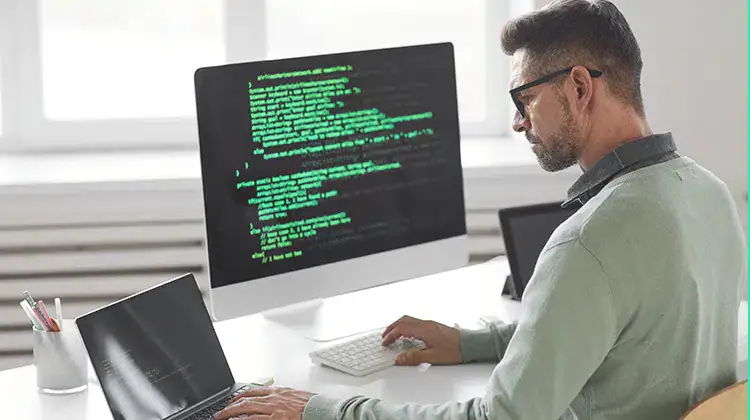
Optimizing your PC’s software settings is crucial for achieving better performance and longevity.
Optimizing Operating System Settings involves fine-tuning various aspects of your OS to enhance efficiency.
One key area is Power Settings, where adjusting your PC to a balanced or high-performance power plan can boost performance, particularly for tasks that require more processing power.
This setting ensures your CPU operates at its full potential when needed, while also managing energy consumption.
Additionally, modifying Visual Effects settings, such as disabling unnecessary animations and transparency effects, can free up system resources, making your PC more responsive, especially on older or less powerful machines.
Antivirus and Anti-malware software plays a critical role in maintaining system health and performance.
Choosing the Right Software is essential, as a lightweight yet effective antivirus program can protect your PC from threats without consuming excessive resources.
Reputable programs like Windows Defender, Bitdefender, or Malwarebytes offer robust protection with minimal impact on performance.
Regular scans and updates are vital to ensure your software can detect and neutralize the latest threats.
Regular Scans and Updates help maintain system security and prevent malware from slowing down your PC or compromising your data.
Updating Drivers is another important aspect of software optimization. Drivers are essential for ensuring your hardware components, like the GPU, network adapters, and peripherals, function correctly and efficiently.
The Importance of Driver Updates lies in the fact that manufacturers frequently release updates to improve compatibility, fix bugs, and enhance performance. Outdated drivers can lead to system instability, reduced performance, and even hardware malfunctions.
How to Update Drivers is straightforward; you can manually update them through Device Manager in Windows, or use dedicated software like Driver Booster to automate the process.
Keeping your drivers up to date ensures your PC runs smoothly and can take full advantage of the latest features and optimizations.
Focusing on these software optimization techniques can significantly enhance your PC’s performance, ensuring it remains secure, efficient, and capable of handling your computing needs well into the future.
Maintaining System Health
Ensuring your PC’s long-term performance and reliability requires a proactive approach to system health maintenance.
One of the most critical steps is Regular System Backups. Backups protect your data against hardware failures, software corruption, and accidental deletions.
Various Backup Solutions are available, including external hard drives, cloud storage services, and network-attached storage (NAS) systems.
Cloud solutions like Google Drive, OneDrive, or specialized services like Acronis offer automated backups, providing peace of mind that your data is secure.
The Frequency and Methods of backups depend on your usage and data importance. For most users, weekly backups are sufficient, while those handling critical or constantly changing data may opt for daily backups.
Methods include full system backups, which create an exact replica of your entire drive, and incremental backups, which only update files that have changed since the last backup, saving time and storage space.
Temperature Management is another crucial aspect of maintaining system health. Overheating can lead to performance degradation, system instability, and hardware damage.
The importance of Cooling cannot be overstated, especially for high-performance systems that generate more heat. Proper cooling ensures that your CPU, GPU, and other components operate within safe temperature ranges, thus prolonging their lifespan.
Effective cooling solutions include air cooling with fans, liquid cooling systems, and ensuring adequate airflow within the PC case through proper cable management.
To keep track of your system’s thermal health, you can use Tools and Techniques for Monitoring Temperature.
Software like HWMonitor, Core Temp, or NZXT CAM allows you to monitor real-time temperatures of your CPU, GPU, and other critical components.
These tools can alert you when temperatures exceed safe limits, enabling you to take preventive action before overheating causes damage.
Regularly checking and maintaining your cooling system, such as cleaning dust from fans and heat sinks, is essential for keeping your PC cool and stable.
By consistently backing up your data and managing your system’s temperature, you can significantly reduce the risk of data loss and hardware failure, ensuring your PC runs smoothly and efficiently for years to come.
Cleaning and Physical Maintenance
Regular cleaning and physical maintenance are vital for keeping your PC in optimal condition, ensuring both performance and longevity.
Cleaning the PC Interior is one of the most important tasks to prevent dust accumulation, which can lead to overheating and hardware damage.
Dust Removal should be done periodically using compressed air to blow out dust from fans, heat sinks, and other components. It’s crucial to do this in a well-ventilated area, with the PC turned off and unplugged.
For Proper Techniques for Cleaning, avoid using vacuums, as they can create static electricity that might damage sensitive components.
Instead, use a soft brush to gently dislodge dust, and hold fans in place while cleaning to prevent them from spinning and potentially causing damage.
Cable Management is another critical aspect of physical maintenance that often gets overlooked. Properly arranging and securing cables inside your PC case has several Benefits for Airflow and Organization.
Good cable management improves airflow, which helps in keeping your system cool and running efficiently.
It also makes future upgrades and maintenance easier, as organized cables are less likely to obstruct access to components.
Using cable ties, Velcro straps, or built-in case channels to route and secure cables can significantly enhance both the aesthetics and functionality of your PC.
Checking and Replacing Thermal Paste is another important maintenance task, particularly for those who frequently push their systems to the limit.
Thermal paste is applied between the CPU or GPU and their respective heat sinks to ensure efficient heat transfer.
Over time, this paste can dry out or lose its effectiveness, leading to increased temperatures.
Knowing When and How to Replace thermal paste is crucial for maintaining optimal cooling. It’s generally recommended to check the paste every couple of years or if you notice higher-than-normal temperatures.
To replace it, first, clean off the old paste with isopropyl alcohol and a lint-free cloth, then apply a small, pea-sized amount of new thermal paste in the center of the CPU or GPU before reattaching the heat sink.
By diligently cleaning the interior, managing cables, and monitoring thermal paste, you can prevent many common issues that affect PC performance and longevity, ensuring your system runs smoothly and efficiently for years to come.
Managing Storage
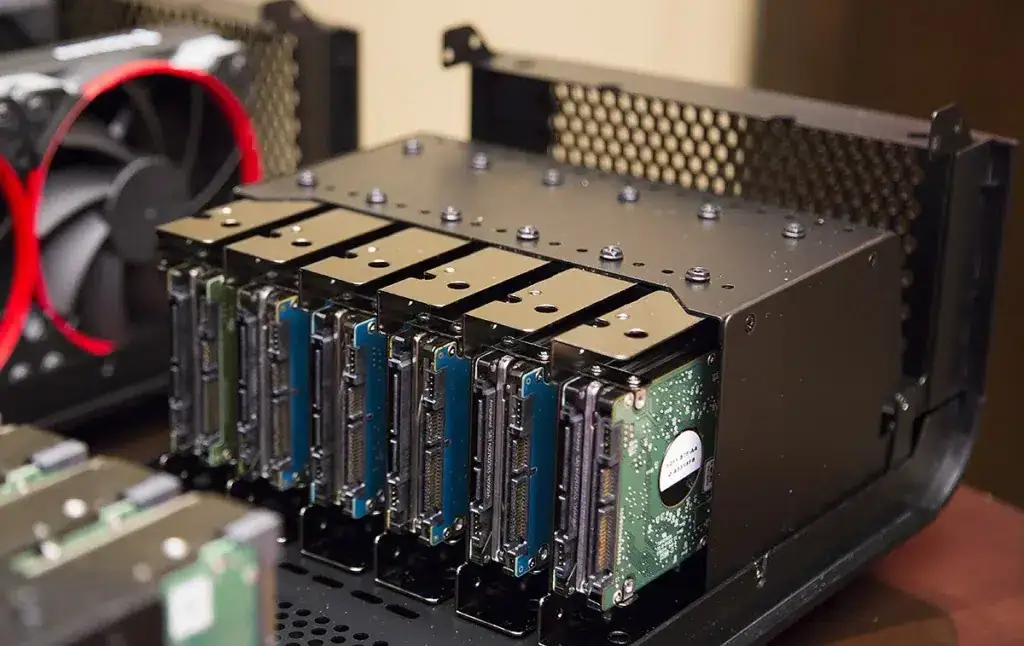
Effective storage management is key to maintaining your PC’s performance and extending its lifespan.
Optimizing Storage Space involves regularly clearing out files that are no longer needed.
Removing Unnecessary Files such as temporary files, duplicates, old downloads, and unused programs can free up valuable space on your hard drive, leading to faster access times and smoother operation.
Utilizing built-in tools like Windows Disk Cleanup or macOS’s Storage Management can simplify this process, automatically identifying files that can be safely deleted.
In addition to manual cleaning, Using Storage Management Tools can help automate and optimize your storage.
Tools like CCleaner, TreeSize, or WinDirStat provide detailed breakdowns of what’s taking up space on your drives, allowing you to make informed decisions about what to keep and what to remove.
These tools can also help you identify large files and folders, offering an easy way to manage space and improve system efficiency.
Handling External Storage is another important aspect of managing storage effectively. External drives, whether they are traditional hard drives, SSDs, or USB flash drives, offer Benefits and Use Cases that enhance your PC’s functionality.
They provide an excellent solution for offloading large files, such as multimedia projects, backups, or games, freeing up your internal storage for more critical tasks.
External storage is also useful for creating regular backups, which is crucial for data security and recovery.
Moreover, it allows for easy transfer of files between different devices, adding versatility to your storage options.
By optimizing your storage space and effectively utilizing external storage solutions, you can maintain a well-organized and efficient system that performs at its best, even as your data needs grow.
Enhancing User Experience
Customizing User Interface is a powerful way to make your PC feel more personal and improve your productivity.
Desktop Organization involves arranging your icons, shortcuts, and widgets in a way that makes it easier to access your most-used applications and files.
A tidy desktop not only looks better but also reduces the time spent searching for items, thereby improving workflow efficiency.
Taskbar and Start Menu Customization allows you to streamline your access to frequently used programs and settings.
Pinning your most-used applications to the taskbar and configuring the Start Menu to display essential tools and shortcuts can significantly enhance your overall user experience by making navigation quicker and more intuitive.
Improving System Responsiveness involves making tweaks that optimize how your PC handles tasks and processes.
System Performance Tweaks include adjusting settings such as visual effects and power plans to maximize efficiency. For example, turning off unnecessary animations and transparency effects can free up system resources and improve speed.
Additionally, tweaking power settings to favor performance over energy savings ensures that your PC operates at its best when you need it most.
Memory Management Tips are also crucial for maintaining system responsiveness. Efficient memory management involves monitoring and optimizing how your PC uses RAM.
Closing unused applications and background processes can free up memory, allowing your system to run smoother and handle more demanding tasks.
Tools like Task Manager in Windows or Activity Monitor in macOS can help you identify memory hogs and manage resource allocation effectively.
By customizing your user interface and implementing performance and memory management strategies, you can create a more efficient and enjoyable computing experience, ensuring that your PC remains responsive and tailored to your personal preferences.
Troubleshooting Common Issues
Diagnosing Performance Issues is crucial for maintaining a smooth and efficient PC experience.
Common Symptoms and Solutions include slow system performance, frequent freezes, and slow application loading times.
To diagnose these issues, start by checking the Task Manager or Activity Monitor to identify any processes consuming excessive CPU or memory resources.
Running a system scan with antivirus software can help detect malware that might be affecting performance.
Additionally, verifying that your hard drive isn’t running out of space and checking for software updates can resolve issues related to outdated programs or insufficient storage.
When it comes to Handling System Crashes, it’s essential to follow a systematic approach to identify and fix the underlying causes.
Steps to Resolve Crashes include rebooting your PC in safe mode to determine if a recent software or driver update is causing instability.
Checking for hardware issues such as overheating or faulty components, and running diagnostic tools can also help pinpoint the problem. Ensuring all drivers and operating system updates are current can prevent many common causes of crashes.
In the event of a crash, Data Recovery Tips become critical. If you experience a crash that results in data loss, using data recovery software like Recuva or EaseUS Data Recovery can help recover lost files.
Regularly backing up important data to an external drive or cloud storage can mitigate the impact of data loss. For more severe cases, professional data recovery services might be necessary to retrieve files from damaged drives.
By effectively diagnosing performance issues, handling system crashes with a clear strategy, and employing data recovery techniques, you can address common problems and ensure your PC continues to operate efficiently and reliably.
Future-Proofing Your PC
Preparing for Upcoming Software Requirements is essential to ensure your PC remains capable of handling new and evolving software demands.
As software developers release updates and new applications become more resource-intensive, it’s important to anticipate and adapt to these changes.
Upgrading your hardware, such as increasing RAM or installing a faster SSD, can help your system keep pace with the increasing demands of modern applications and operating systems.
Keeping an eye on system requirements for upcoming software and games can also guide your upgrade decisions, allowing you to make strategic improvements that align with future needs.
Regularly reviewing and updating your hardware and software ensures your PC can run the latest programs efficiently and avoid becoming obsolete.
Long-Term maintenance Strategies are crucial for sustaining your PC’s performance over time. Establishing a routine for system health checks, including regular backups, disk cleanups, and hardware inspections, helps prevent issues before they become serious problems.
Implementing scheduled maintenance tasks, such as defragmenting your hard drive or cleaning dust from your PC’s interior, can prolong the life of your components and maintain optimal performance.
Staying informed about technological advancements and being proactive with upgrades and maintenance allows you to address potential issues early and keep your PC running smoothly well into the future.
By combining strategic upgrades with consistent maintenance, you can ensure your PC remains a reliable and high-performing tool for years to come.
How to Improve Computer Performance
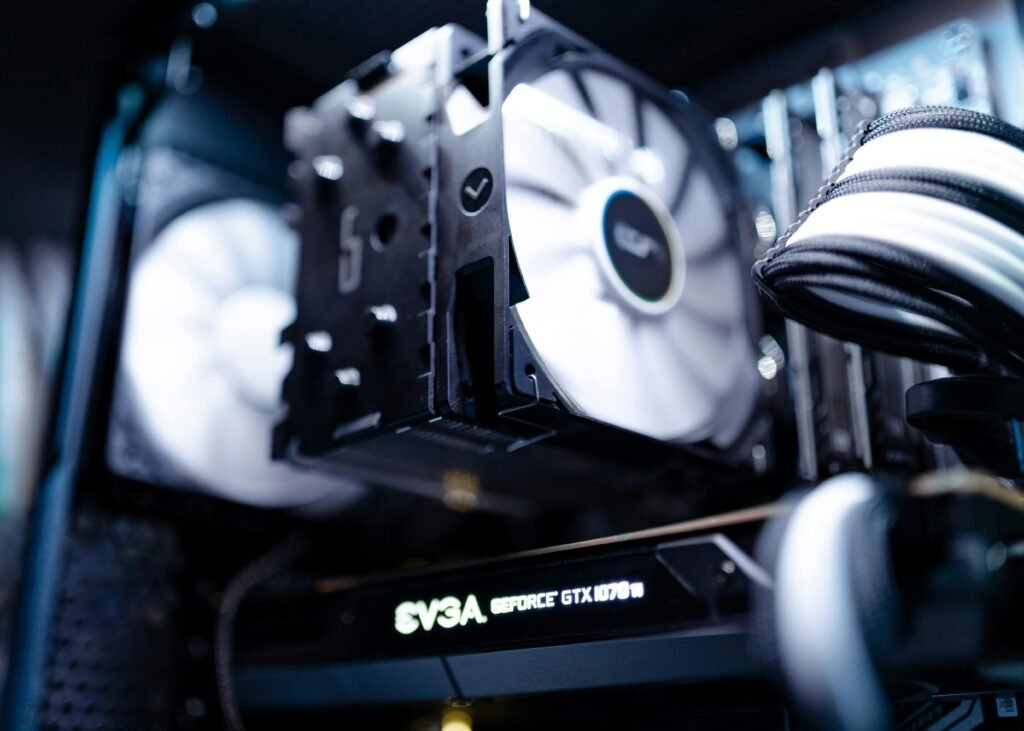
1. Disable Startup Programs
Too many programs launching at startup can slow down your boot time:
Press
Ctrl + Shift + Escto open Task Manager.Go to the Startup tab.
Disable programs you don’t need at startup.
2. Optimize Your Hard Drive or SSD
Defragment Your Hard Drive (HDD):
Search for Defragment and Optimize Drives in the Start menu.
Select your drive and click Optimize.
Trim Your SSD:
SSDs don’t need defragmentation, but you can enable TRIM to maintain performance:
Open Command Prompt as Administrator.
Type
fsutil behavior set DisableDeleteNotify 0and press Enter.
3. Update Your Drivers
Outdated drivers can cause performance issues:
Press
Windows + Xand select Device Manager.Check for updates under categories like Display Adapters and Network Adapters.
Alternatively, use tools like Driver Booster to automate updates.
How to Optimize Your PC for Gaming
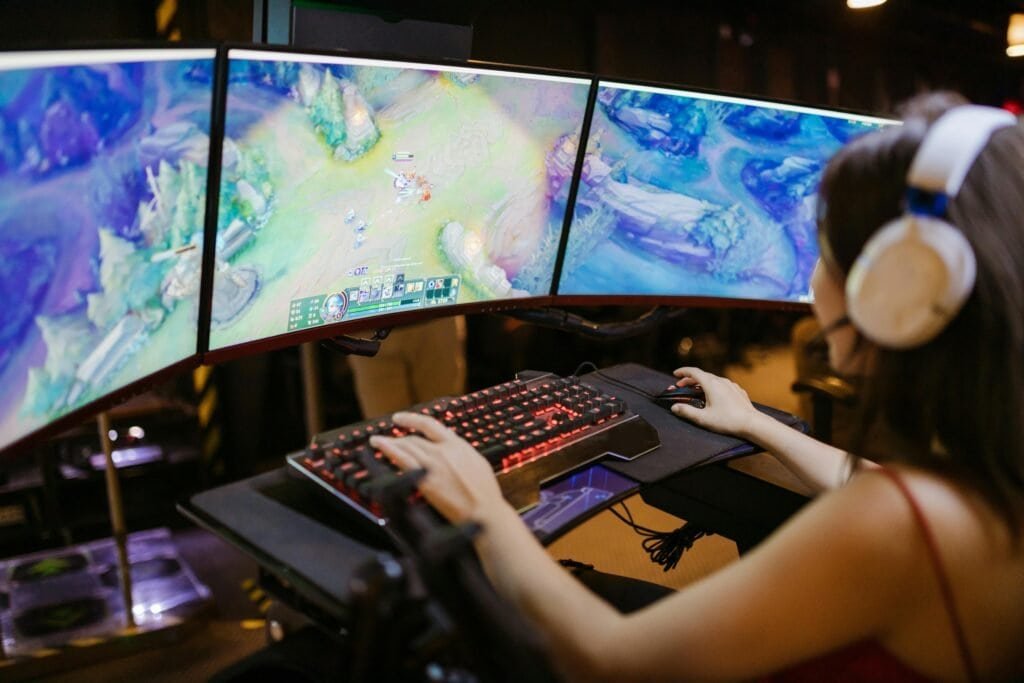
1. Adjust In-Game Settings
Lower graphics settings like shadows, anti-aliasing, and textures.
Enable VSync to reduce screen tearing.
2. Optimize Windows for Gaming
Enable Game Mode:
Press
Windows + Ito open Settings.Go to Gaming > Game Mode and toggle it on.
Disable background apps:
Go to Settings > Privacy > Background Apps.
Turn off apps you don’t need running in the background.
3. Overclock Your GPU
Use tools like MSI Afterburner to safely overclock your GPU for better gaming performance.
Monitor temperatures to avoid overheating.
Troubleshooting Common Issues
1. High CPU or RAM Usage
Open Task Manager to identify resource-hogging processes.
End unnecessary tasks or uninstall the associated software.
2. Slow Boot Times
Disable startup programs (as mentioned earlier).
Ensure your OS and drivers are up to date.
3. Frequent Crashes
Check for overheating or faulty hardware.
Run a malware scan to rule out infections.
Also Read These Articles:
If you’ve optimized your PC and still experience performance limitations, it may be time to evaluate whether your hardware meets your current needs. Our Tech Buying Guide section helps you understand when an upgrade makes sense and how to choose the right components or devices without overspending.
Conclusion: How to Optimize Your PC for Better Performance
Optimizing your PC for better performance and longevity involves a comprehensive approach that addresses both immediate improvements and long-term upkeep.
Understanding the key components affecting performance—such as the CPU, GPU, RAM, and storage drives—can help you identify critical areas that need attention.
Basic optimization techniques like regular system updates, disk cleanup, and managing startup programs lay the foundation for a smoother and more responsive system.
Advanced performance tweaks, including overclocking and hardware upgrades, can push your PC to its limits, but they should be approached carefully and properly.
Software optimization is equally vital, with efforts focused on adjusting operating system settings, maintaining updated antivirus protection, and ensuring your drivers are current.
Maintaining system health through regular backups, effective temperature management, and physical cleaning helps to prevent issues and extend the life of your PC.
Properly managing storage, enhancing the user experience, and troubleshooting common problems further ensure that your PC runs efficiently.
Looking ahead, preparing for upcoming software requirements and implementing long-term maintenance strategies will keep your system relevant and capable of handling future demands.
By integrating these key strategies and tips, you’ll not only optimize your PC’s performance but also ensure its longevity, allowing it to serve you well for years to come.
What’s your favorite PC optimization tip? Share it in the comments below!
Loved This Guide? Share It and Stay Updated!
If you found this guide on how to optimize your PC for better performance helpful, please share it with your friends, family, or anyone who might benefit from these tips. Spreading the word helps us create more useful content for tech enthusiasts like you!
Don’t Miss Out on More Tech Tips!
Want to stay updated with the latest tech news, product reviews, and tutorials? Subscribe to our email newsletter and get exclusive content delivered straight to your inbox. Plus, you’ll be the first to know about the best tech deals and discounts!
FAQs: How to Optimize Your PC for Better Performance

Md Afraz Alam is a digital marketing consultant, content strategist, and the founder behind Techfee and USA Tech Deals. Through USA Tech Deals, he shares research-driven home office technology guides, product comparisons, remote work setup tips, and practical tech buying insights designed to help U.S. professionals, freelancers, and remote workers make smarter technology decisions without overspending on the wrong products.